
Pay Bills, One or Many
Pay one vendor's bills with their open credits applied first, or pay bills from several vendors in one pass, and find, correct or void a bill payment afterward.
On this page
A bill payment records money leaving the client's bank or card account to pay what they owe a vendor. Books gives you two ways to do it. Pay bills pays one vendor, and lets you split the money across that vendor's open bills and use any credits the vendor owes them. Pay selected pays bills from several vendors at once, one payment per vendor, from the bills list.
Saving a payment posts it. Books debits Accounts Payable and credits the account the money left, dated on the payment date, and the screen shows that entry before you save (On save: DR Accounts Payable … · CR 1000 Business Checking …). Vendor credits you apply alongside the payment post no entry of their own: they reduce the bills, and only the cash is paid.
Understand Bill payments
AP / Bills → Payments lists every bill payment for the client, newest first. The line under the title sums them up, for example 9 payments · $20,656.90 paid YTD, and adds the unapplied credit when there is any.
The columns are Vendor, Payment #, Date, Method, Paid from, Amount, Unapplied and Status. Status reads Applied, Credit (part of the payment is not applied to any bill yet) or Void.
A payment from a credit card carries a Not 1099 tag, because card payments are left out of 1099 totals. A mailed check also shows where the paper is, such as In the mail or Delivered (see Mail Checks for a Client).
Search covers the vendor, the payment number and the account. Filter by Status, Credit, Method, Vendor, Paid from, Date, Amount or Unapplied. The Shown line totals Amount and Unapplied for the rows on screen, and voided payments are never counted in either. Click a row to open the payment.
Pay one vendor's bills
- Click Pay bills on the Payments list, on a vendor's page, or Pay bill on a bill. From a bill or a vendor, the vendor is filled in already, and from a bill that bill is ticked.
- Choose the Vendor. Their open bills appear under Apply to open bills, oldest due date first. A line under the vendor shows their Open balance, what is Overdue, and their Last payment, with a link to Open vendor.
- Set the Date and Method: Check, Mailed check, ACH, Card, Cash, Wire or Other.
- Check Pay from. It starts on the vendor's default payment account, or the client's default bank account when the vendor has none.
- Tick the bills to pay. Amount fills itself with what the ticked bills owe, less any credits applied.
- Type a check number or reference, and click Record payment.
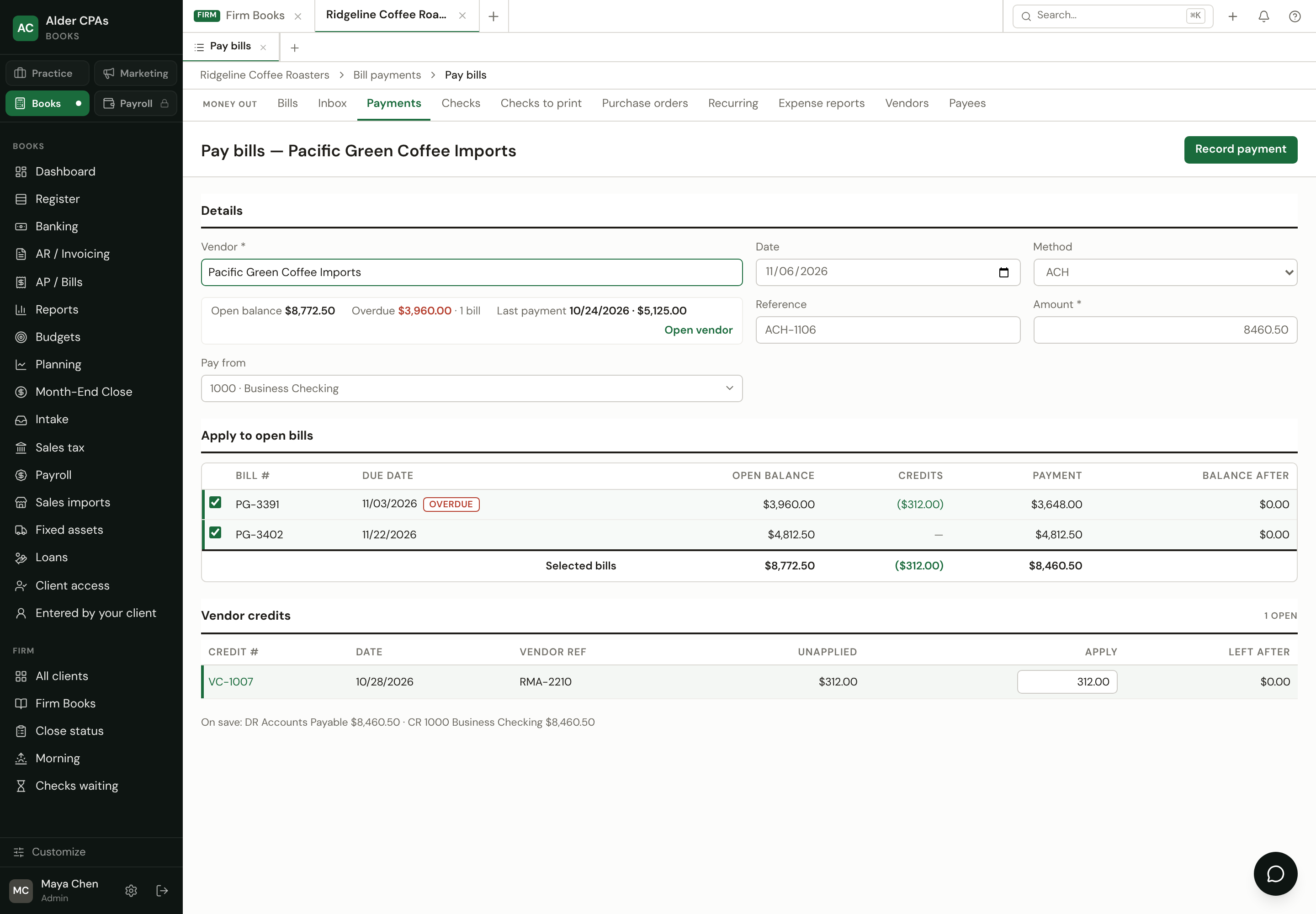 Paying Pacific Green Coffee Imports: two bills, one overdue, with a $312.00 credit applied, so $8,460.50 is paid by ACH
The table shows what each bill gets: Open balance, Credits, Payment and Balance after, totaled on the Selected bills line. Books opens the payment when it is recorded.
Pay part of a bill, or more than is owed
You can type any Amount. Books spreads it over the ticked bills oldest due date first, so a part payment pays the oldest bill before the next. If you type an amount with nothing ticked, Books ticks the open bills, oldest due first, until the amount is covered. Change any tick before you record it.
If the amount is more than the ticked bills owe, the rest is shown as $… will stay as vendor credit, and the payment is recorded with that much unapplied. A vendor with no open bills says This vendor has nothing outstanding. A payment recorded now becomes vendor credit. To use that credit later, open the payment and click Apply credit (see Fix or undo a payment).
Apply the vendor's credits
When the vendor has open credits, they are listed under Vendor credits with the Credit #, Date, Vendor ref, what is Unapplied, Apply and Left after. Books applies them before any cash: the oldest credit first, to the oldest ticked bill first, and never more than the ticked bills owe. Amount then holds only what is left to pay.
Type a different Apply amount on a credit to use less of it, or 0 to keep it for later. If a credit's Apply amount is more than it has left, or more than the ticked bills still owe, Books says which and holds the payment until you lower it.
When the credits cover the ticked bills entirely, no money moves: the button reads Apply credits, and Books applies them and posts nothing. When the payment and the credits go through together, they go through together or not at all.
Only Pay bills applies credits. Pay selected pays each bill's full balance in cash, so pay a vendor with open credits from Pay bills.
Pay by check, now or later
With Check as the method the reference field becomes Check #. Type the number of the check you are writing, or, when you pay from a bank account, tick Print later (add to Checks to print): the payment is recorded now, the check waits on Checks to print, and it is numbered when the print run is confirmed.
The toast reads Payment recorded — on Checks to print. A payment by check with no number also offers Print check on its own page, which puts it on Checks to print and opens the page to print just that check.
If you type a check number that is already on another check from the same bank account, Books warns you before you save. The warning names the other check, whether it was a bill payment or a check written from Write check:
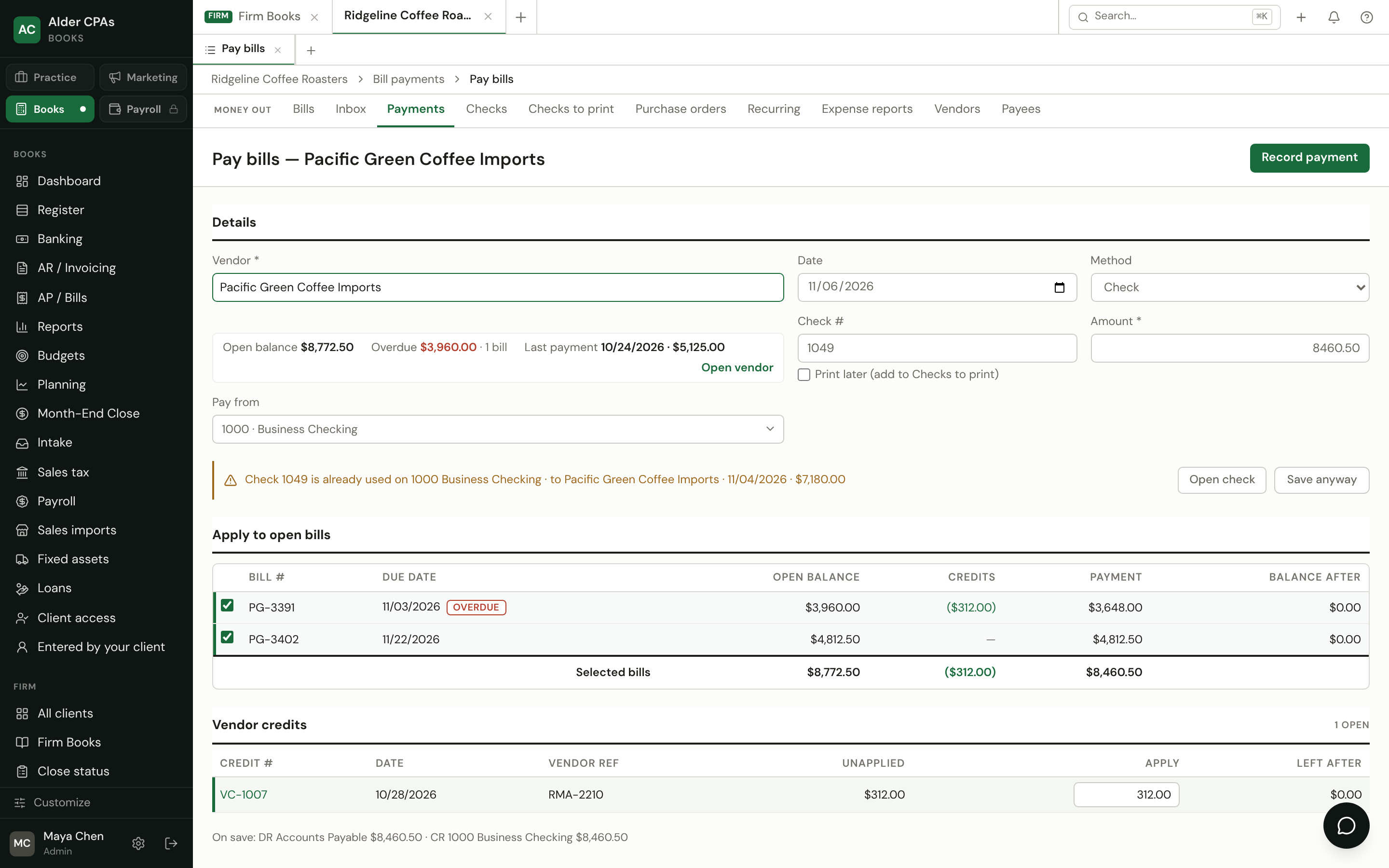 Check 1049 is already used on 1000 Business Checking, by a check written to Pacific Green Coffee Imports on 11/04/2026 for $7,180.00
Click Open check (or Open payment) to look at the other one, or Save anyway to dismiss the warning. It never stops you recording the payment. A voided check doesn't count, and a blank check number never warns.
Pay with a card
Choose a credit card under Pay from and the method changes to Card by itself, with the note Card payments are excluded from 1099 totals. The reference field reads Card reference.
Pay several vendors at once
- Go to AP / Bills → Bills.
- Tick the bills to pay. Books shows how many you picked, what they owe and how many vendors, for example 4 selected ($2,716.05 owed, 3 vendors).
- Click Pay 4 in the selection bar, or Pay selected at the top.
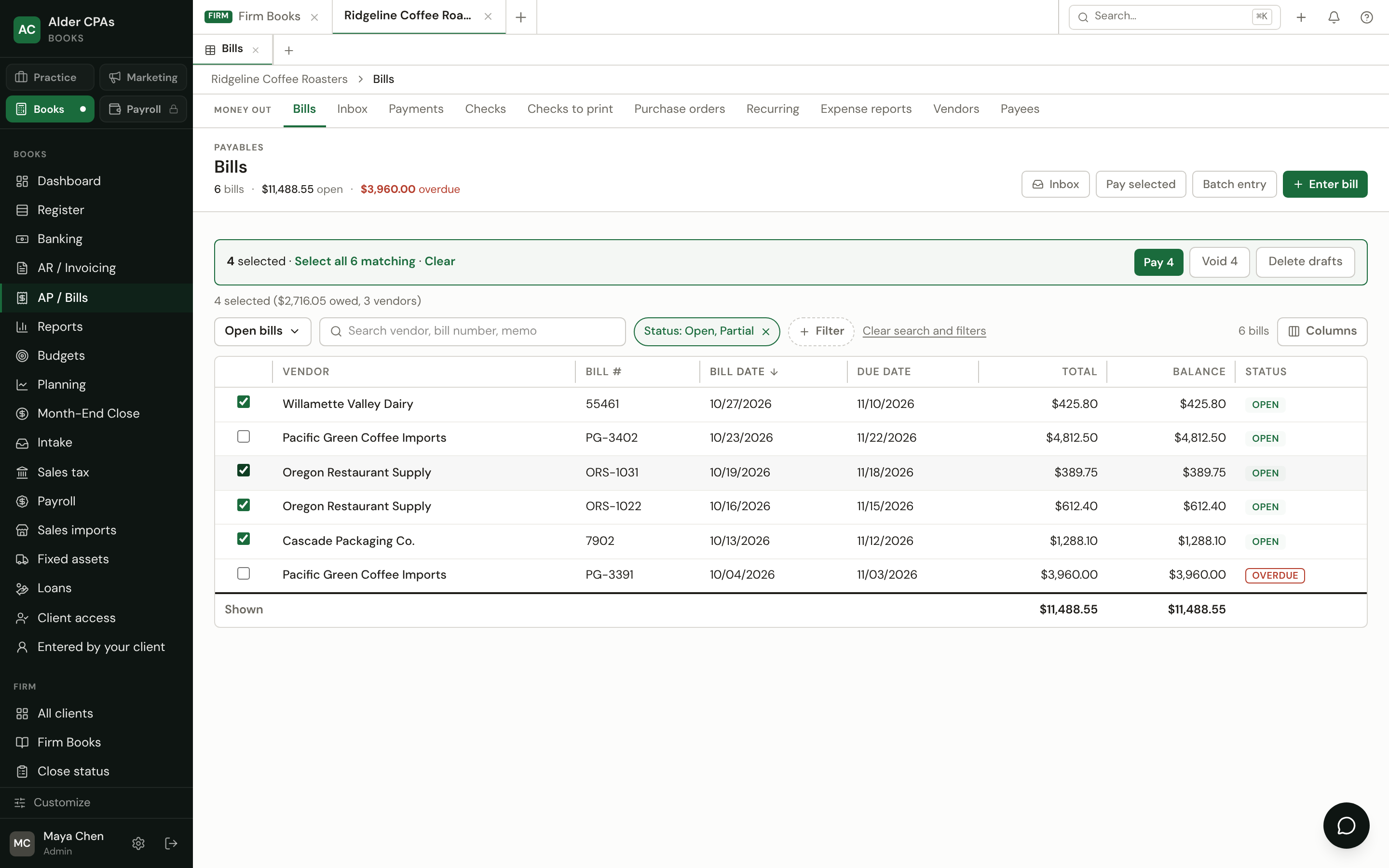 Four bills from three vendors ticked on the bills list
Review payments opens with one card per vendor, in name order, and each vendor's bills oldest due first. Each card has its own Pay from, Method, Reference and Date, and the entry it will post. Pay from starts on the vendor's default account, or the client's default bank account. Every bill is paid in full.
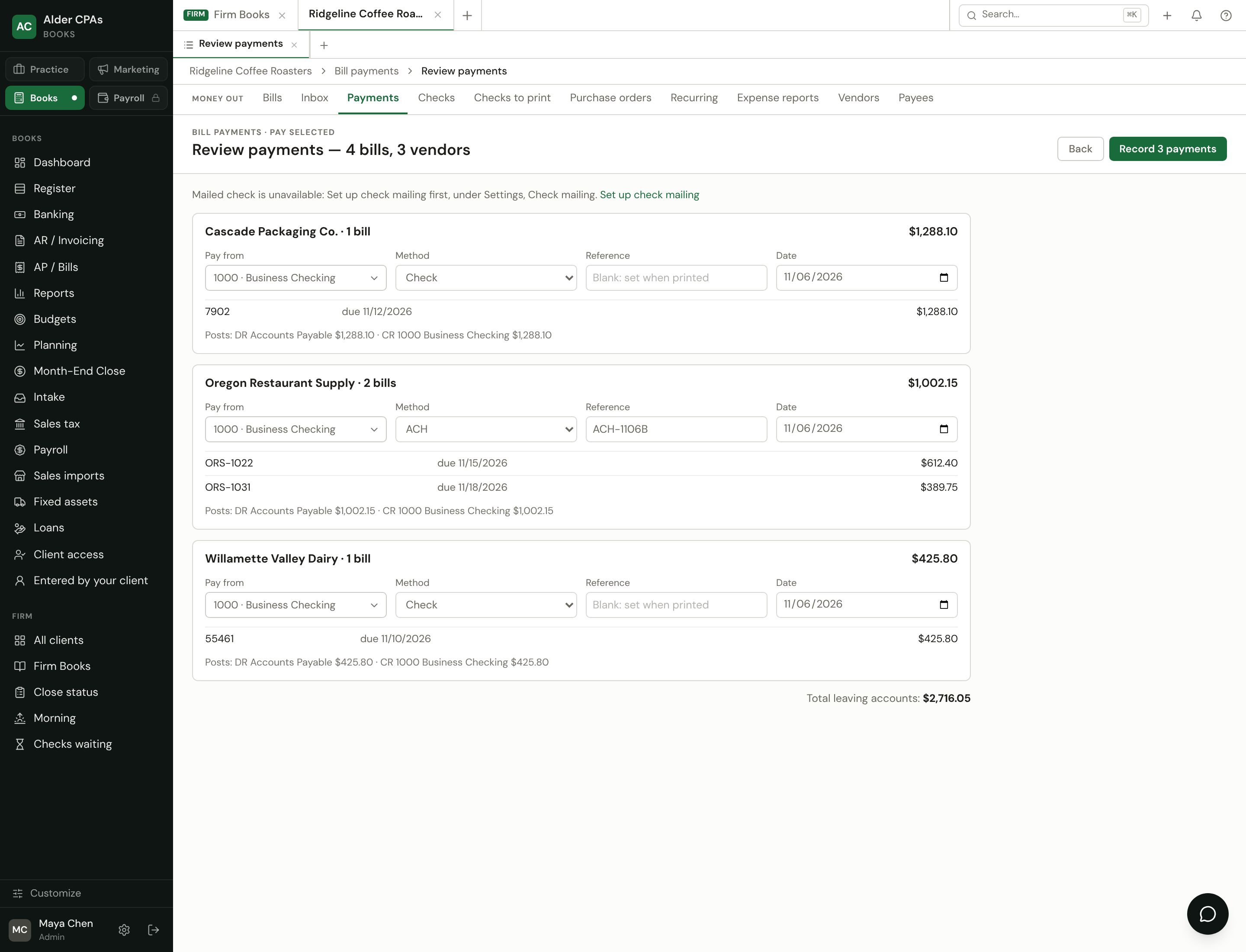 Review payments for three vendors: two checks with no number yet, and two bills paid by ACH, $2,716.05 in all
- Change anything on a card. Total leaving accounts at the bottom adds up every card.
- Click Record 3 payments.
Each card collapses to Recorded with a link to View payment. A check paid from a bank account with the Reference left blank (it reads Blank: set when printed) goes on Checks to print, and the card says On Checks to print; its number is set when it prints. A Print 2 checks now button takes you there.
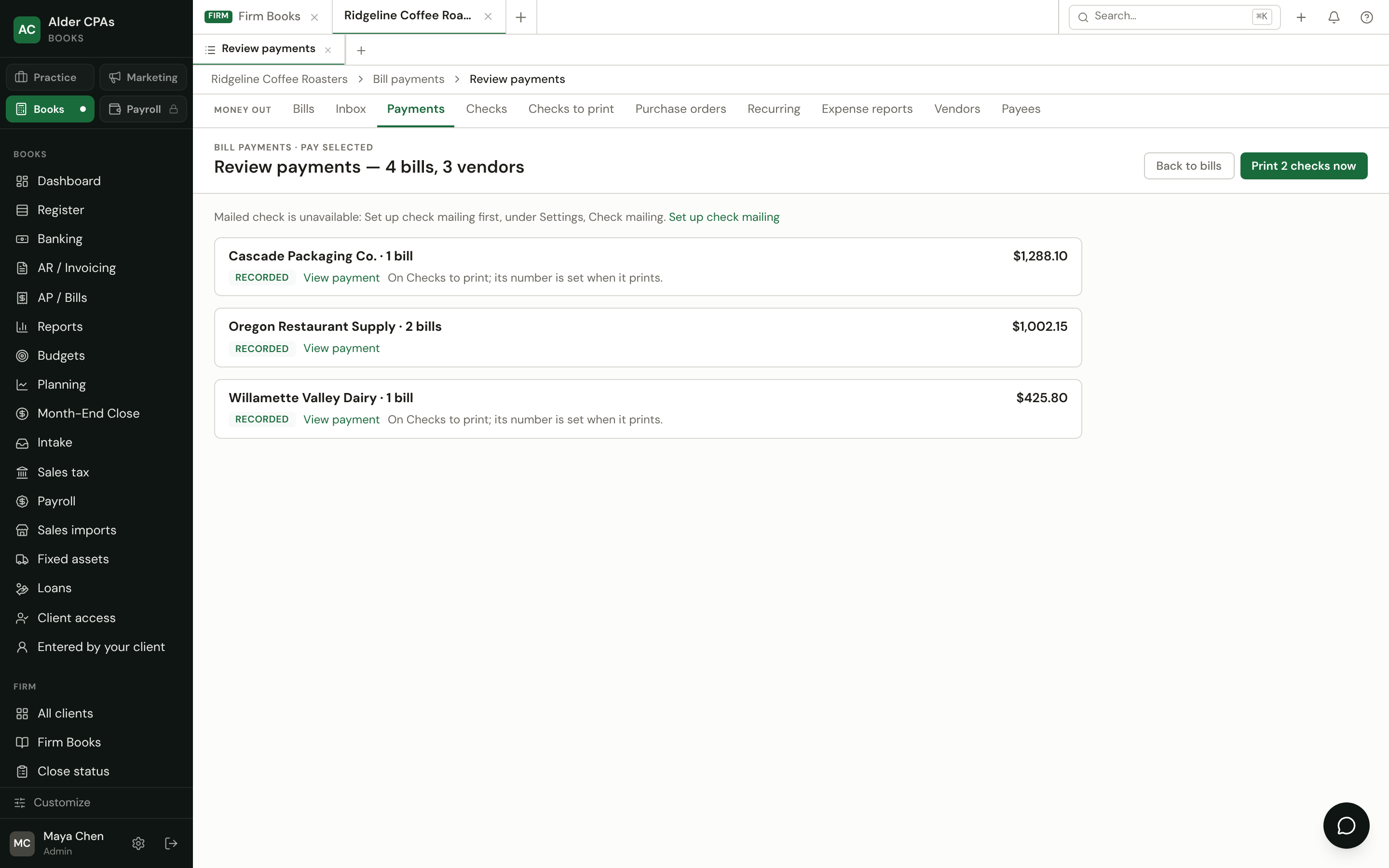 After Record: three payments recorded, and the two checks on Checks to print
Some things to know:
- A bill paid or voided since you ticked it is left out. The page says how many, for example 1 selected bill is no longer owed and is not included., and nothing is ever paid twice.
- One vendor's problem doesn't stop the others. A card Books could not record stays open, outlined in red, with the reason after Not recorded:. Fix it, then click Retry 1 failed payment: only the failed cards are sent again, and a card that did go through is never recorded a second time.
- Mailed checks can be chosen per card. They are confirmed together before anything is sent: see Mail Checks for a Client.
- The duplicate check number warning works on each card too.
Open a payment
A payment's page shows the vendor, its status, the method and number, the date paid and the total. Under Applied to are the bills it paid. When credits were applied with it, the table shows what the credits took and what the cash paid for each bill, and Credits applied with this payment lists the credits.
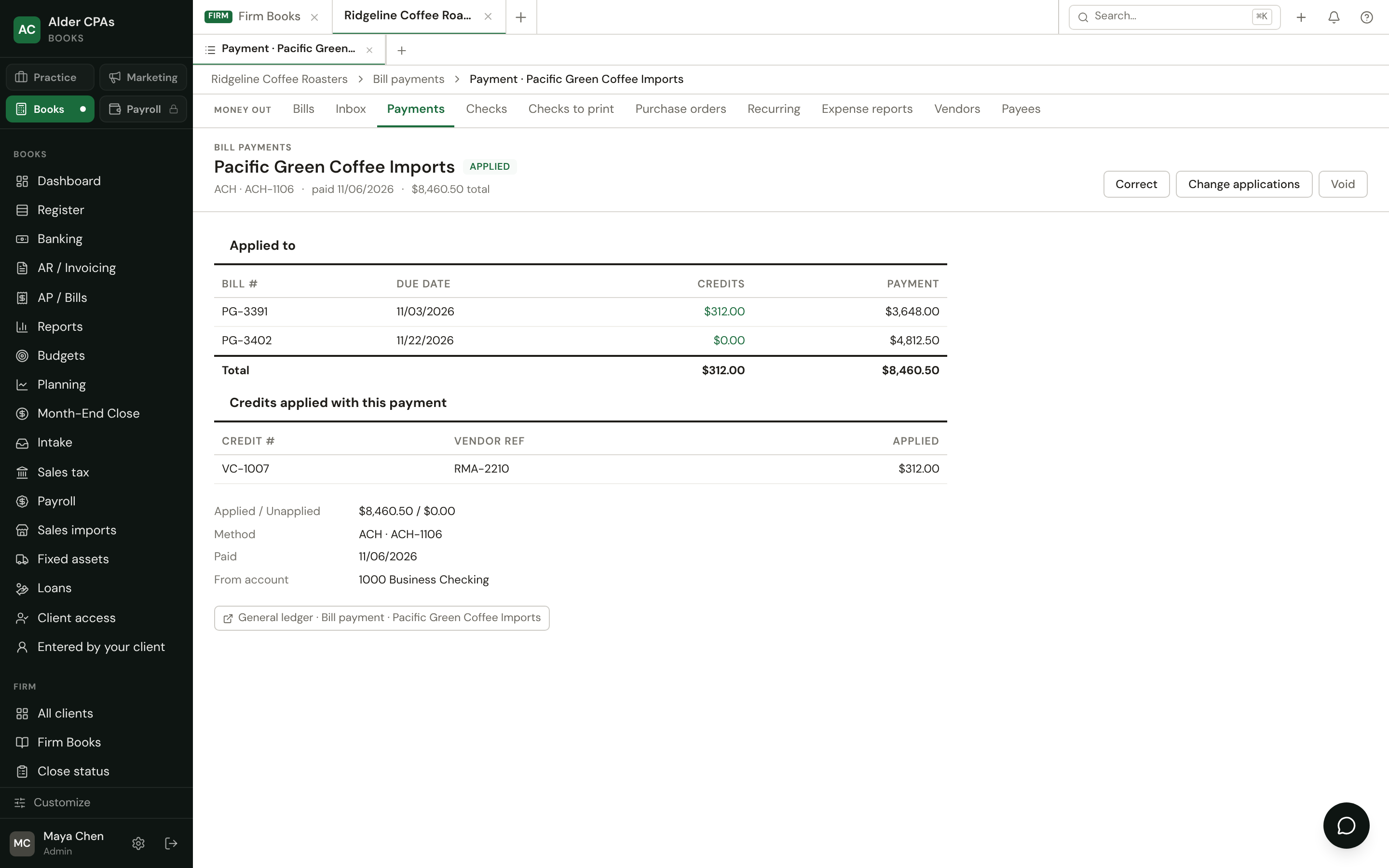 The ACH payment to Pacific Green Coffee Imports: $312.00 of credit and $8,460.50 of cash across two bills
The details below give Applied / Unapplied, Method, Paid and From account, and General ledger opens the entry it posted.
Fix or undo a payment
Every action is on the payment's page.
- Correct fixes what was entered wrong: the date, amount, account, memo or payment number. A change to the date, amount or account reverses the posted entry and posts it again; the memo and payment number change on their own. Books checks the change before you save it, and a change to a reconciled payment asks you to confirm what it does to that reconciliation.
- Change applications moves the payment between the vendor's bills without changing the amount. Moving it posts nothing to the ledger.
- Apply credit appears when part of the payment is unapplied. Type what to apply to each open bill; the total can't be more than the credit available.
- Void reverses the payment.
Void a bill payment
-
Open the payment and click Void.
-
Read when the reversal is dated and what the void releases. A payment dated today reverses today. One dated earlier reverses on its own date while that month is open, and today once the month is closed, and the dialog says both, for example The reversal is dated 11/06/2026, the payment’s date, while that period is open, or today once it is closed.
If the payment paid any bills, it then says what is applied: $8,460.50 is applied to bills. Voiding takes back what this payment paid; anything else paid on those bills, such as a credit, stays applied:, and lists every bill the payment paid with the amount restored and what it owes again, for example Bill PG-3402 — $4,812.50 restored, so it owes $4,812.50 again.
-
Type a reason of at least 10 characters. Books checks the void as you type, so a void that can't go through says why before you click.
-
Click Void payment.
The payment stays on the list with a Void status, and its page shows the reason. What it paid goes back on the bills, and credits applied with it stay applied, so a bill that also had a credit goes back to partly paid, not to open. Nothing is deleted. Voiding a check that has already been mailed has one more warning; see Mail Checks for a Client.
Questions people ask on these screens
How do I pay several bills at once? Tick them on the bills list and click Pay selected (or Pay N in the selection bar). Books makes one payment per vendor. To pay several bills from one vendor with one check, tick them all on Pay bills.
How do I void a bill payment? Open it from AP / Bills → Payments, click Void, give a reason of at least 10 characters, and click Void payment. See Void a bill payment.
Why was my check not mailed? Books won't record a mailed check while the client's bank account isn't verified, and a check already waiting to go out waits until it is verified again.
A mailed check also waits for 48 hours after its bank numbers or signature change, and while the owner's approval or authorization is still needed. A check you void before it goes out is never mailed. Mail Checks for a Client covers each case.
Why can't I record this payment?
Record payment stays grayed out until the form is complete, and the reason is shown beside it:
- Choose a vendor., Pick an account to pay from. or Enter an amount.
- An amount field holds text that is not an amount. Fix the amount, or the Apply amount on a credit.
- The mailing address needs a name, street, city, state and ZIP. (a mailed check).
- Mailed check can't be chosen for this client. The reason mailing is off is shown under the form; choose Check instead, or see Mail Checks for a Client.
- A date before the client's books start: These books start on Jan 1, 2025, so this payment can’t be dated Dec 31, 2024. Date it on or after Jan 1, 2025.
- A read that failed, such as The vendor's credits could not be loaded — retry before recording a payment. Books won't record a payment while it can't see the vendor's credits, because it can't tell which apply.
On Review payments, the reason is on the card and on Record, for example Pick an account to pay from.
Other answers you may see:
- The date is in an earlier fiscal year. Books asks first, for example Add an entry to fiscal year 2025?, and nothing is recorded if you cancel. On Review payments it asks once for every payment in that batch.
- The date is in a tax year that has been filed. Books asks you why the payment belongs in that year, in at least 10 characters, and records the reason with the payment. On Review payments it asks once for the payments recorded together, before any of them is recorded; a mailed check asks for its own. Credits applied with no payment post nothing and are never asked.
- The month is locked. Books refuses to record a payment dated in a hard-locked month. Date it in an open month, or have the month reopened.
- Pay bills is grayed out. It needs the Pay bills permission for the client, and a person without it sees You need the "Pay bills" permission for this. Ask an admin to grant it. Voiding needs Void or reverse a posted entry.
Shortcuts and tips
- Do the math in the field. Amount, the credit Apply amounts and Apply credit all work out a sum: type
3960-312and the field settles to 3648.00 when you leave it or press Enter. A leading=,$, commas and spaces are ignored, and*and/work too. - Tab leaves the date in one press, instead of stepping through month, day and year.
- Add a vendor without leaving the page. Type a name in Vendor that isn't on the list and choose Create "…".
- Start from the bill. Pay bill on a bill opens Pay bills with the vendor chosen and that bill ticked.
- Let the oldest bill go first. Type the amount of the vendor's check with nothing ticked, and Books ticks the oldest bills until it is covered.
- Leave check numbers blank when you print in Books. Pay selected puts every blank-numbered check from a bank account on Checks to print in one step, and the numbers follow the printer.
- Check what is outstanding afterward. The check reports show every check from a payment, by number and by age: see Check Reports: Outstanding, Voided, Number Gaps and Positive Pay.