
Billable Expenses: Bill Your Customer for Costs
Mark a cost on a bill, bank line, receipt or journal entry as billable to a customer, then put it on that customer's invoice with your markup.
On this page
Some costs are really your customer's. Ridgeline Coffee Roasters pays a printer for 2,000 bags with Blue Heron Café's logo on them, ships the café's wholesale order, and replaces the burrs on a grinder it lent them.
Each of those costs is paid first and billed to the café later. Billable expenses keep track of them: you mark the cost as billable to a customer when you record it, it waits on that customer's Unbilled list, and when you invoice, Books adds it with your markup.
Marking a cost billable never moves the cost. The expense stays on the account you posted it to, and the mark posts nothing. Money moves only when the invoice posts: when you click Save and send, or Save without sending. Then the cost part goes to the line's revenue account (your income account for billed expenses, unless the item has its own) and the markup to your markup account.
Understand the Billable expenses settings
Billable expenses are off for each set of books until someone turns them on. Everything on this page applies to one client's books.
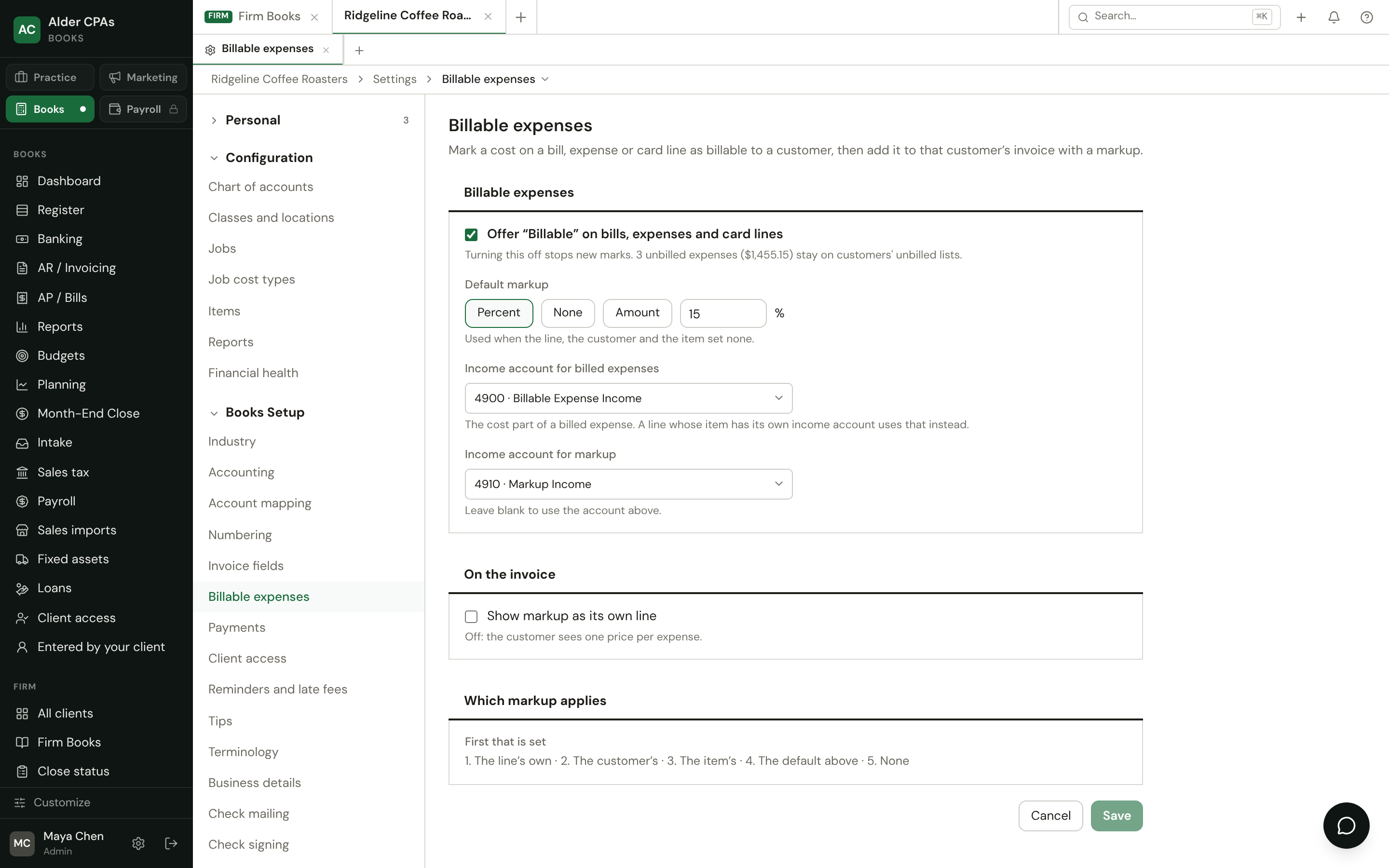 Settings → Billable expenses for Ridgeline Coffee Roasters, with a 15% default markup
- Offer "Billable" on bills, expenses and card lines turns the feature on. While it is off, nothing can be marked billable. While it is on, the line under it says what turning it off would leave behind. For example: Turning this off stops new marks. 3 unbilled expenses ($1,455.15) stay on customers' unbilled lists. Turning it off never removes an expense that is already marked.
- Default markup — Percent, None or Amount. It is used when the line, the customer and the item set none.
- Income account for billed expenses — where the cost part of each billed expense goes. A line whose item has its own income account uses that account instead. You can't turn billable expenses on until you choose one.
- Income account for markup — where the markup goes. Leave it on Same as the account above to keep cost and markup in one account.
- Which markup applies — the order Books follows, explained in How the markup is chosen.
Only active income accounts are offered. Make your changes, then click Save. Save and Cancel stay off until something has changed.
Turn on billable expenses
- Open Settings. Under Books Setup, choose Billable expenses.
- Select Offer "Billable" on bills, expenses and card lines.
- Choose the Income account for billed expenses. Choose an Income account for markup too if you track markup apart.
- Set the Default markup, if you charge one.
- Click Save.
Type a markup the way you think of it. A percent box takes 15, 12.5 or 15%. An amount box takes 25, 25.00 or $25. Percents go from 0 to 1,000 with up to two decimals.
How the markup is chosen
Each expense takes the first markup that is set, in this order:
- The line's own, set when you mark the cost billable.
- The customer's — Markup on billable expenses on the customer's Settings tab.
- The item's — the same field on the item, under Settings → Items.
- The default on the Billable expenses page.
- None.
A level set to None counts as set. Give a customer None, and their expenses carry no markup even when your default is 15%.
On a customer or an item, Books' default shows the default with its value, for example Books' default (15%). Choosing it means "use the default." A percent or amount you type there saves when you press Enter or leave the box.
How the math works. A percent markup is worked out on each expense on its own and rounded to the cent. The amount to bill is the cost plus the markup.
| Cost | Markup | Amount billed |
|---|---|---|
| $1,240.00 | 15% = $186.00 | $1,426.00 |
| $128.40 | 15% = $19.26 | $147.66 |
| $86.75 | None = $0.00 | $86.75 |
Until an expense goes on an invoice, its markup is whatever applies today. Change the default or the customer's markup, and every waiting expense that uses it follows. Once an expense is on an invoice, its markup is fixed.
Mark a cost as billable
You can mark a cost line on a bill, a bank line in the Review queue, a receipt, a journal entry, or a check you write. Only lines on expense accounts count, including cost of goods sold. Lines on payroll or depreciation accounts can't be billed.
On a bill
Once billable expenses are on, a bill's page has a Billable column.
- Open the bill and find the line.
- Click Mark billable in the Billable column.
- Choose the Customer. If the customer has jobs, choose the Job too, or leave No job.
- Choose the Markup. Leave The customer's, the item's or the books' markup to follow the order above, or set this line's own: No markup, Percent or Amount.
- Read the sentence under the markup, then click Done.
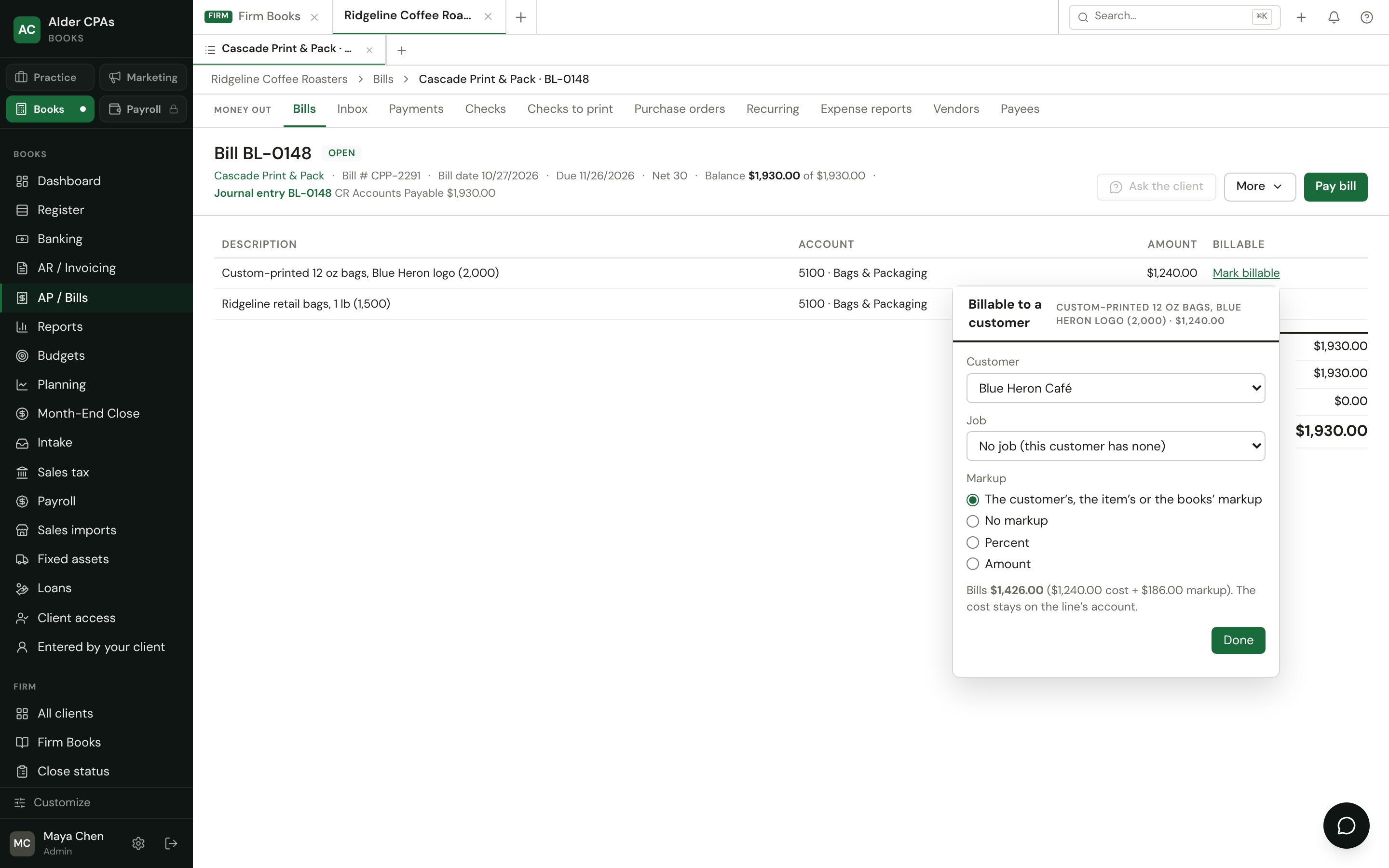 Marking the custom-printed bags on Cascade Print & Pack's bill as billable to Blue Heron Café
The sentence under the markup comes from the same checks Books runs when you click Done: Bills $1,426.00 ($1,240.00 cost + $186.00 markup). The cost stays on the line's account. If Books would refuse the line, the reason shows there instead, and Done stays off.
The column then shows the customer, the markup and where the expense stands:
| What you see | What it means |
|---|---|
| Mark billable | The line is not billable. |
| unbilled | Waiting on the customer's Unbilled list. Click Change to change the customer, job or markup, or to make it Not billable. |
| waiting for the bill to open | You marked a line on a draft bill. It joins the customer's list when the bill is posted. |
| billed on an invoice | It is on an invoice. Click Details to see the mark. |
Markup: from the order means the line sets no markup of its own, so it follows the order.
The cost is what you really paid. When a bill has a discount, each line's share of the discount comes off its billable cost, shared out by line amount. Take a $1,000.00 line and a $500.00 line with a $30.00 discount. The lines bill $980.00 and $490.00 of cost, before markup.
On a bank line
In Banking → Review, open a line's editor. While billable expenses are on, it has a Billable to field. When you split the line, each split has its own. Set the customer, job and markup the same way. You set it before you post the line. The mark shows what the split will bill, such as bills $147.66. The expense joins the customer's list when you post the line.
On a receipt
When you review a receipt, each split has a Billable column. The expense joins the customer's list when the receipt is booked: posted, matched to a bank line, or approved on an expense report.
On a journal entry
- A new entry in the register: click Billable beside the account on the new line, and choose the customer. It becomes billable when you save the entry.
- An entry already posted: open its ⋯ menu and choose Billable…. The Billable to a customer window lists the entry's cost lines. Click Mark billable beside the one you want.
Billable… works on journal entries and bank-line entries. Mark a bill's or a receipt's costs on the bill or receipt itself.
On a check
When billable expenses are turned on, each line on Write check has a Billable to column, as a bill line does. Click Billable, choose the customer, and click Done; the expense joins the customer's list when the check is saved. See Write and Print Checks.
Bill the expenses on an invoice
Every expense waiting for a customer is on the Unbilled tab of that customer's page, under AR / Invoicing → Customers. The tab shows its count, as in Unbilled (3). It appears only while billable expenses are on. Seeing it needs permission to view operational reports.
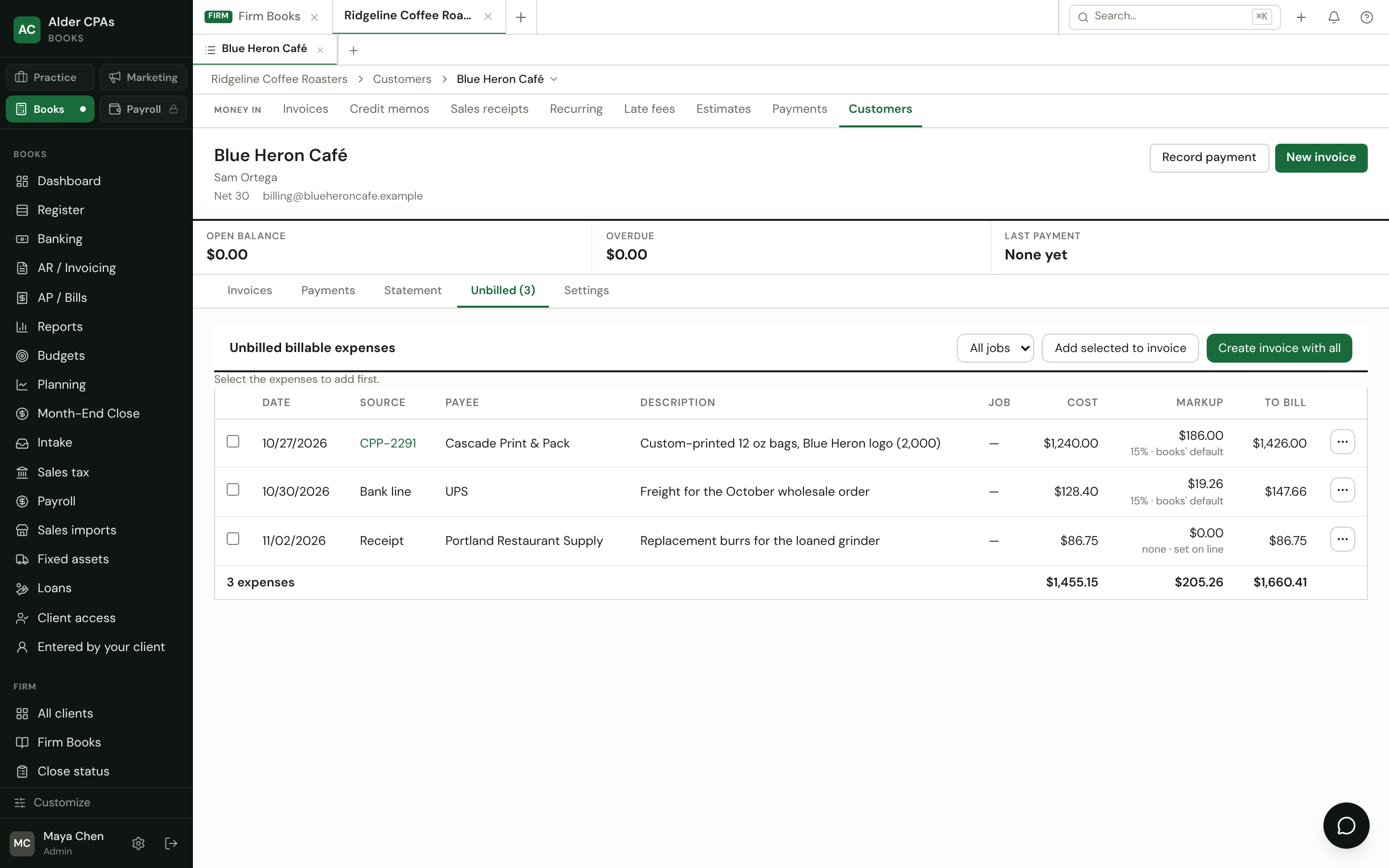 Blue Heron Café's Unbilled tab with three expenses waiting
The columns are Date, Source, Payee, Description, Job, Cost, Markup and To bill. Under each markup, a short note says which markup applies and where it came from: set on line, customer, item, books' default or none set. A bill number in Source opens the bill. The last row totals the list. Use All jobs to narrow the list to one job.
- Select the expenses to bill and click Add selected to invoice, or click Create invoice with all for everything shown.
- Books creates a new draft invoice for the customer with one line per expense, says so (3 expenses added to a new draft invoice), and opens it.
- Check the draft, then save or send it as you would any invoice.
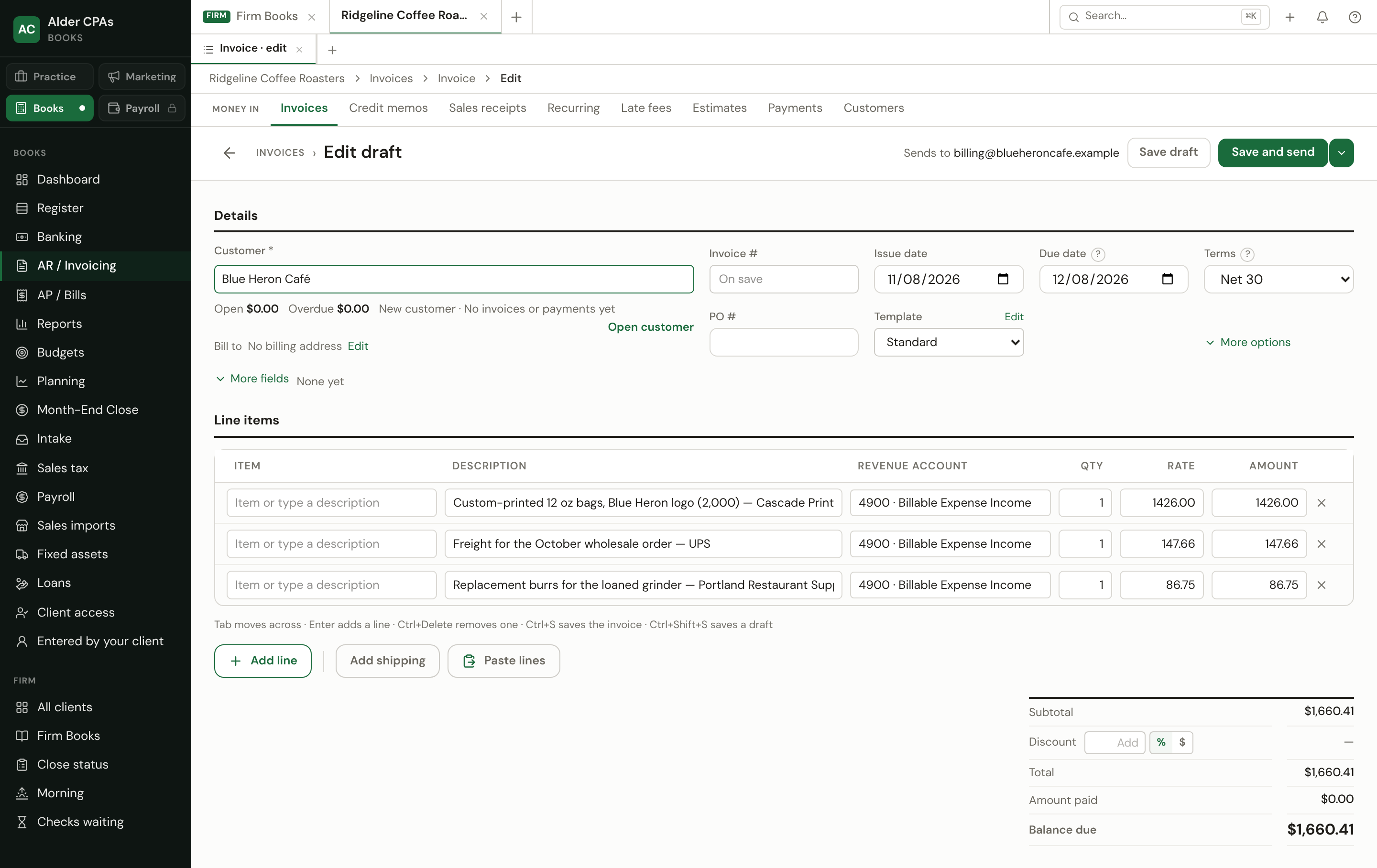 The new draft invoice for Blue Heron Café, one line per expense
Each expense becomes one line:
- Description — the expense's description and the payee, such as Freight for the October wholesale order — UPS. You can rewrite it.
- Revenue account — your income account for billed expenses, or the item's income account.
- Qty 1, with Rate and Amount equal to cost plus markup.
The amount is fixed by the expense. To charge less, take the line off the invoice, or change the expense's markup before you add it.
When the invoice posts (Save and send or Save without sending), the cost part of each line posts to the line's revenue account and the markup part to your markup account. A discount on the invoice's subtotal does not reduce billable expense lines.
From the reports
Reports → Unbilled Billable Expenses lists what is waiting for every customer, with each expense's age. Create invoice beside a customer's name does what Create invoice with all does on their Unbilled tab. Reports → Billable Expenses Billed vs. Cost shows, for a date range, the cost and markup you billed to each customer and the cost still unbilled.
When the cost changes after you mark it
A billable expense follows the bill or entry it came from. Voiding a receipt ends it.
| What happens to the cost | What happens to the billable expense |
|---|---|
| You edit the bill line's amount | Not on an invoice yet: its cost changes to the new amount, net of any discount. Already on an invoice: the edit is refused. |
| You change the bill's discount | Each line's share is worked out again, and each waiting expense takes its new cost. Already on an invoice: the change is refused. |
| You edit a journal entry or bank-line entry's amount | Its cost changes to the new amount. Already on an invoice: the edit is refused. |
| You move the line to another expense account | It stays billable, on a bill, a journal entry or a bank-line entry, and an expense already on an invoice stays on that invoice. Moving it to an account that isn't an expense account ends the mark. |
| You move the line off the expense accounts, or its amount is no longer above zero | It is no longer billable. |
| You delete the bill line, or void the bill, receipt or entry | It is no longer billable. |
Voiding a bill, or removing a bill line, after its expense is on an invoice does not change the invoice. The invoice still charges the customer. Books lists the expense under Needs a look on the customer's Unbilled tab: its source was voided after it was billed. The invoice still charges it. Decide whether the customer should get a credit.
Fix or undo a billable expense
- Change the customer, job or markup — click Change in the bill's Billable column, or Billable… on the entry. Click Done.
- Stop billing it — click Not billable in the same place. Or, on the customer's Unbilled tab, open the row's ⋯ menu and choose Not billable. The window says what happens, for example: Freight for the October wholesale order ($128.40) stops being billable to Blue Heron Café. The mark is removed and recorded in full; its cost stays where it was posted.
- Take it off an invoice — on a draft, remove the line and save. Deleting the draft also returns its expenses. Voiding a sent invoice returns every expense on it to the customer's Unbilled list.
Saving a draft keeps each line tied to its expense, with the same cost and markup.
Why can't I…
-
…see Billable on a bill, bank line or receipt? Billable expenses are off for these books. Turn them on under Settings → Billable expenses. On a posted entry, Billable… says so: Billable expenses are off for these books. Turn them on in Settings → Billable expenses.
-
…use Billable… on an entry? It works only on posted entries: Only a posted entry can be billed to a customer. Post it first. If the entry has no expense-account line, the window says This entry has no cost line. Only a line on an expense, cost of goods sold or other expense account can be billed to a customer.
-
…mark this line? Books says why under the markup:
- Only a cost line can be billed to a customer. This line is on 1500 Roasting Equipment, a fixed asset account. Payroll and depreciation lines are refused the same way.
- A refund or credit cannot be billed to a customer.
- A line with no amount cannot be billed.
- Choose an active customer of these books that this expense is billable to.
-
…change or unmark an expense? It is on an invoice: This expense is on invoice INV-1042. Void the invoice to change it. On a draft, remove the line from the draft instead.
-
…save my edit to this entry? One of its lines is billed to a customer on an invoice, and the edit leaves no line to carry the charge (for example, it removes the line, or changes its account and its amount together): Line 2 is billed to a customer on invoice INV-1042. Keep a line with its amount so the charge moves with it, or take the expense off the invoice first.
-
…change a billed line's amount or account on the bill? The line is already on an invoice: This line's cost is already billed to the customer on invoice INV-1042, so its amount and account can't change. Take it off that invoice first, then edit the bill.
A change to the bill's discount is refused too: A cost on this bill is already billed to the customer on invoice INV-1042, and changing the discount would change that cost. Take it off that invoice first, then change the discount. Lines that are not on an invoice can still be edited.
-
…add an expense to an invoice? It is already on another draft: This expense is already on draft invoice INV-1042. Finish or change that draft first.
-
…change a billable line's amount on the invoice? The amount is the expense's cost and markup. Books refuses the save: Line 2 bills an expense: its amount is the expense's cost and markup, so it cannot be changed here.
-
…turn billable expenses on, or create an invoice from them? You need the “Invoices, estimates and customers” permission. Marking a line needs permission to work with that kind of record: bills and receipts, bank lines, or journal entries.
Questions people ask
Does marking a cost billable change my expenses? No. The cost stays on its expense account. Your income goes up when the invoice posts.
Can I bill one cost to two customers? No. A line is billable to one customer. To split a cost, split the line first and mark each part.
What if I change a customer's markup after marking their expenses? Everything still on their Unbilled list follows the new markup, unless a line sets its own. Expenses already on an invoice keep theirs.
Can I bill a cost to a job? Yes. Choose the job when you mark the line. The Unbilled tab can then be narrowed to one job with All jobs.
Where do I see everything waiting to be billed? On each customer's Unbilled tab, or for all customers in Reports → Unbilled Billable Expenses.
Does the markup go to its own account? Only if you choose an Income account for markup. Otherwise cost and markup go to the same account.
If you also use Practice
When your firm uses Practice, your clients' time and expenses are billed from Practice, so the firm's own books don't bill expenses in Books. On your firm's own books, Settings → Billable expenses reads Billed in Practice: Practice is on, so every client's time and expenses are billed in Practice.
If the firm's books had billable expenses waiting when Practice was turned on, they stay under Needs a look on the customer's Unbilled tab: billable expenses are no longer billed in these books, so it is not billed here.
Your clients' own books are not affected. A client that bills its own customers keeps billable expenses in Books as described in this article.
Tips
- Mark costs when you enter them. A line on a draft bill can be marked already. It joins the customer's list when the bill is posted.
- Put the markup on the customer. Set it once on the customer's Settings tab, and every cost for them follows it unless a line sets its own.
- Before you send, check the list totals. The Unbilled tab's last row shows the cost, markup and amount to bill. The new invoice's subtotal adds up to the same amount to bill.