
Estimates, and Turning One into an Invoice
Quote a customer, send the estimate with a link they can accept online, ask for a deposit, and convert the accepted estimate into a draft invoice.
On this page
An estimate is a price you quote before the work or the order. Ridgeline Coffee Roasters quotes Blue Heron Café for its holiday order, Fernhill Grocery Co-op for a standing wholesale order, and Sellwood Bike & Brew for a machine service. The customer can accept or decline it online, you can ask for a deposit up front, and when the deal is done you convert it into an invoice with every line carried across.
An estimate never touches the ledger. Saving, sending, accepting and declining an estimate post nothing. Converting one creates a draft invoice, and that draft posts only when you open it and save it like any other invoice.
Understand the Estimates list
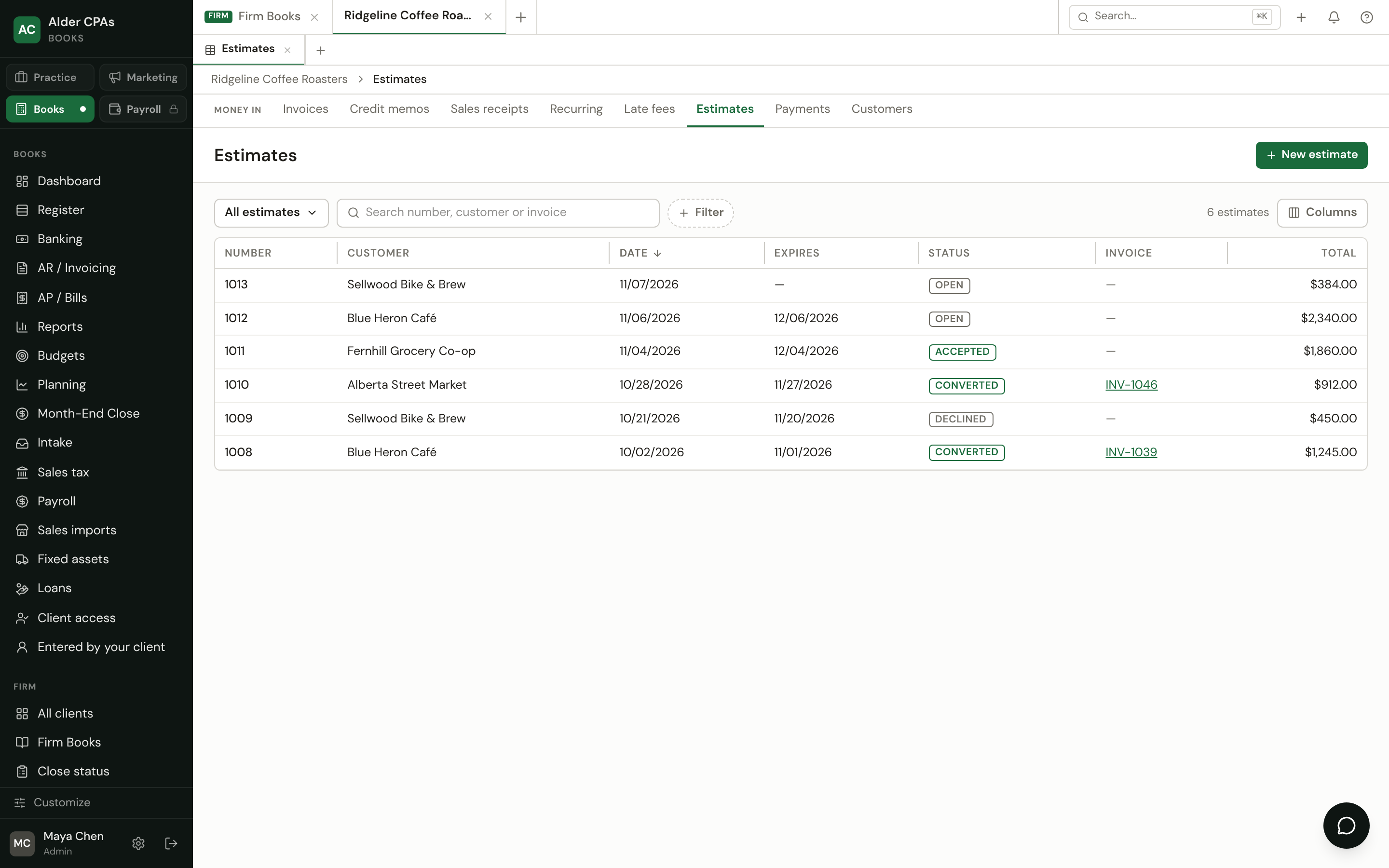 The Estimates list for Ridgeline Coffee Roasters, with open, accepted, converted and declined estimates
The list shows every estimate for the client, newest first. The columns are Number, Customer, Date, Expires, Status, Invoice and Total. Number can't be hidden; the others can be hidden or reordered under Columns. Click any row to open the estimate.
An estimate has one of four statuses:
| Status | What it means |
|---|---|
| Open | Waiting for an answer. You can edit it, send it and make an acceptance link. |
| Accepted | The customer accepted it on its link, or someone marked it accepted in Books. |
| Declined | The customer declined it on its link, or someone marked it declined in Books. |
| Converted | It became an invoice. The Invoice column links to that invoice. |
Use Search number, customer or invoice to find an estimate, and Filter to narrow by Status, Customer, Date, Expires or Total. You can combine filters; an estimate must pass every one.
Create an estimate
- Click New estimate.
- Pick the Customer. Start typing the name; if the customer isn't on the list yet, choose Create "…" at the bottom to add them with just that name and keep going.
- Check the Estimate date. It starts on today, or on the day the client's books start if that is later.
- Set Expires if the price should only hold until a certain day. It's optional, and it can't be before the estimate date.
- Fill in the lines: Item (if the client uses items), Description, Revenue account, Qty, Rate and Amount. Columns for Job, Class and Location appear when the client uses them.
- Under Messages, add a Memo (for you) and a Customer message (printed for the customer). Both carry onto the invoice when you convert.
- Click Save estimate, or press Ctrl+S.
Estimate # reads On save until you save; Books gives the estimate its number then.
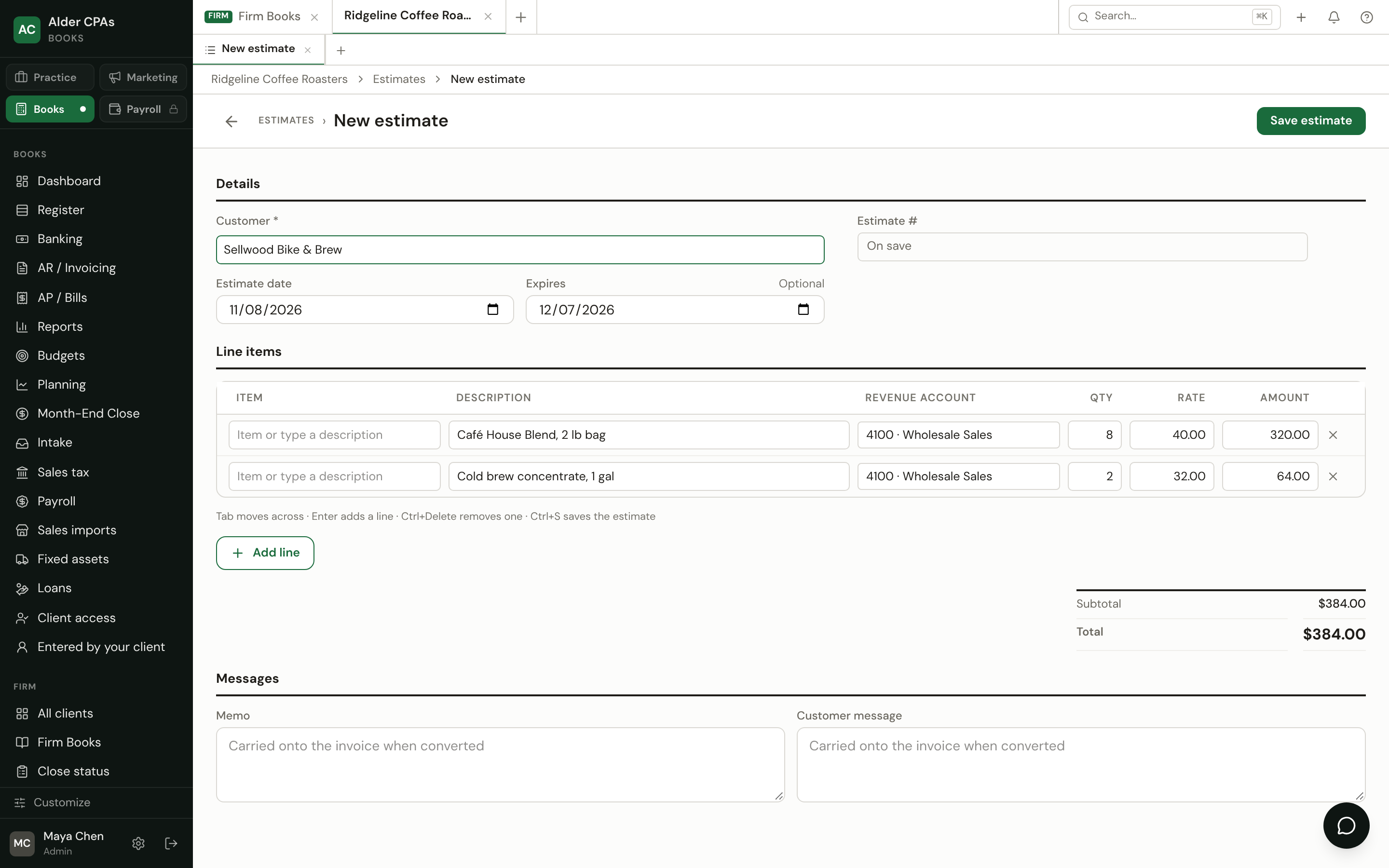 A new estimate for Sellwood Bike & Brew with two lines; the second rate was typed as 28+4
Shortcuts and tips on the estimate screen
The estimate screen uses the same line grid as the invoice screen, built for the keyboard.
| Key | What it does |
|---|---|
| Tab / Shift+Tab | Move across a line, and from one line to the next. |
| Enter | Move to the next line's first field. On the last line, add a new line (unless the last line is still empty). |
| Ctrl+Delete | Remove the line you're on. |
| ↑ / ↓ in Revenue account | Move through the matching accounts. Tab or Enter takes the highlighted one. |
| Ctrl+S or Ctrl+Enter (⌘ on a Mac) | Save the estimate. |
- Do the math in the cell. Rate and Amount accept arithmetic: type
28+4and the field settles to 32.00. You can use+,-,*(orx),/and parentheses, and a leading=is ignored, the way a spreadsheet works. Books works out the exact result and rounds to the cent once. Qty takes a plain number with up to four decimals. - Amount fills itself from Qty × Rate. You can type over it; the line then notes that the amount differs from Qty × Rate, and the estimate saves the amount you typed. Changing Qty or Rate again recomputes it.
- Your typing is kept if you leave. Books keeps a copy of an unsaved estimate in your browser. Come back to the screen and it offers to Restore it or Discard.
Send an estimate
Open the estimate. The panel on the right has three sections: Send, Customer's answer and Deposit.
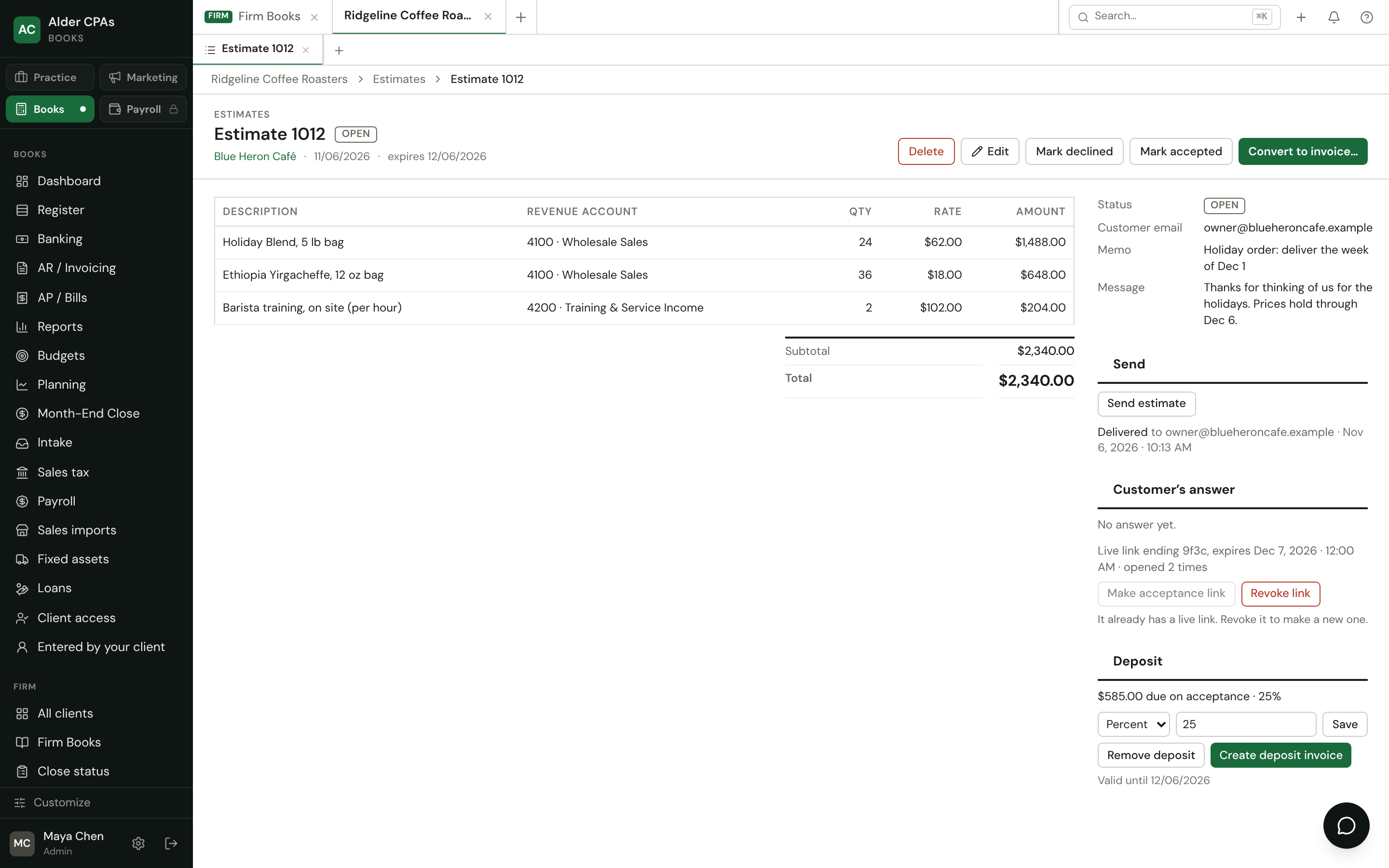 Estimate 1012 for Blue Heron Café: sent, with a live acceptance link opened twice and a 25% deposit
- Under Send, click Send estimate.
- The dialog checks the estimate before you send and shows who it goes To, that the estimate is Attached as a PDF, and the Link it carries: Review and accept for an open estimate.
- Add an optional Note (up to 1,000 characters).
- Read the line above the buttons. It says what the email carries, for example Emails owner@blueheroncafe.example the estimate, with the PDF and a link to accept it. If the estimate already has a live link, a second line names it: The live link ending 9f3c stops working once this email is sent, so a copy of it you gave the customer will no longer open. The email carries a new link.
- Click Send estimate.
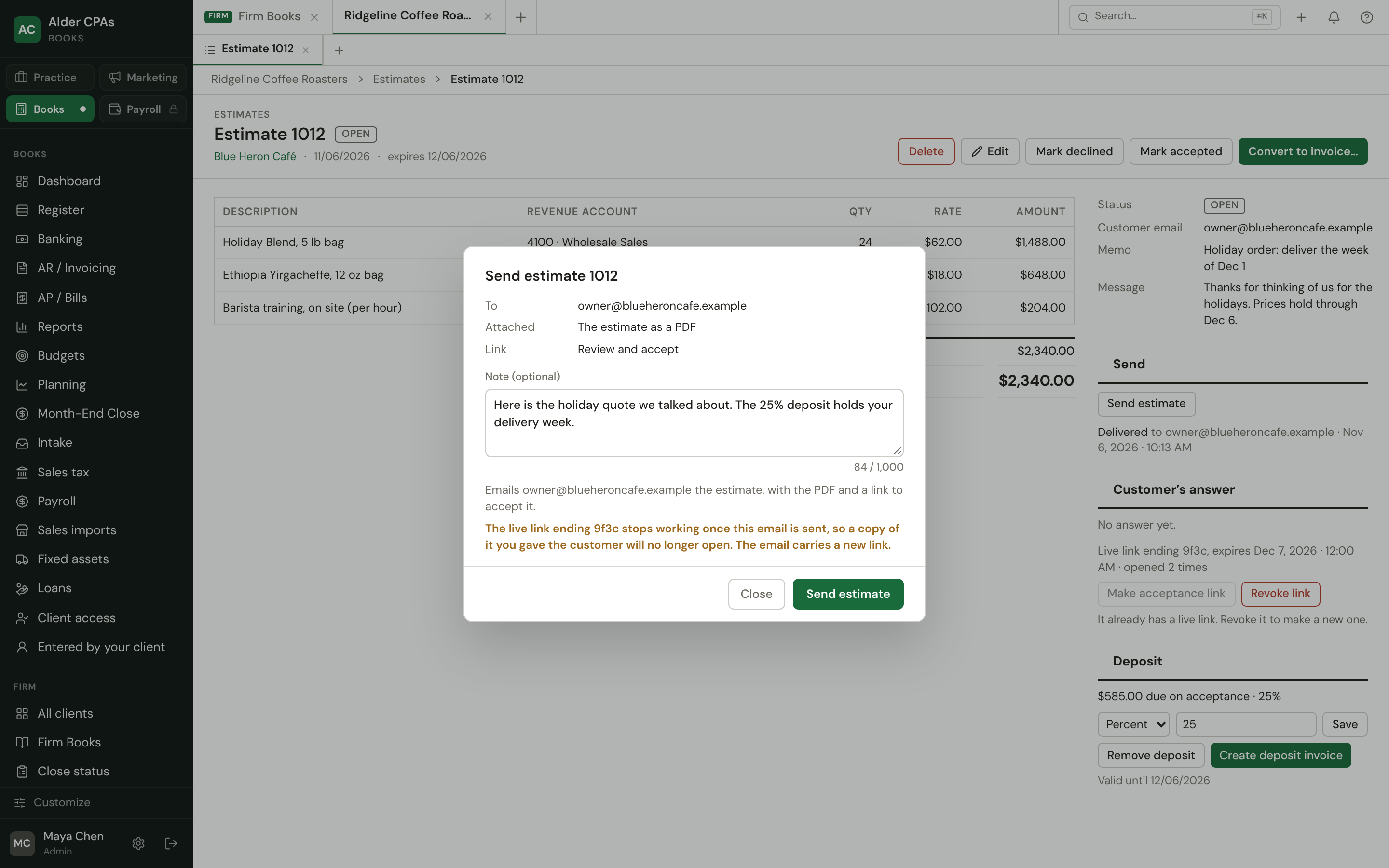 Sending estimate 1012: the dialog names the live link ending 9f3c that the email replaces
The email goes to the customer's email address with the PDF and, for an open estimate, a link to accept it. That link works for 60 days, and never past the end of the estimate's Expires date in the client's time zone.
Sending an estimate that's already accepted sends the customer a copy, with no link. The dialog's Link row reads None (already accepted) and the line above the buttons says Emails ap@fernhillcoop.example a copy of the accepted estimate, with the PDF. It carries no link: the estimate is already accepted.
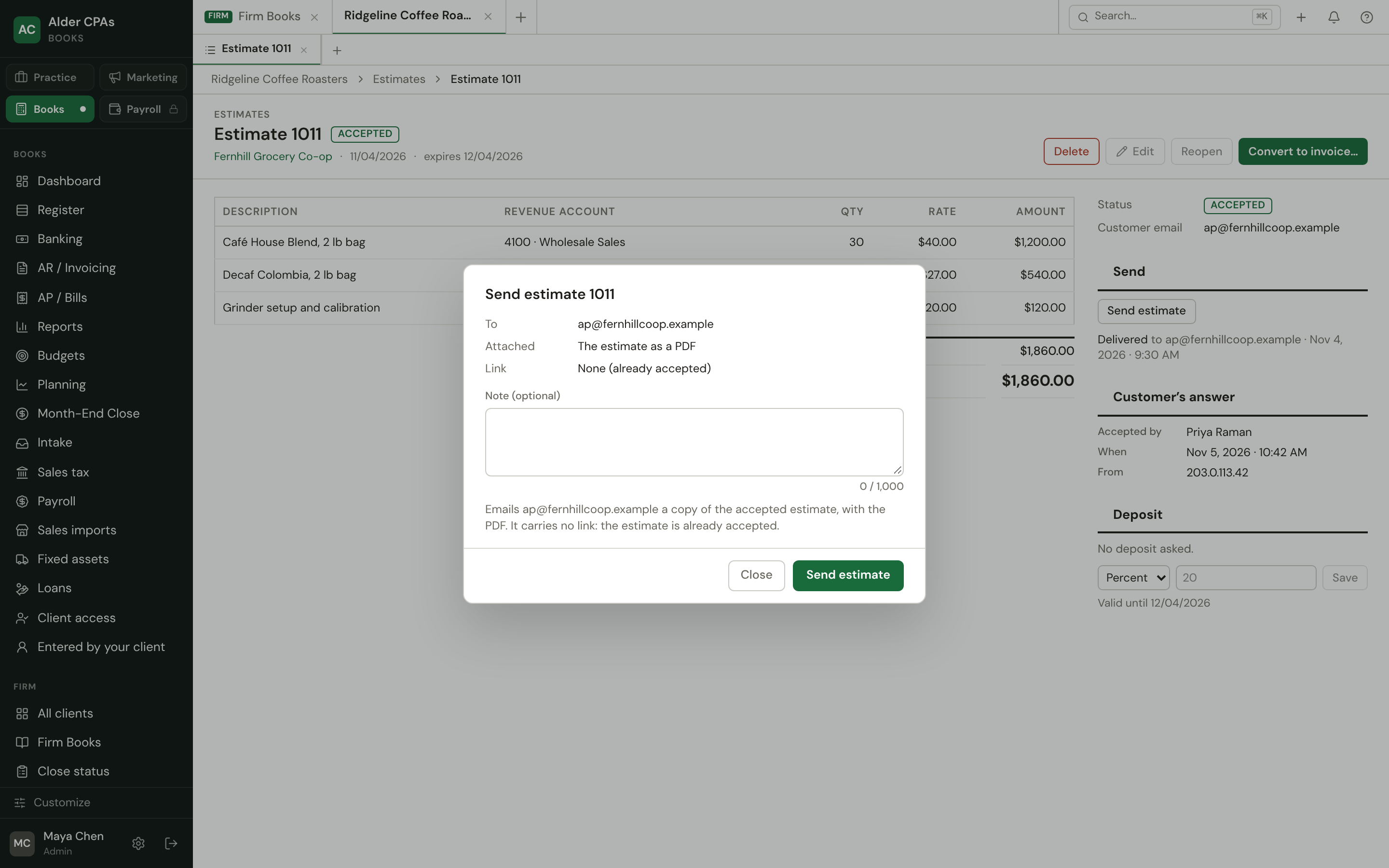 Sending accepted estimate 1011: a copy with the PDF and no link
Under Send, the page keeps a record of what went out: Queued to send, Sent, Delivered, Not delivered or Canceled, with the address and the time. It shows the last five.
Share a link yourself
You don't have to email the estimate. Under Customer's answer, click Make acceptance link. Books shows the link once, under Acceptance link · shown once, with a Copy button. Paste it into a text or your own email. A link you make this way works for 30 days.
After that, the page shows Live link ending …, when it expires, and how many times it has been opened. An estimate has one live link at a time: to make a new one, click Revoke link first. A revoked link stops working at once. Sending the estimate by email also replaces any live link: a link you made and pasted yourself stops working once the email goes out, and the Send dialog names that link before you send.
What your customer sees
The link opens a single page with the business name the estimate is sent under, the estimate number, its date and Valid until date, the Customer message, each line's description and amount, and the total. There is no sign-in.
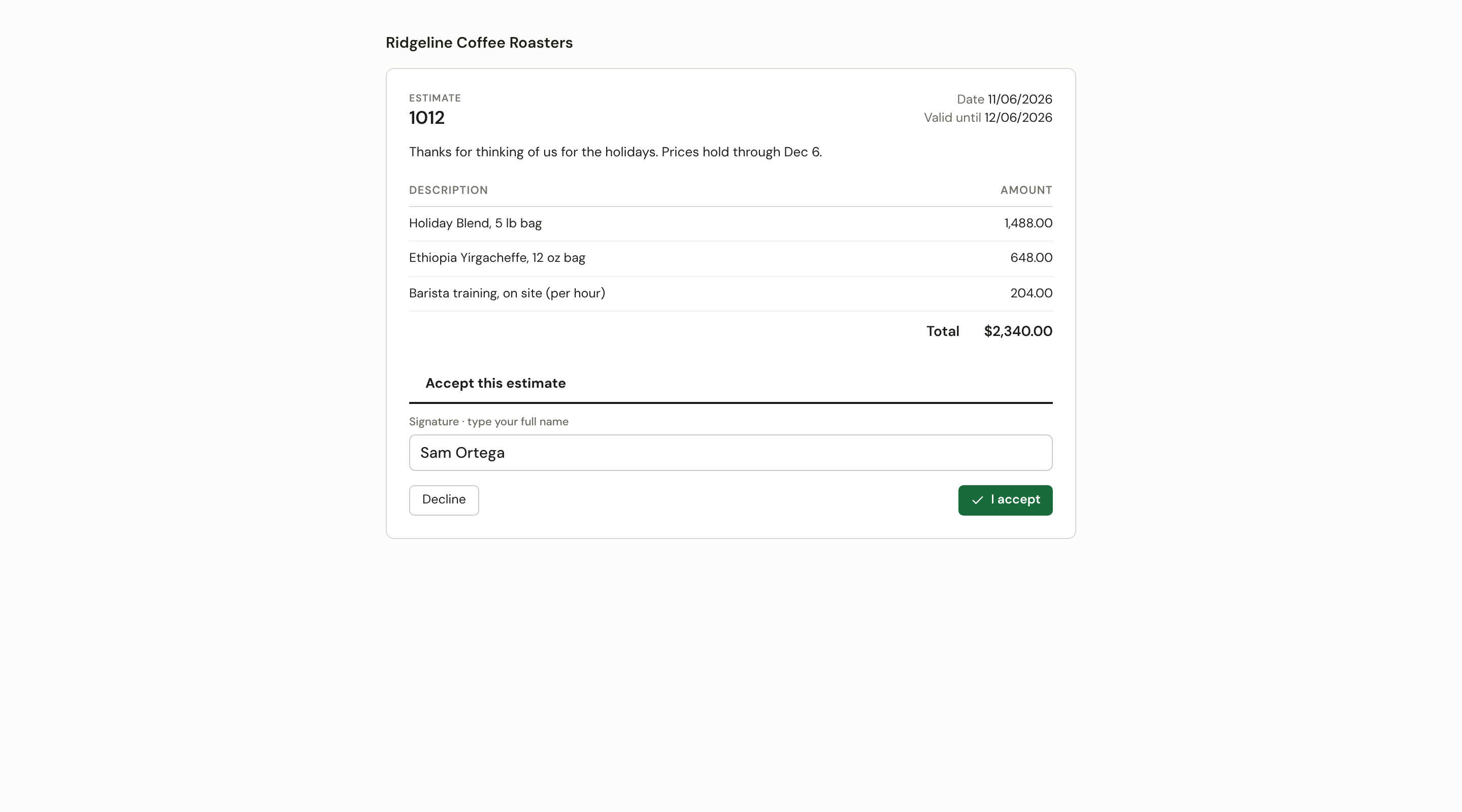 The customer's page for estimate 1012, with the signature filled in
To accept, the customer types their full name under Signature · type your full name (2 to 120 characters) and clicks I accept. Books records the name, the time and the address of the connection they accepted from.
To decline, they click Decline, can give an optional Reason, and click Decline the estimate. Pressing I accept again with the same name, or Decline again, changes nothing. A different answer is refused.
Back in Books, Customer's answer shows Accepted by, When and From (the connection's address, which only your firm sees), or Declined on … with the reason.
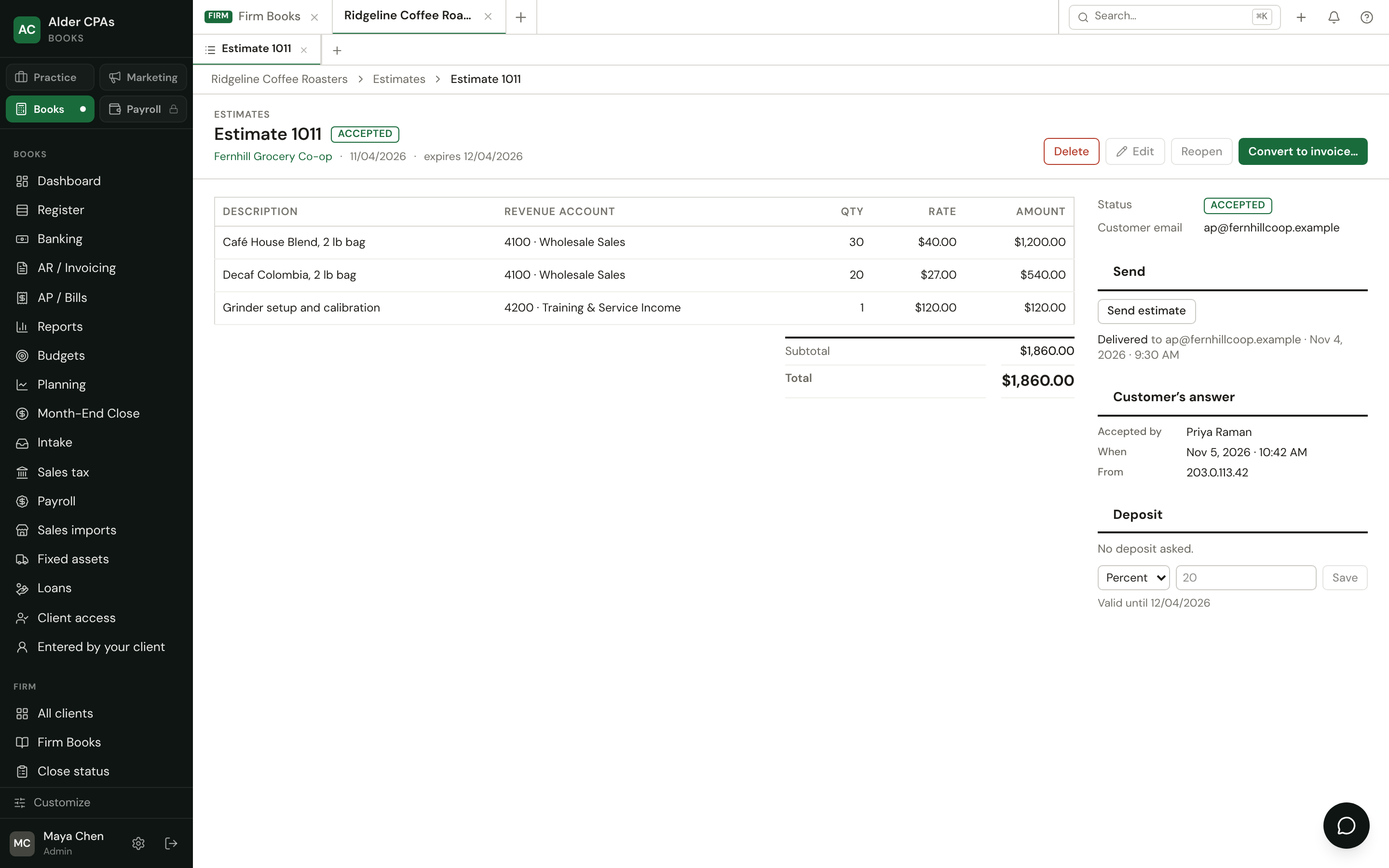 Estimate 1011, accepted on its link by Priya Raman
Mark an estimate accepted or declined yourself
If the customer says yes or no by phone or email, open the estimate and click Mark accepted or Mark declined. Reopen puts an estimate you marked accepted or declined back to Open, so you can edit it. An estimate the customer answered on its link can't be reopened: make a new estimate instead.
The customer's own answer on the link is final. An estimate they accepted is the record of what they agreed to, so Reopen and Edit are turned off and say why: Priya Raman accepted this estimate on its link, so it stays accepted as the record of what they agreed to. Convert it to an invoice, or make a new estimate if the work has changed.
An estimate they declined on its link stays declined the same way: The customer declined this estimate on its link, so it stays declined as their answer. Make a new estimate to send a new offer. An estimate you marked accepted or declined can be reopened.
Turn an estimate into an invoice
-
Open the estimate and click Convert to invoice….
-
The dialog says exactly what will happen: a draft invoice for the customer carrying every line, its total, the date it will carry, and that it uses the customer's terms.
For example, for an accepted estimate: Creates a draft invoice for Fernhill Grocery Co-op carrying all 3 lines ($1,860.00), dated Nov 8, 2026 with the customer's terms. Nothing posts until you open the draft and save it. Deleting that draft puts this estimate back to accepted, ready to convert again. For an open estimate, the last sentence reads Deleting that draft reopens this estimate.
-
Click Convert to draft invoice. Books opens the new draft.
-
Review the draft and save it to post it.
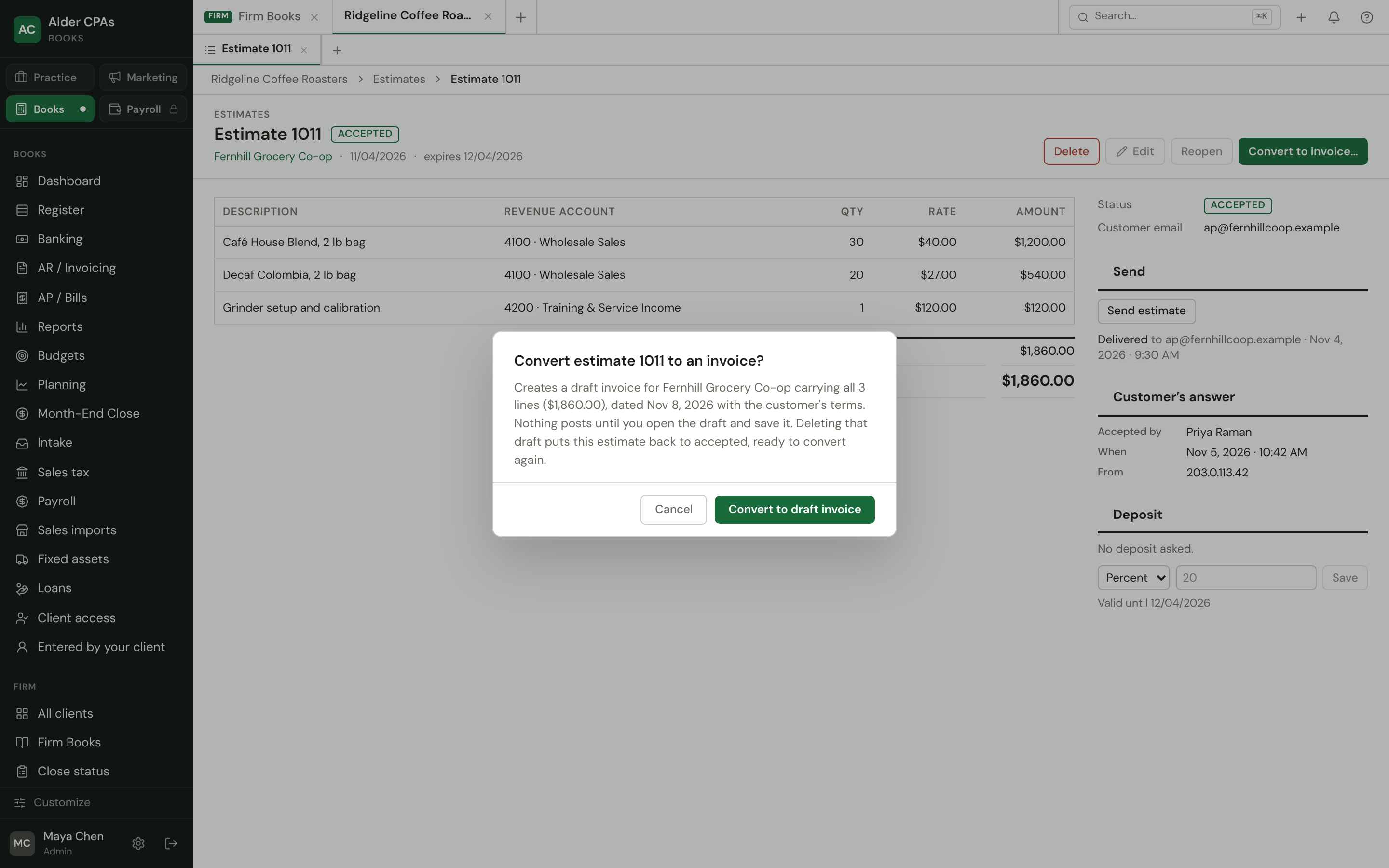 Converting estimate 1011 for Fernhill Grocery Co-op into a draft invoice
What carries across: every line's description, revenue account, quantity, rate and amount, with its item, job, class and location, plus the memo and the customer message. The draft is dated today in the client's time zone, or the day the books start if that is later, and its terms and due date come from the customer. If that date is in a closed month, the dialog says so before you convert.
You can convert an Open or Accepted estimate. Conversion takes the whole estimate, once. The estimate's status becomes Converted, and its page links to the invoice.
Changed your mind? Delete the draft invoice. The delete prompt says the estimate goes back to what it was (open or accepted), and you can convert it again later.
Ask for a deposit
Under Deposit, choose Percent or Amount, type the figure, and click Save. The page shows, for example, $585.00 due on acceptance · 25%. A percent can be over 0 and up to 100; an amount must be between one cent and the estimate's total.
Books checks the percent as you type: type more than 100 and Save stays off, with A deposit percent is at most 100. under the box. An amount larger than the estimate's total is refused when you click Save, and the message names both figures. Remove deposit takes it off.
To bill it, click Create deposit invoice. Books creates a draft invoice for the deposit, to the customer deposits account; it posts nothing until you save it. The Deposit invoice link then takes you to it.
When you convert the estimate, a deposit invoice that has been saved and fully paid (not void, and not already applied to another invoice) is applied to the new draft, and the convert dialog says so: The $585.00 deposit paid on INV-1050 applies to it, leaving $1,755.00 due.
If the deposit can't apply yet (for example, Deposit invoice INV-1050 is not paid yet ($585.00 still due).), the dialog says why and the draft carries the full total. Once the deposit is paid, open the estimate and click Apply deposit to … under Deposit.
Why can't my customer accept the estimate?
The link shows the customer why, instead of a form that would fail:
| What the customer sees | Why | What to do |
|---|---|---|
| This link no longer works | The link was revoked or has expired (an emailed link stops working at the end of the estimate's Expires date, in the client's time zone), or the estimate was converted to an invoice. | Make a new link, or send the invoice instead. |
| This estimate expired on 12/06/2026 | The estimate's Expires date has passed. | Edit the estimate's expiry date and send it again. |
| Estimate 1009 is no longer open on this link | Someone at your firm marked it accepted or declined in Books. | If that was a mistake, Reopen it. |
| This estimate was declined on … | The customer declined it on the link. | Make a new estimate for a new offer. |
| Accepted by … on … | It's already accepted. Nothing more to do. | Convert it. |
| Too many requests from this link right now | The link was opened a very large number of times in an hour. | Wait a little while and try again. |
 What the customer sees after the firm marked estimate 1009 answered in Books
Why can't I…
-
…edit an estimate? Only an Open estimate can be edited. Reopen one you marked accepted or declined first. One the customer answered on its link can't be reopened: make a new estimate. A converted estimate can't be edited.
-
…convert an estimate? A declined estimate can't be converted. If you marked it declined, Reopen it first (A declined estimate cannot be converted. Reopen it first.).
If the customer declined it on its link, Convert to invoice… says The customer declined this estimate on its link, so it is not converted. Make a new estimate to send a new offer. If a line's revenue account is no longer usable, the page says so: on an open estimate, Edit it and pick another account.
On one you marked accepted, reactivate the account, or Reopen the estimate and pick another, then convert: 4100 · Wholesale Sales is no longer usable, and this estimate is accepted, so it cannot be edited as it stands. Reactivate the account in the Chart of accounts, or reopen the estimate and pick another account, then Convert.
On one the customer accepted on its link, which can't be edited, reactivate the account and convert: 4100 · Wholesale Sales is no longer usable, and the customer accepted this estimate on its link, so it cannot be edited. Reactivate the account in the Chart of accounts, then Convert. Both messages come with a link that opens the account.
-
…send an estimate? Books checks before it sends and says why not. Send estimate is off on a declined estimate (This estimate was declined, so it is not sent again. Make a new estimate to send a new offer.), on a converted one (This estimate was converted to an invoice, so it is not sent. Send the invoice instead.) and on an open one past its expiry date (This estimate expired on 12/06/2026. Change its expiry date before sending it.): Edit it, set a later Expires date, and send.
An estimate needs at least one line and a total above $0.00, and the customer needs an email address on their record. Books also won't email an address on your firm's do-not-email list, and won't send the same estimate twice while one is still on its way.
-
…make an acceptance link? Only an open estimate gets one, and only one live link at a time; revoke the old link first.
-
…delete an estimate? You can delete an estimate that was never shared. Once it was emailed or shared through a link, Books keeps it as the record of what the customer was sent, and the Delete prompt says so instead of offering to delete, for example This estimate was sent to the customer (opened 2 times). It stays as the record of what the customer was sent; decline it instead.
If it has a draft deposit invoice, delete that draft first; once the deposit was invoiced and saved, the estimate stays as the record of that deposit.
A converted estimate has no Delete: it stays as the record of the quote. If it was converted to a draft invoice, delete that draft first; the estimate comes back and can then be deleted if it was never shared.
-
…click any of these buttons? Creating, editing, converting, marking, deleting estimates and setting their deposit needs the Invoices, estimates and customers permission; sending an estimate and making or revoking its link needs Send invoices and statements. Ask an admin to grant the one the button names.
Fix or undo
| You want to | Do this |
|---|---|
| Change an open estimate | Click Edit, change it, Save estimate. |
| Change an estimate you marked accepted or declined | Reopen, then Edit. One the customer answered on its link: make a new estimate. |
| Undo a conversion | Delete the draft invoice; the estimate goes back to open or accepted. |
| Stop a link working | Revoke link. |
| Get rid of an estimate nobody saw | Delete. The prompt names the estimate, customer and total, and a full copy stays in the client's audit history. |