
Customers: Add, Edit, Merge and Archive
Add the people and businesses a client invoices, keep their details and defaults current, combine duplicates, and retire the ones you no longer need.
On this page
Customers are the people and businesses a client's books invoice. Each one carries its contact details and the defaults a new invoice starts from: payment terms, the revenue account its lines go to, and where its payments are deposited. The Customers page is also the quickest way to see who owes the client money, who is late, and who is holding a credit.
Nothing a customer has done is ever lost by tidying the list. A customer with history can't be deleted, only archived: it stops being offered on new invoices and payments and still shows on every invoice, payment and report that names it. A merge moves everything onto the customer you keep and archives the duplicate with a link to it.
Understand the Customers page
The title line counts the active customers and the client's total receivable: for example, 6 active · $4,869.10 total receivable. Under it, a strip ages what is owed into Current, 1–30 days, 31–60 days, 61–90 days and 90+ days, each with its amount and its number of invoices.
An amount past due shows in red. Unapplied credit is subtracted in the bucket its date falls in, so a bucket can show less than its invoices add up to.
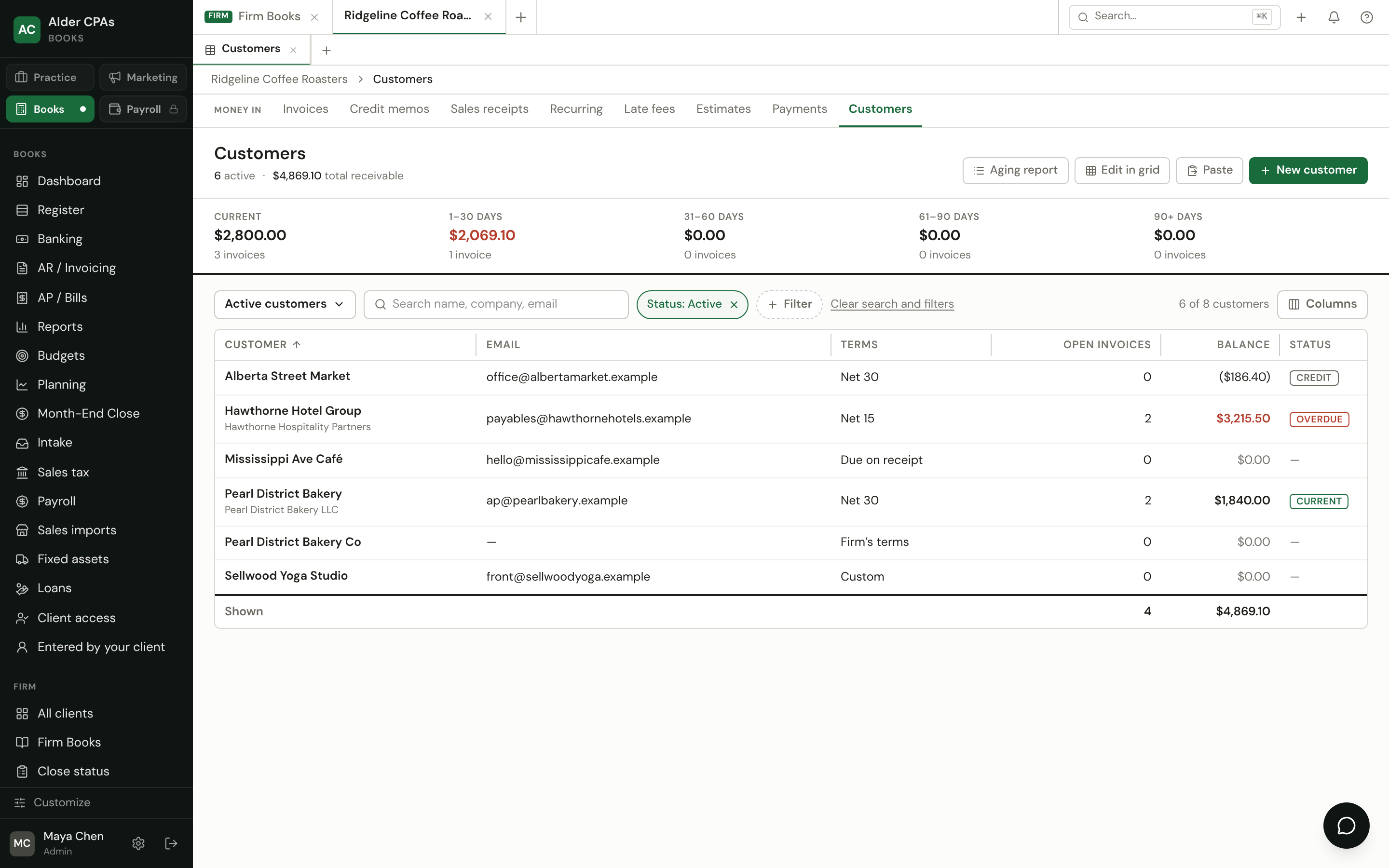 The Customers page for Ridgeline Coffee Roasters, with the aging strip, a customer holding credit and one overdue
The table has these columns, left to right:
- Customer — the display name in bold, with the company name under it when it differs.
- Terms — the customer's payment terms: Net 15, Net 30, Net 60, Due on receipt or Custom. A customer with no terms of its own shows Firm’s terms: its invoices take the invoice template's terms, else the firm's.
- Open invoices — how many sent or partly paid invoices still have a balance.
- Balance — what the customer owes: open invoices less any credit the customer holds. It is red when something is overdue. A customer holding credit shows a negative amount in parentheses, such as ($186.40).
- Status — Overdue when an invoice is past due, Current when the customer owes money that isn't late yet, Credit when the client owes the customer (a payment larger than the invoices it paid, for example), Archived for an archived customer, and a dash when the balance is $0.00.
The Shown row at the bottom adds up the open invoices and balances of the rows in view, so it moves with your search and filters. The figures in the title line describe every customer and do not.
When the client charges sales tax, a Sales tax column marks each customer Exempt (hover it for the certificate number) or Partly exempt.
Columns adds three optional columns: Contact (the person you deal with), Phone and Statements (each customer's automatic statement schedule, if any).
Search and filter
- Search name, company, email finds a customer by any part of those three.
- The list opens on the chip Status: Active. Clear it to see archived customers too, or use Filter → Status → Archived to see only them.
- Filter → Balance narrows to With balance (owes money), Holds credit (the client owes the customer), or No balance. Balance amount filters by a range of amounts, and Terms by payment terms.
- Click a column heading to sort by it. The view menu at the left (Active customers) keeps your own saved views.
- Export CSV downloads every customer the search and filters keep, with every field needed to set the customers up again elsewhere.
Click a row to open that customer.
Add a customer
- Click New customer.
- Fill in the Identity section. Only Display name is required: it is the name on the list, on pickers and on invoices, and no two customers of one client can share it.
- Company name — the legal entity, if it differs.
- Contact name — the person you deal with there. It prints as an "Attn:" line on statements and invoices.
- Email, Phone and Billing address. Type the address on one line, such as 3320 SE Division St, Portland, OR 97202.
- Set the Defaults a new invoice to this customer starts from:
- Payment terms — Firm’s terms, Net 15, Net 30, Net 60, Due on receipt or Custom. Custom asks for Custom terms (days).
- Tax ID — the customer's EIN or SSN.
- Default revenue account — pre-fills the account on invoice lines. Only revenue accounts are offered.
- Deposit payments to — a bank account or Undeposited Funds.
- Add Notes if you like. They are internal and never shown to the customer.
- Click Create customer. Books opens the new customer's page.
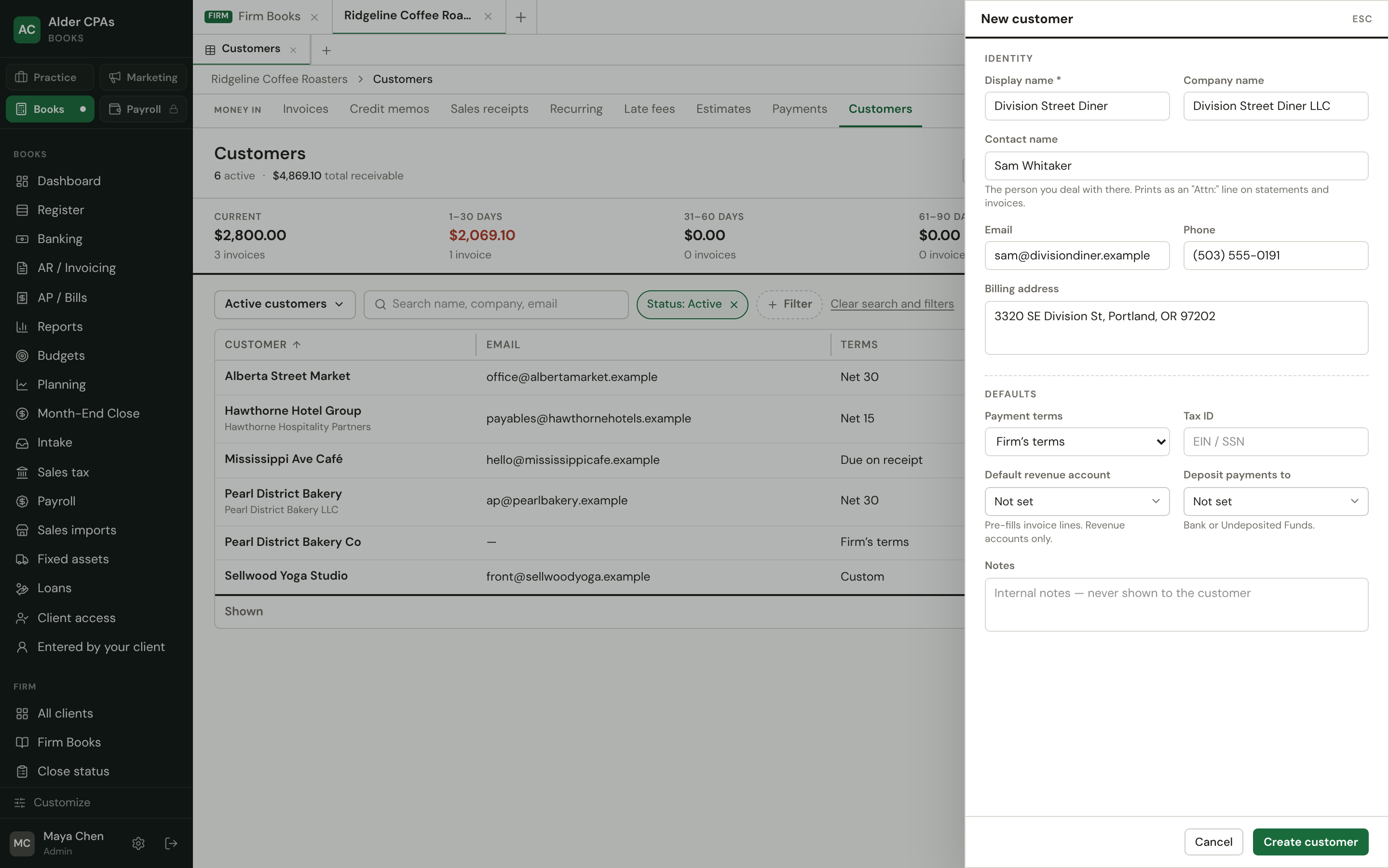 Adding a customer
Create customer stays off until the form can be saved, and the reason shows beside it: Enter a display name., or Enter the number of days for custom terms.
Add many at once from a spreadsheet
Click Paste to bring in a list you already keep elsewhere.
-
Copy the rows from your spreadsheet and paste them into the box. Books reads them straight away (or click Read these rows).
-
Books matches each column to a field. Check them and change any that are wrong; a column set to Ignore is not read. Tick or untick First row is headings.
The columns it can read are Name, Company, Email, Phone, Terms, Income account, Deposit account, Notes, Address, Address line 2, City, State and ZIP, plus Default class and Default location when the client uses classes or locations, in any order, with or without headings.
-
Click Preview. Every row is marked New, Exists, skipped (a customer of that name is already in the books; a paste only adds, it never overwrites), or Fix, with what is wrong.
-
Click Add N customers.
A few things the paste understands for you:
- Terms can be written the way people write them: Net 30, net30, Due on receipt, receipt or COD. Any other Net N, such as Net 45, becomes Custom terms of 45 days, and Net 0 becomes Due on receipt.
- State takes the two-letter abbreviation or the full name (Oregon becomes OR). ZIP takes 5 digits or ZIP+4.
Edit a customer
Open the customer and click Settings. Every field saves on its own when you leave it: there is no Save button. If Books refuses a change, a notice says why, and the page reads the customer again so it shows what is stored.
- Identity: Display name (it can't be blank), Company name, Contact name, Email, Phone, Billing address, plus Customer type, Account number (the number this customer knows you by), Mobile, Fax, Website and Notes.
- Defaults: Payment terms, Tax ID, Default revenue account, Deposit payments to, Early-payment discount (a percent and a number of days), and Markup on billable expenses (used when the expense line sets none). Changing a default affects new invoices only.
- Tax ID is never shown back in full. Once one is on file, the field reads On file: ···· 6789. Entering a new one replaces it. Leave it empty to keep the one on file.
If the revenue or deposit account a customer defaults to is archived, the Settings tab says so in a banner, and invoices fall back to the client's default until you pick another account.
Edit many customers in a grid
Edit in grid opens every customer the list is showing (after your search and filters) as a spreadsheet: Name, Company, Email, Phone, Terms, Revenue account, Deposit account, Tax ID and Notes.
| Key | What it does |
|---|---|
| Arrow keys, Tab, Shift+Tab | Move between cells |
| Start typing | Replace a text cell with what you type |
| Enter or F2 | Edit the cell's current value |
| Enter while editing | Keep the change and move down |
| Tab while editing | Keep the change and move right |
| Esc while editing | Drop the change to that cell |
| Delete or Backspace | Clear the cell |
| Ctrl+Z (⌘+Z on a Mac) | Undo your last change, one step at a time (also brings back changes you discarded) |
| Ctrl+V (⌘+V) | Paste a block copied from a spreadsheet, starting at the selected cell |
The footer counts what you changed (3 rows changed · 5 cells), and Changed shows only those rows. Discard changes drops them all. Review changes checks every changed row with Books first; then Save N customers saves the rows marked ready, and Back to grid takes you back to fix the rest.
Mark many customers exempt from sales tax
Tick the box beside each customer, or tick one and click Select all N matching to take every customer your search and filters find. The bar above the list counts what you chose and offers two buttons, each counting the customers it would change:
- Mark N exempt opens a dialog for one certificate shared by all of them: Certificate number (optional), State (blank for every state) and Expires. Each customer is exempt for all sales. A certificate number is optional: left blank, it reads No certificate number on file, and one can be added later on the customer's page.
- Clear exemption (N) removes the exemption from the chosen customers that have one. A certificate no invoice relied on is deleted; one that an invoice relied on is archived instead, and the dialog says how many invoices relied on it.
Books checks each customer before anything changes. Under What happens, the dialog lists every customer and the result, and puts any it will skip (already exempt, or not exempt) in a group of their own. Click the confirm button, and What was done lists the outcome. You can choose up to 1,000 customers at a time.
Both buttons are grayed out, with the reason under the bar, when sales tax is off for the client (Turn on sales tax goes to the Sales tax page), when you don't have the Manage receivables permission, when more than 1,000 customers are chosen, or when none of the chosen customers would change. See Sales Tax: Rates, Exempt Sales and Filing the Return for how exemptions work.
A customer's page
The page opens on the customer's name and contact, with three figures: Open balance, Overdue (and how many invoices) and Last payment. When the customer holds credit, the open balance says so under the figure, for example after $186.40 unapplied credit. New invoice and Record payment are at the top right.
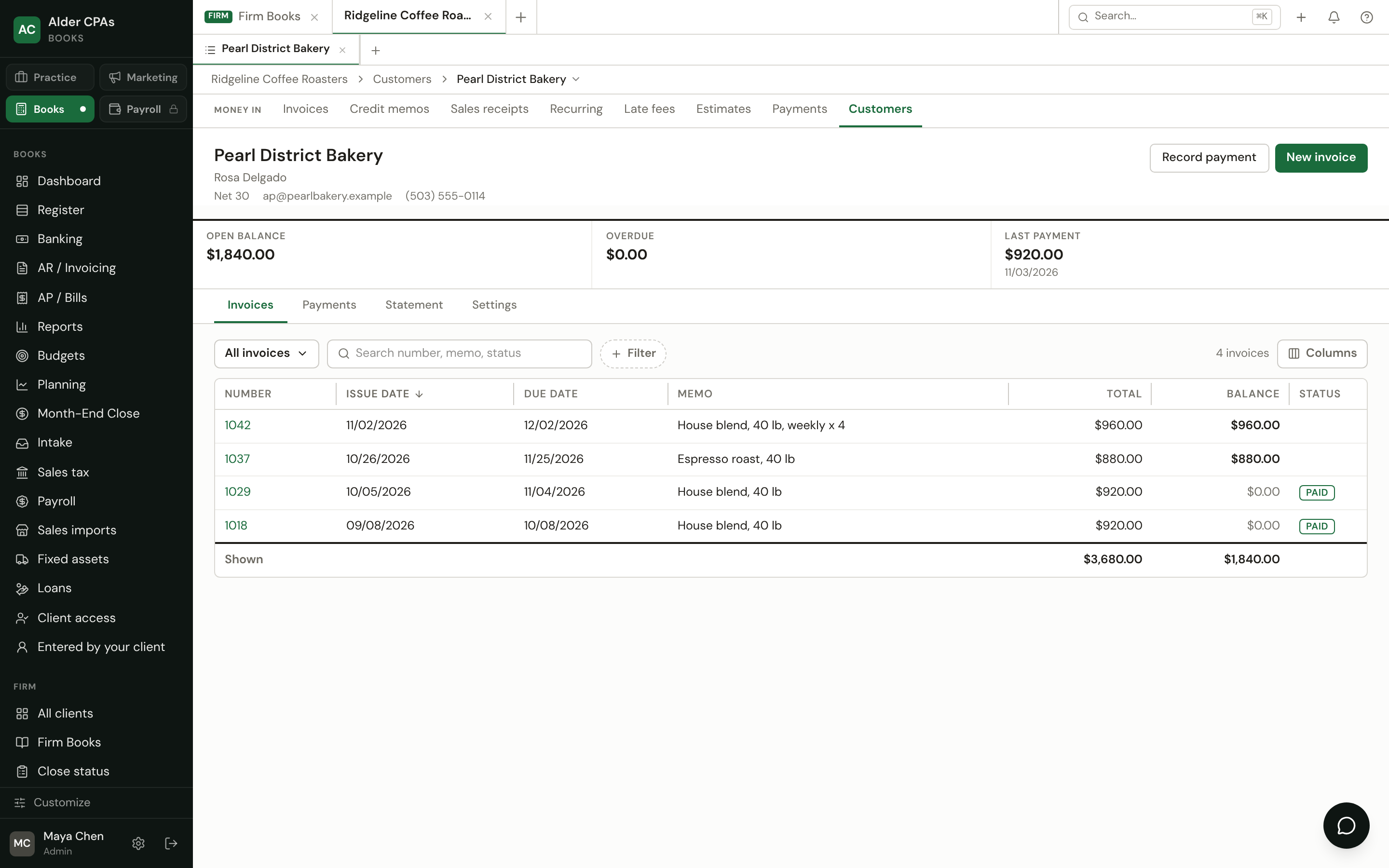 Pearl District Bakery's page, with its invoices
The tabs are Invoices, Payments, Statement and Settings, plus Unbilled when billable expenses are turned on for the client (see Billable Expenses: Bill Your Customer for Costs).
Merge two customers
A duplicate usually comes from a quick entry or an import: Pearl District Bakery and Pearl District Bakery Co. Merging moves everything that names the duplicate onto the customer you keep, and archives the duplicate.
- Open the duplicate, the one you don't want to keep, and click Settings.
- Under Danger zone, click Merge into….
- Under Keep, start typing and pick the customer to keep. Only other active customers are offered.
- Read what Books says will happen before you confirm. It names what moves (invoices, payments, estimates, jobs, credit memos, sales receipts, recurring invoices and retainers), counts the ledger lines, and gives the Open receivables after the merge. If any of the lines are in closed periods, it says so: those periods' customer reports will show them under the customer you keep.
- If the duplicate holds details the customer you keep is missing (an email, a phone number, an address), Books offers them under Also fill what "…" is missing. Untick any you don't want. Only empty fields are filled; nothing the kept customer already has is changed.
- Click Merge into … to confirm, or Keep both to leave them as they are.
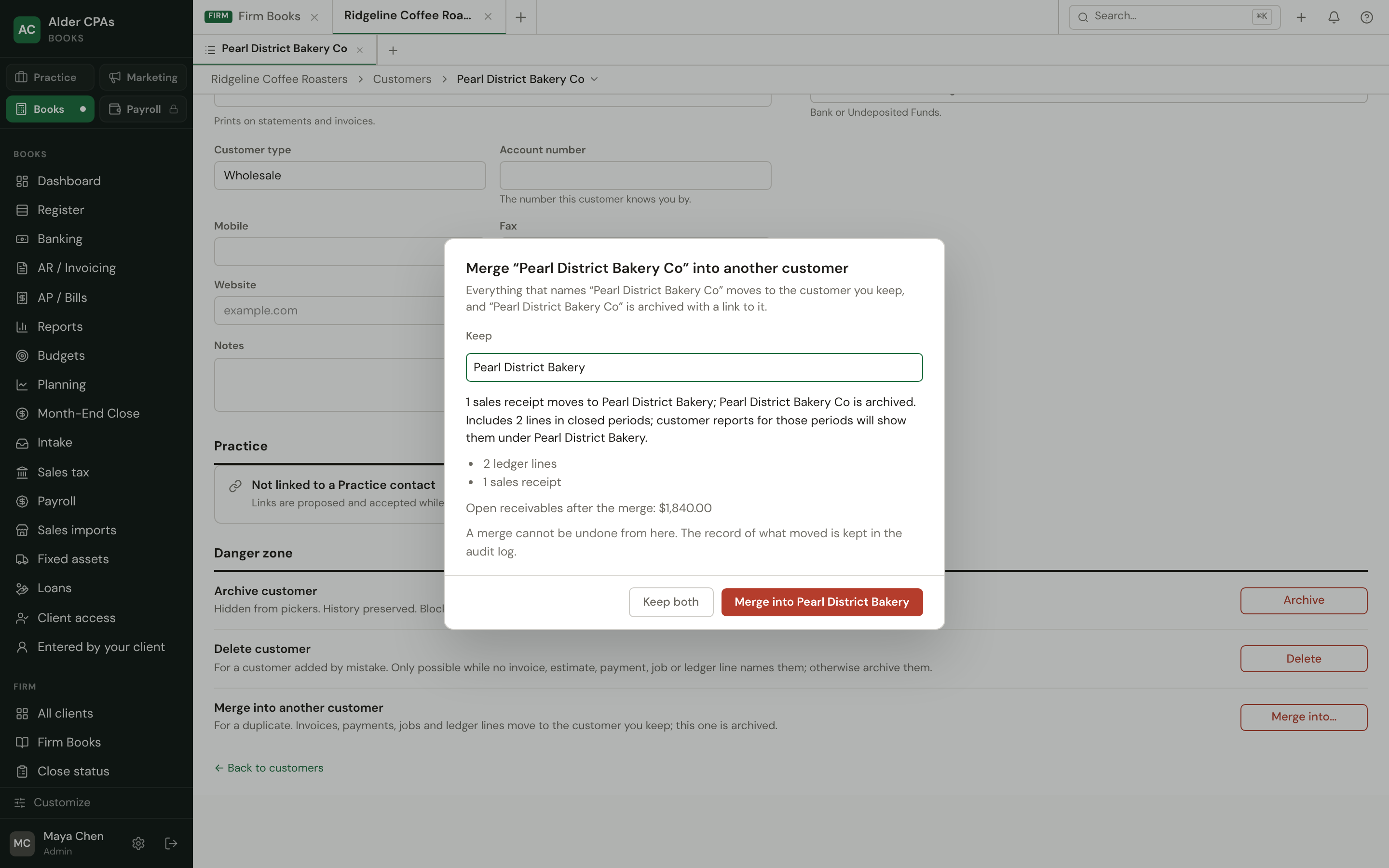 Merging Pearl District Bakery Co into Pearl District Bakery
A merge also updates the client's bank rules, scheduled entries and saved report views that named the duplicate. Books then opens the customer you kept. If you open the duplicate later, its page says **Merged into Pearl District Bakery.
Everything that named this record now names Pearl District Bakery.** A merged customer can't be restored: its history now lives under the customer you kept (see Archive a customer).
A merge can't be undone from the screen. The record of what moved is kept in the audit log. Check the name under Keep before you confirm.
Books refuses a merge, with the reason, when:
- the two customers have different sales-tax settings: Make them the same on one of them, then merge.
- both have a job of the same name: Rename one of them, then merge.
- both are linked to records in the accounting system the books were brought in from: Merge them there first, then here.
- the customer you picked to keep was itself already merged into another: Merge into that record instead.
Archive a customer
Archive a customer you no longer invoice. An archived customer is hidden from the invoice and payment pickers; its invoices, payments and history stay exactly as they were.
- Open the customer and click Settings.
- Under Danger zone, click Archive.
- Read the prompt and click Archive.
Archive is turned off while a saved invoice to the customer still carries a balance, and the page says why under the button, for example 2 open invoices must be paid, written off or voided before this customer can be archived. Collect, write off or void them first. An invoice whose billing has moved to Practice doesn't count: it is collected there. A draft invoice does not stand in the way: it was never posted.
Archiving a customer who holds credit leaves that credit unusable until you restore them. The prompt names the amount: Alberta Street Market has $186.40 of unapplied credit. Archiving keeps it on record but stops offering the customer, so the credit can't be applied to a new invoice or refunded until the customer is restored. Apply the credit to an invoice or refund it first if the customer is really gone. Filter → Balance → Holds credit lists every customer in this position.
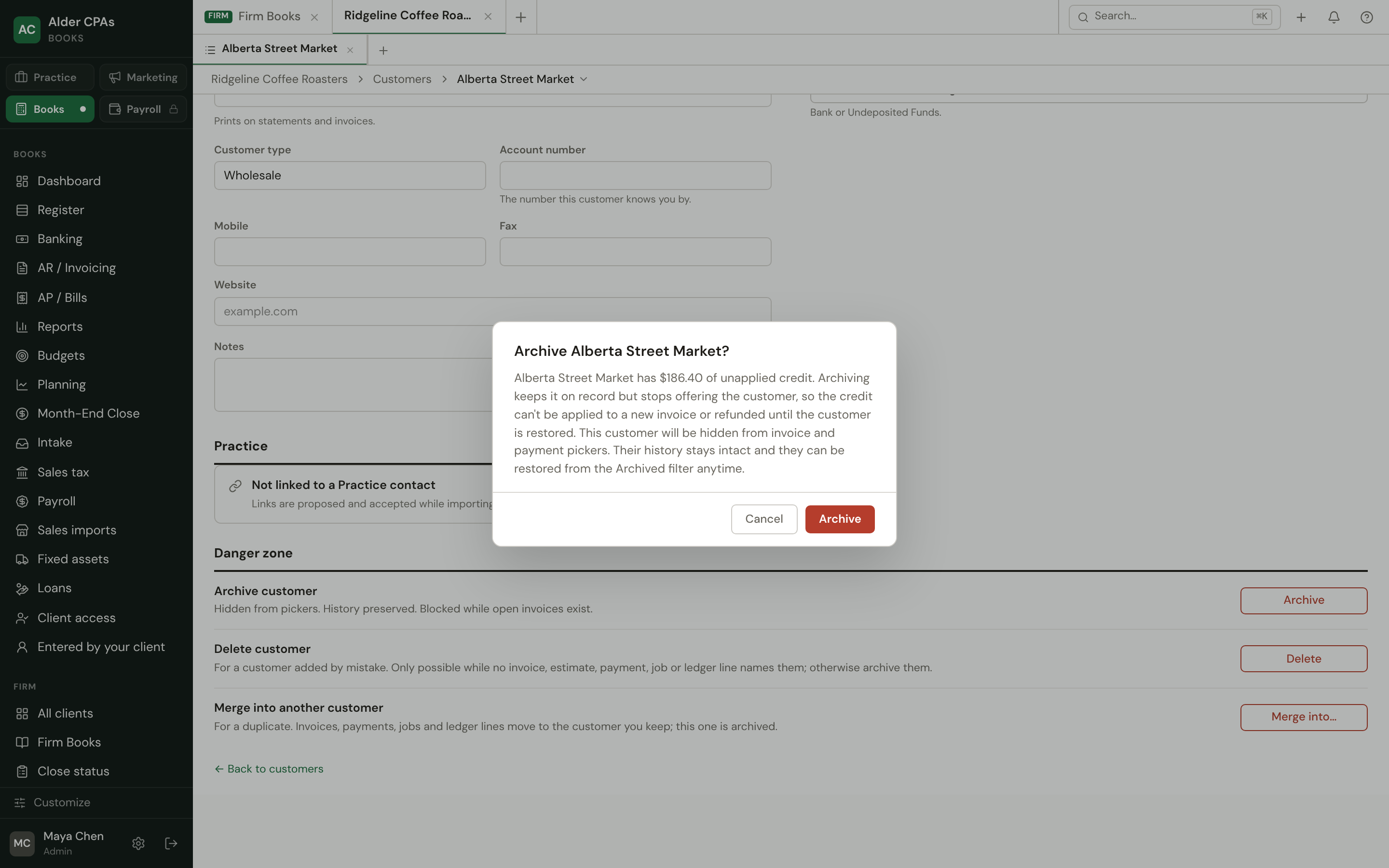 Archiving Alberta Street Market, which has $186.40 of unapplied credit
To bring a customer back, filter the list to Archived, open the customer, click Settings, and click Restore under Danger zone. It returns to the pickers and the Active filter.
A customer that was merged into another can't be restored. Restore is turned off, and the page says why, for example Merged into Pearl District Bakery, which now holds this customer's invoices, payments and credits. Open Pearl District Bakery instead.
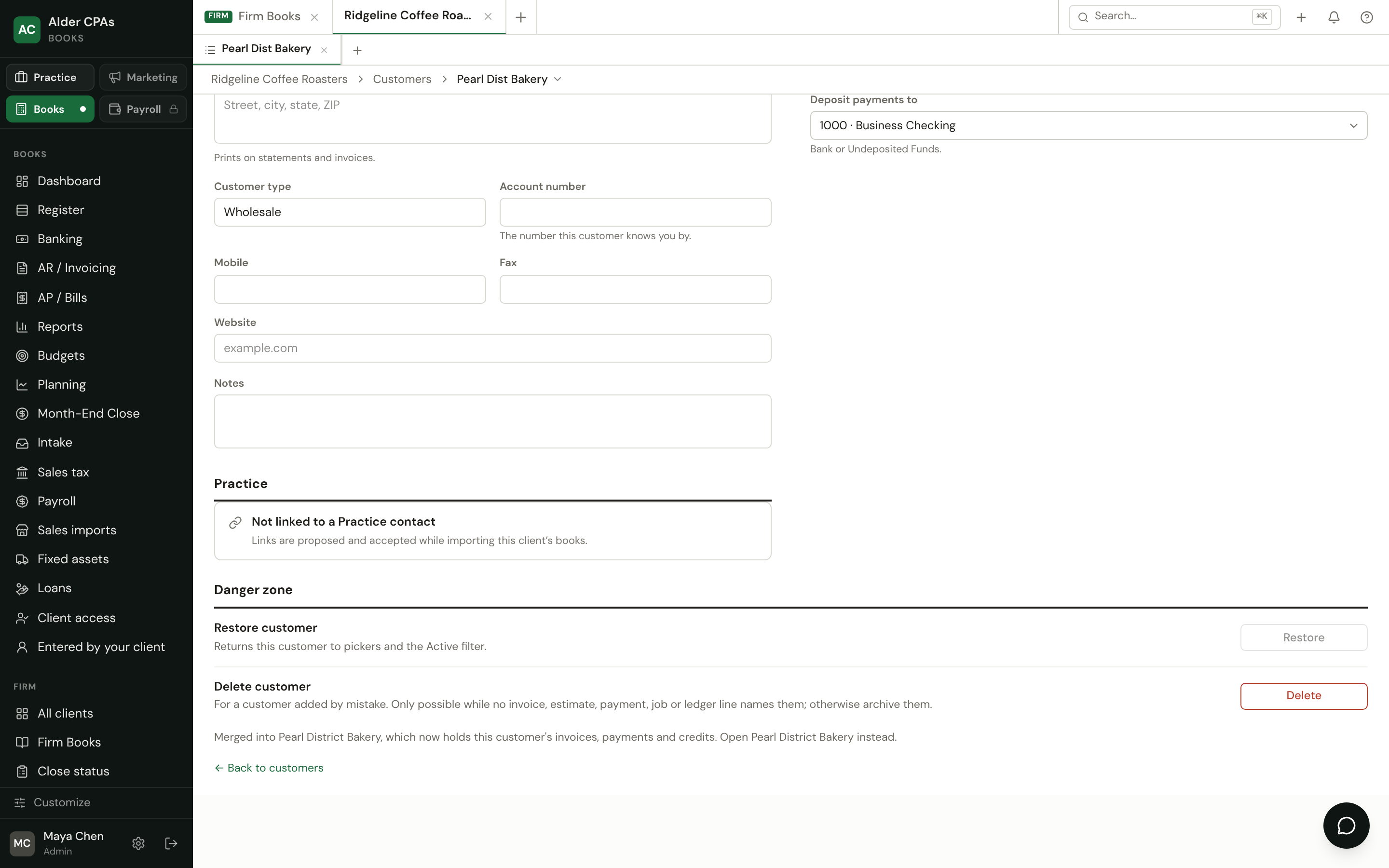 Pearl Dist Bakery, merged into Pearl District Bakery: Restore is turned off, and the line under the Danger zone says why
Delete a customer
Delete is for a customer added by mistake. It is possible only while nothing names the customer: no invoice, estimate, payment, job or ledger line.
- Open the customer, click Settings, and under Danger zone click Delete.
- Books checks what names the customer. If nothing does, the window says the customer is removed and that this can't be undone; a full copy of what was deleted stays in the client's audit history. Click Delete customer, or Keep it.
If something names the customer, the window says what and offers Archive customer instead (when the customer can be archived). When the customer has unapplied credit, the window names it before you click, in the same words as the Archive prompt.
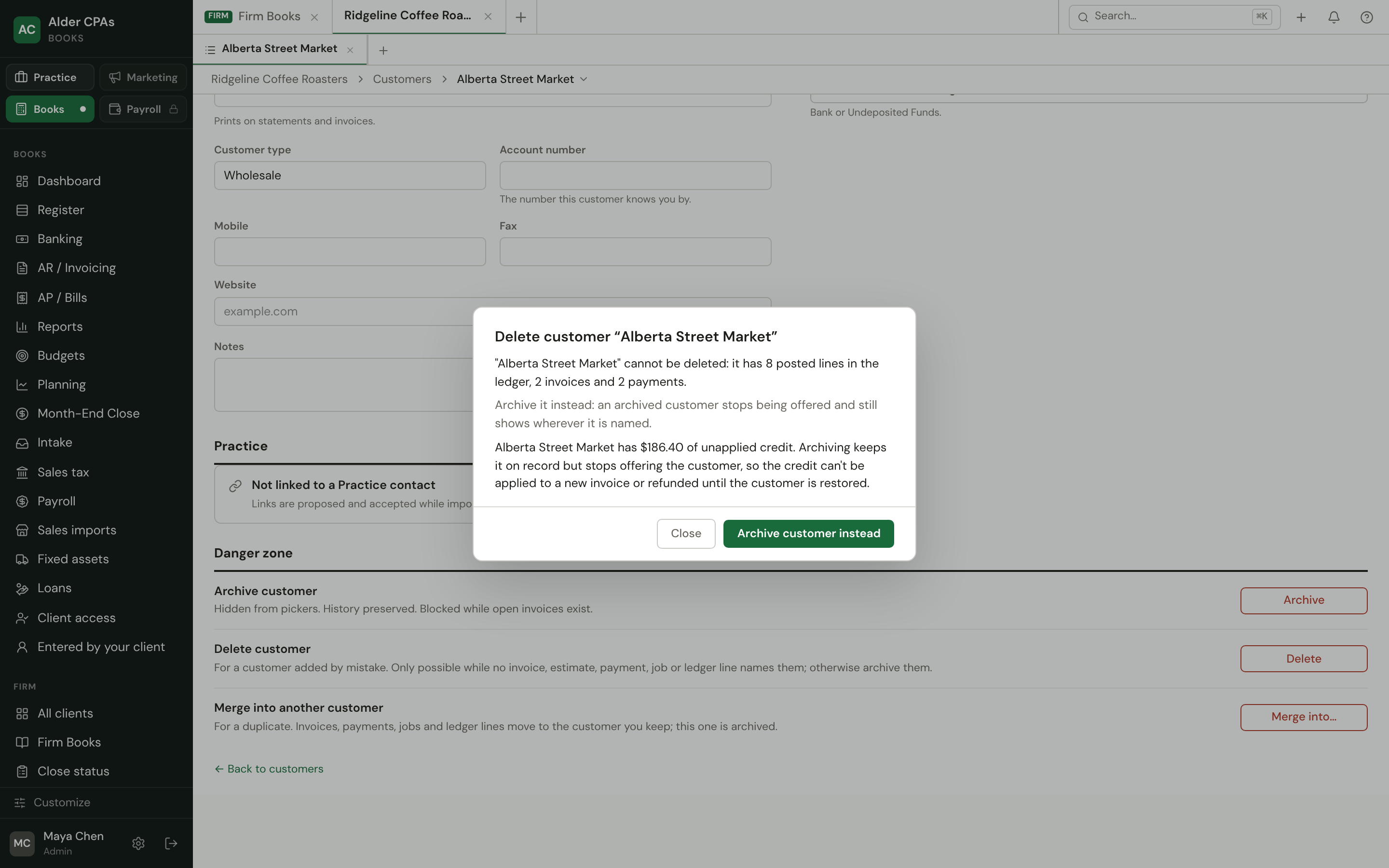 Deleting Alberta Street Market is refused; the window offers Archive customer instead and names the $186.40 of unapplied credit
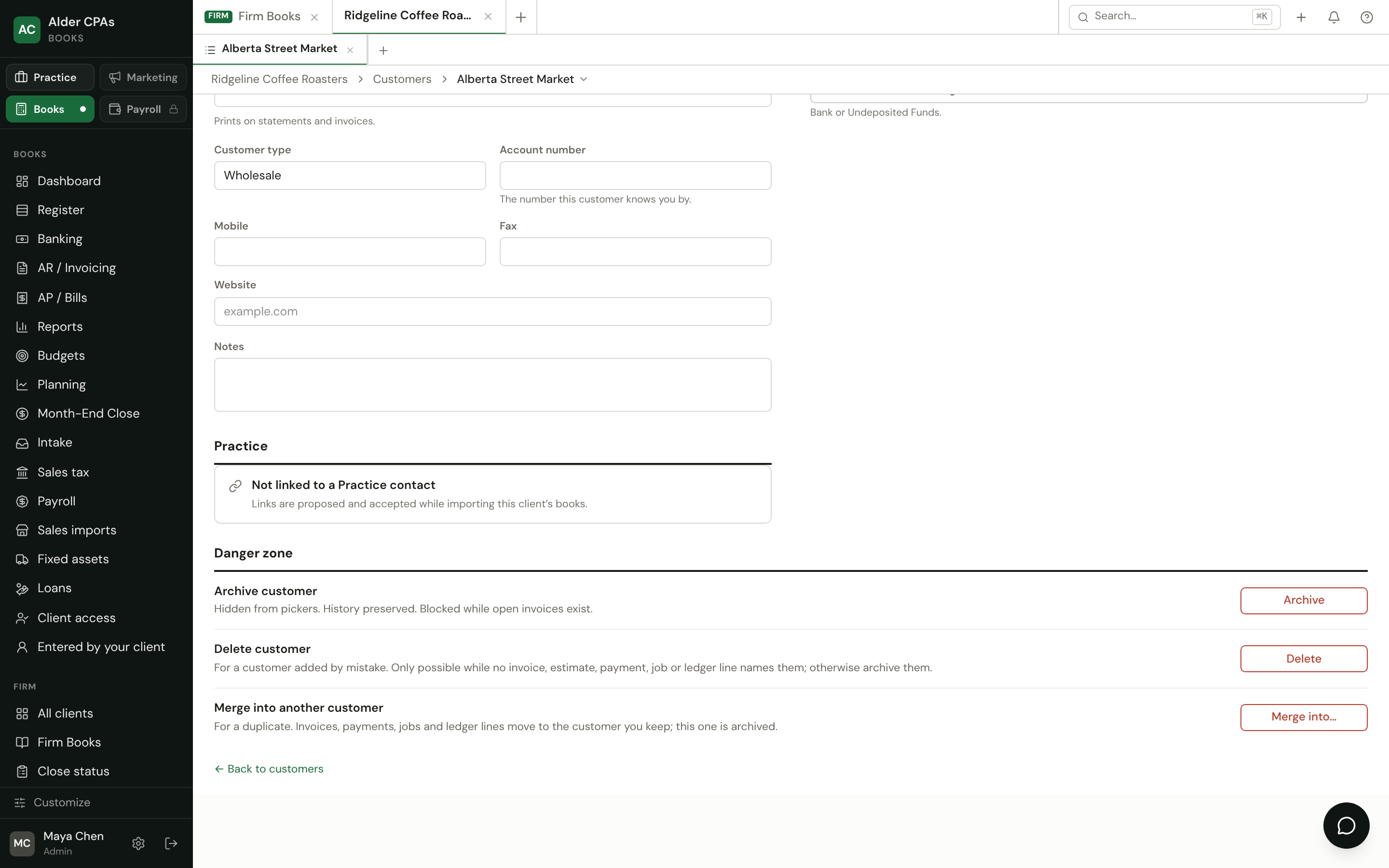 The Settings tab's Danger zone: Archive, Delete and Merge
Why can't I…
…delete this customer?
Something in the books names them. The window says exactly what, for example "Pearl District Bakery" cannot be deleted: it has 12 posted lines in the ledger, 4 invoices and 2 payments. A customer with history is archived instead (see Archive a customer): it stops being offered and still shows wherever it is named. A customer that another customer was merged into can't be deleted either.
…archive this customer?
A saved invoice to the customer still carries a balance. The sentence under Archive says how many: One open invoice must be paid, written off or voided before this customer can be archived. Drafts never block archiving.
…restore this customer?
It was merged into another customer, which now holds its history. The line under Danger zone names that customer: open it instead.
…save a new customer, or rename one?
The display name is already used by another customer of the same client: A customer named Pearl District Bakery already exists for this client. (or, when renaming, Another customer already uses that display name.). Make it different, for example by adding the location.
…archive, delete, merge or change this customer?
Adding, editing, merging, archiving, restoring and deleting customers need the Invoices, estimates and customers permission on the client.
Without it, the customer's Settings tab shows its fields turned off (default class and location follow their own permission), and Archive, Restore, Delete and Merge into… are turned off too, with the reason written above the fields: You need the "Invoices, estimates and customers" permission for this. Ask an admin to grant it.
Ask your firm's owner or an admin to give it to you. A merge and a delete must be done by a person signed in to Books, not through an API key.
…find a customer on a new invoice?
They are archived. Restore them, or filter the list to Archived to check.
If you also use Practice
In your firm's own books, when your firm also uses Practice, your customers are your Practice clients. The Customers page lists them, says under each name whether it is a Practice client or Books only, and offers New client in Practice in place of New customer; Paste is turned off.
A Practice client's name, company, contact, email, phone and address are kept in Practice and read-only here (Edit in Practice), and archiving one happens in Practice too (Archive in Practice): archived in Practice, archived here. Payment terms and the account defaults stay yours to set in Books. If a Practice client can't be listed, a notice above the table says why and links to Billing from Practice.
In a client's books, a customer can be linked to a contact in Practice. The Practice section of the customer's Settings tab shows the link, and you can unlink it there. Links are proposed and accepted while importing that client's books.
Tips
- Before you archive, filter for Holds credit. It is the one list of customers the client still owes.
- Merge, don't archive, a duplicate. Archiving leaves the history split across two names; merging puts it all under one.
- Use Edit in grid after an import to fix terms and revenue accounts for many customers in one pass, and paste a column straight from your spreadsheet.
- The Aging report button opens the full receivables aging report for the client. See The Reports Library and the Core Statements.