
Recurring Invoices, Batch Entry and Sales Receipts
Bill the same customer on a schedule, enter a stack of invoices at once from a spreadsheet, and record sales that were paid on the spot.
On this page
Not every sale needs an invoice typed from scratch. Ridgeline Coffee Roasters bills Blue Heron Café the same subscription every month, enters its weekly wholesale orders from a spreadsheet, and sells beans to walk-in customers who pay at the counter. Books has a tool for each: recurring invoices for the bills that repeat, batch entry for many invoices at once, and sales receipts for sales paid at the time of sale.
A sales receipt is not an invoice. It records a sale and its payment together: the money goes straight to the deposit account, and nothing is ever owed. Use an invoice when the customer pays later.
Recurring invoices
A schedule bills one customer the same lines on a cadence: every month on the 1st, every quarter, every year. Open Recurring in the Money In strip to see the schedules.
The Recurring list
The list opens on the active schedules. Its columns are Schedule, Customer, Repeats, Next created, On create, Escalator, Issued and Status (Active or Paused). A schedule set to Save and email reads Save and email · emails the customer automatically in On create, so you can see at a glance which ones reach a customer with no one clicking send.
The line under the title counts the active schedules and how many are due today, and says how invoices are made: Every morning, the invoices that are due are created automatically, in the name of the person who created the schedule. Anyone who manages invoices can also create them sooner with Create due invoices. Filter by Status, Customer or Next created, and search by schedule or customer.
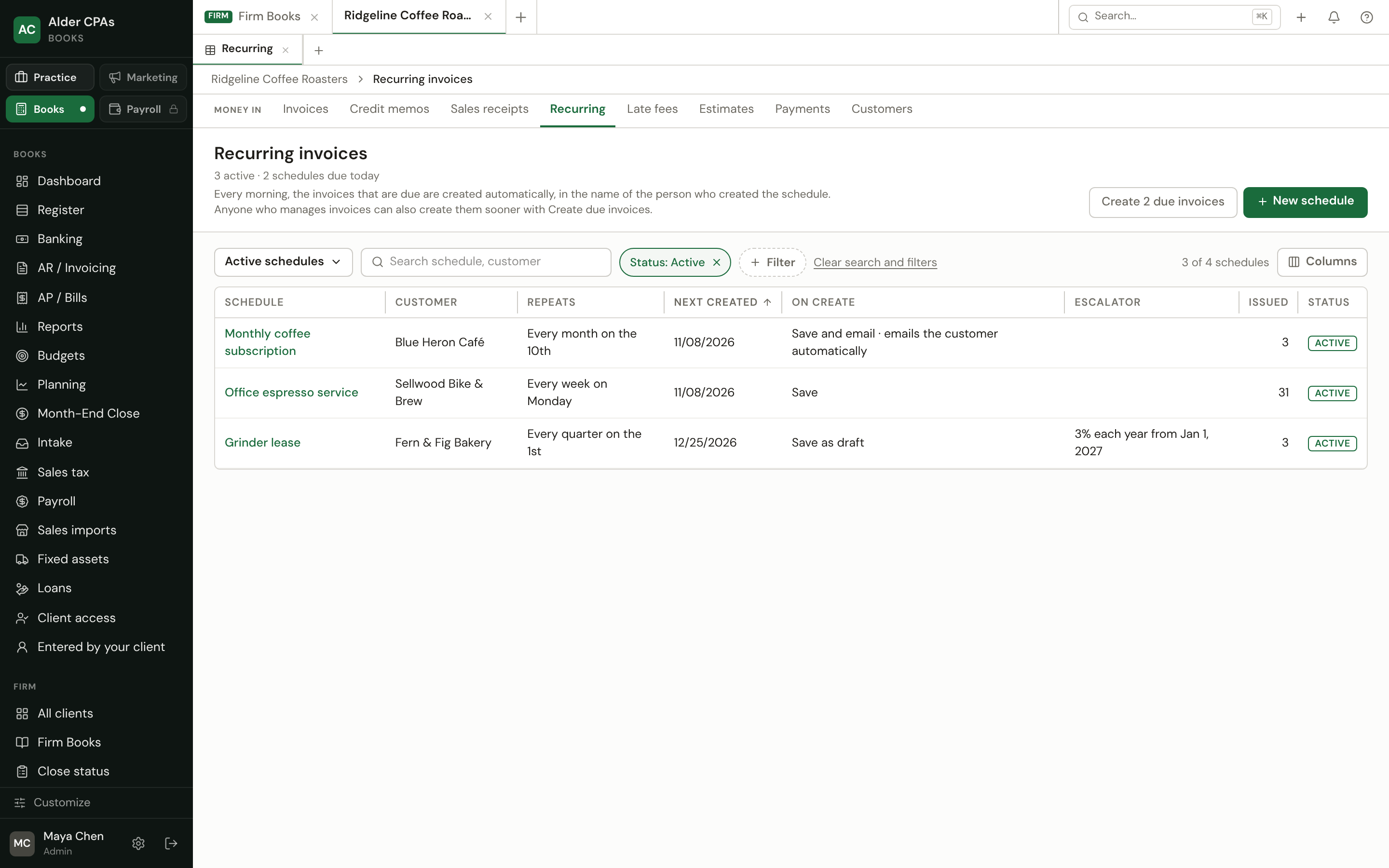 The Recurring list: three active schedules, two due today, and the line that says how their invoices are made
Create a schedule
- Click New schedule.
- Give it a Name (for example Monthly coffee subscription) and choose the Customer.
- Set Repeats (Weekly, Monthly, Quarterly or Annually), Every (1 to 24 of them), and the day: On a weekday for a weekly schedule, On day of the month otherwise, and the Month for a yearly one. The line under the fields says it in words, for example Every month on the 1st.
- Set Starts, and Ends: Never, On a date, or After a number of invoices.
- Create — how many days before each invoice's date Books creates it, 0 to 60.
- Choose On create. The line under it says what that means:
- Save as draft — Each invoice is created as a draft for someone to review and save. Nothing goes to the customer.
- Save — Each invoice is saved to the books when it is created, with no one reviewing it first. Nothing is emailed.
- Save and email — Each invoice is saved and emailed to the customer automatically when it is created, with no one clicking send. Emailing needs permission to send invoices.
- Terms — leave it on the customer's or firm's terms, or choose one.
- Add Memo (internal) and Message to customer if you like.
- Add the Lines: Description, Income account, Qty, Rate. A blank quantity bills the rate as a flat amount.
- Click Save.
As you fill it in, Next invoices lists the invoices the schedule would create: the date each is Dated, the day it is Created on, and its Amount. It is Books' own check of the schedule, run as you type; if something would be refused, the reason shows there and Save stays off.
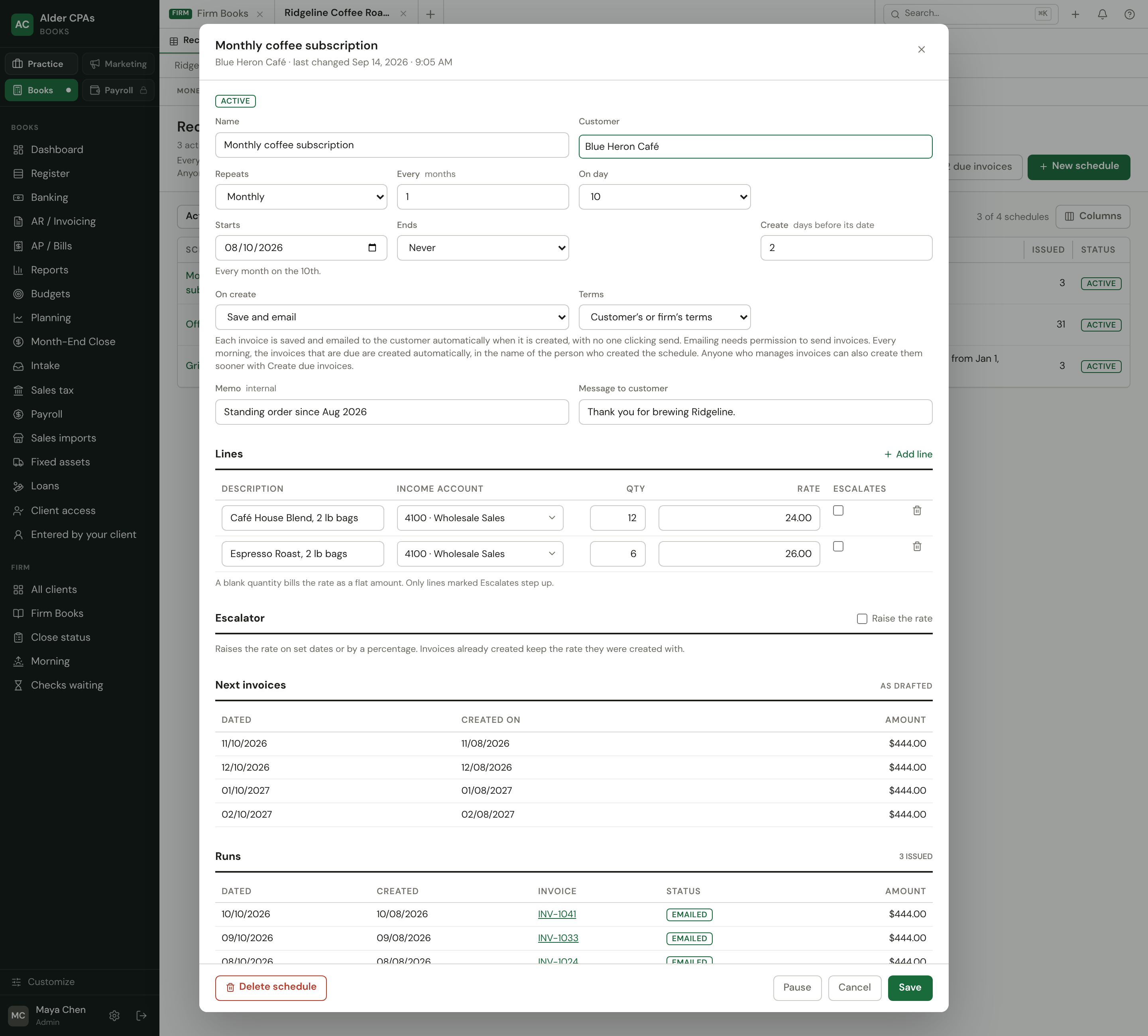 The Monthly coffee subscription for Blue Heron Café: dated the 10th, created two days ahead, saved and emailed, with its next invoices and its runs
When the invoices are created
Every morning, Books creates the invoices that are due, for every active schedule, in the name of the person who created the schedule, and does with each what On create says: a draft, saved, or saved and emailed.
Save and email sends by itself. A schedule on Save and email emails the customer every time an invoice is due, with no one clicking send. Use Save as draft while you are setting a schedule up, and switch once the first invoice looks right.
You can also create them yourself at any time: click Create due invoices on the Recurring list (it reads Create 2 due invoices when two schedules are due). The dialog first checks what is due and lists each Schedule, Customer, Dated, On create and Amount, then Create with the count (for example Create 2 invoices) makes them, in your name.
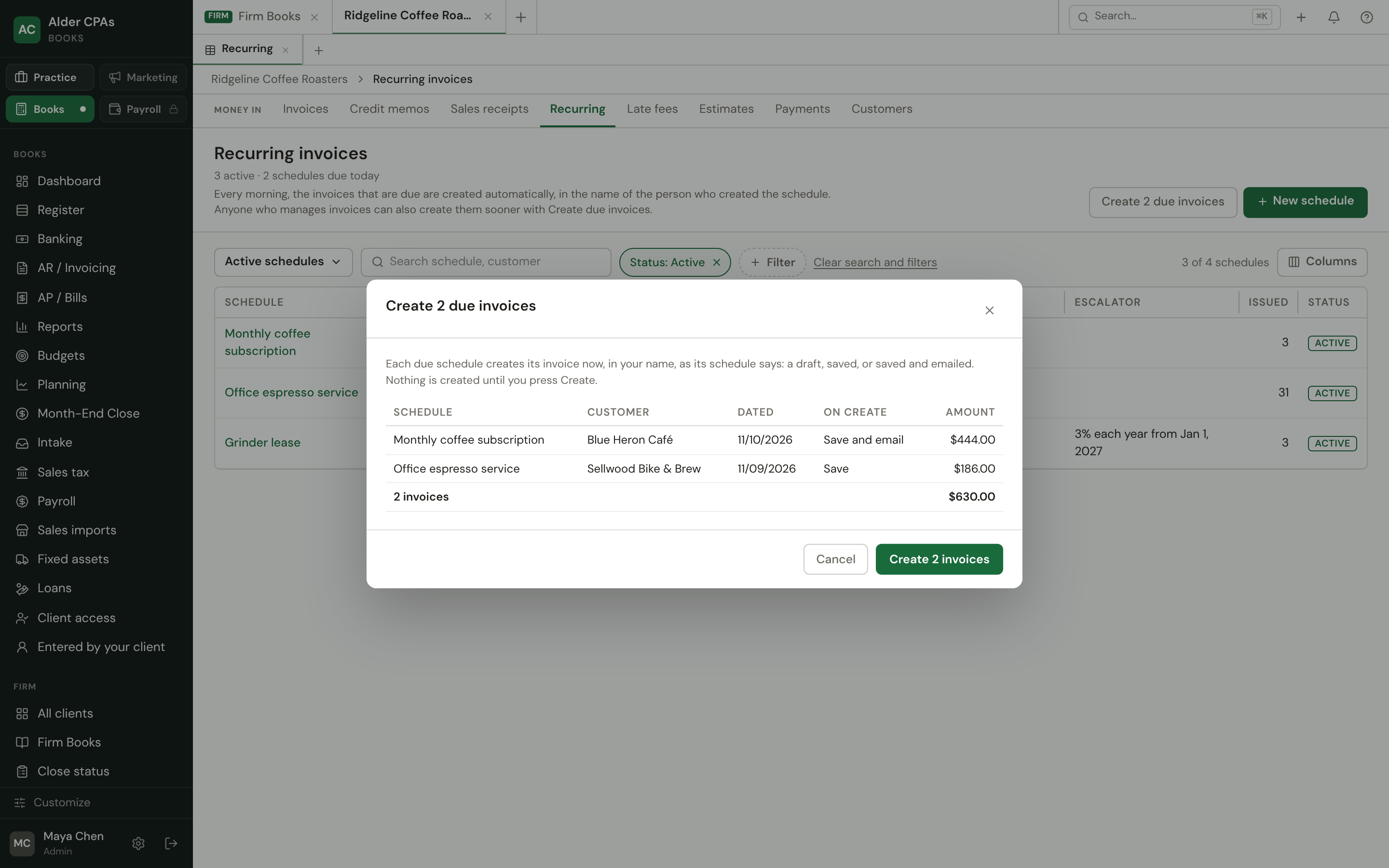 Create 2 due invoices: the subscription and Monday's office espresso, $630.00 in all, before anything is created Nothing is created until you click it, and clicking twice never creates anything twice.
If a schedule can't create an invoice, the row says Needs a person with the reason, and the schedule stays on that date until it is fixed and created again. If an invoice was saved but could not be emailed (usually because the customer has no email address), the invoice is on the books and the schedule moves on: send it from the invoice once there is an address. Creating the due invoices again does not email it.
Raise the rate on a schedule
Tick Raise the rate under Escalator, and mark which lines escalate (Escalates). Then choose the Method:
- Percentage — Increase by a percent Every so many months, First on a date, Round to the Cent or Whole dollar, with an optional Cap.
- Set dates — an Effective date and a Rate for each step. From each date on, an escalating line bills that rate. Before the first date it bills its own rate.
Invoices already created keep the rate they were created with. Next invoices shows the escalating rate for each upcoming invoice, so you can see the increase land before you save.
Pause, change or delete a schedule
Open a schedule from the list. Runs lists every invoice it has created, with its status (Draft, Saved, Emailed, Needs a person or Already created) and a link to the invoice.
- Pause stops it: no invoice is created while it is paused, and Next invoices reads None while the schedule is paused. Resume starts it again.
- Change anything and click Save.
- Delete schedule says what it ends, for example the next invoice and its date, and that the invoices already created stay as they are.
Creating and changing schedules takes the Invoices, estimates and customers permission.
Enter invoices in a batch
Invoices → Batch entry opens a grid where each row is one invoice, up to 200 at a time.
- Fill in each row: Customer, Invoice no., Date, Due, then Account, Description and Amount. Every line needs a description. On a client that charges sales tax, each row also has a sales tax choice (Default tax or No tax).
- Click + line to add another line to the same invoice. A row with several lines shows its total under them.
- Click Check with the count, for example Check 12 invoices. Books checks every row exactly as it would enter it and writes nothing.
- Read the summary: 3 invoices will be saved as drafts, $2,110.00 in total. with each invoice's number and total. A row that can't be entered stays, with its reason.
- Click Enter with the count (for example Enter 3 invoices), or Back to the grid to change something.
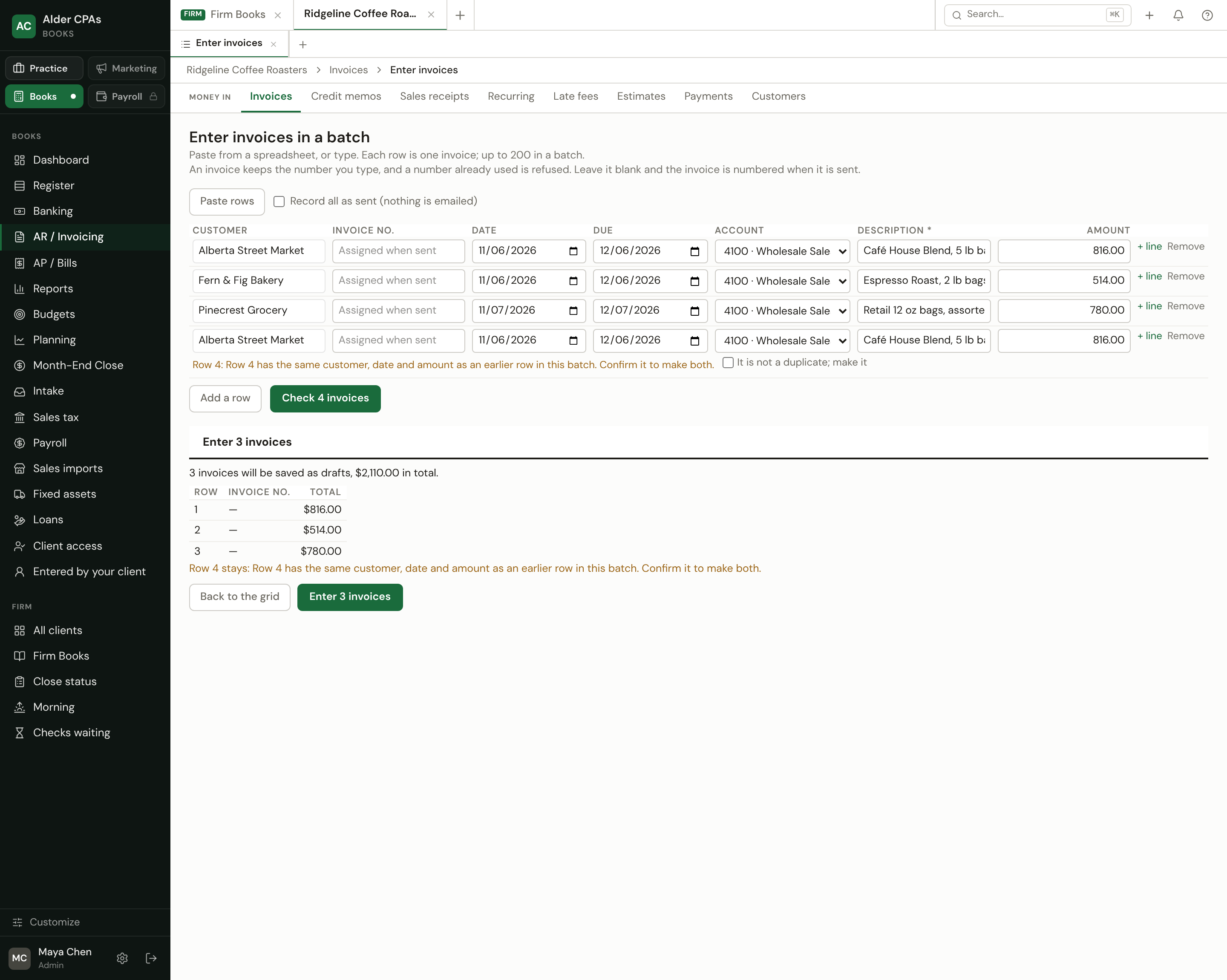 Four pasted wholesale orders checked: three will be saved as drafts, $2,110.00 in total; the fourth repeats the first and is held
The rows that were entered leave the grid; any that were held stay with their reason, so you can fix them and check again.
Things worth knowing:
- Drafts, or sent. Invoices are saved as drafts. Tick Record all as sent (nothing is emailed) to put them on the books as sent instead, without emailing anyone. That needs the Send invoices and statements permission; without it the box is off and says why.
- Numbers. An invoice keeps the number you type, and a number already used is refused. Leave it blank and the invoice is numbered when it is sent.
- A discount is a line below zero. On an invoice row, a line less than zero is the discount on the line above it.
- A likely duplicate is held, not refused. A row with no number that has the same customer, date and amount as an earlier row, or as an invoice already in Books, is held; tick It is not a duplicate; make it on that row, then check again.
- A number already used is held with what to do, not a tick. If a row's number repeats an earlier row's, or the client already has an invoice with that number, the row says so, for example Invoice 1042 is already used by this client. Change its number, then enter it. Numbers match whatever their case: INV-1042 and inv-1042 are the same number.
- New rows are dated today in the client's time zone, or on the day the books start if that is later. Add a row copies the date of the row above.
- Change anything and the summary closes. Check again before you enter.
Batch entry takes the Invoices, estimates and customers permission.
Paste from a spreadsheet
Click Paste rows and paste one row per invoice, with the columns in this order: Customer · Invoice no. · Date · Due · Account · Description · Amount. Then click Add the rows. Customers and accounts are matched by name, ignoring case (an account by its number too); one that matches nothing keeps its name and the row asks you to pick one.
On a client that charges sales tax, a pasted row can end with a sales tax column (0 means no tax). Dates can be typed as 11/08/2026, or year first as many spreadsheets export them. A header row is skipped.
Sales receipts
A sales receipt records a sale the customer paid for on the spot: a walk-in buying two bags of beans, or a farmers' market order paid by card.
Record a sales receipt
- Go to AR / Invoicing → Sales receipts and click New sales receipt.
- Choose the Customer and the Date.
- Leave Number blank for the next number in the client's sales receipt series, or type one.
- Choose the Payment method, and a Reference if there is one (a check number or authorization).
- Deposit to — a bank account or undeposited funds. Left empty, Books uses the client's default deposit account and shows which one.
- Add the lines and a Memo if you like.
- Click Save, or Save as draft to finish later.
Save records the sale: the deposit account takes the amount received, and each line's income account is credited. A draft is not in the books until you save it, and the dialog says so at the top.
The Sales receipts list
Its columns are Number, Date, Customer, Method, Deposited to, Status and Amount. The totals row leaves drafts and voids out.
Remove a draft, or void a saved receipt
-
Remove draft removes a draft that was never saved. It changes no balance, and the whole draft is kept in the audit log.
-
Void reverses a saved receipt: the amount comes back out of the deposit account and the income is taken back, by a reversing entry dated the receipt's own day while that month is open, or today once it is closed.
Entry reversed on shows the date before you confirm. Give a reason of at least 10 characters, then click Void sales receipt. The receipt stays on file as void and can't be saved again. Voiding takes the Void or reverse a posted entry permission.
Shortcuts and tips
| Where | Key | What it does |
|---|---|---|
| Sales receipt lines | Tab / Shift+Tab | Move across a line |
| Sales receipt lines | Enter | Go to the next line, adding one at the bottom |
| Sales receipt lines | Ctrl+Delete | Remove the current line |
| Account on a line | ↑ / ↓, then Tab or Enter | Pick a suggested account |
Rate and Amount do math. On a sales receipt line, type a sum such as 75+12.50 or 3x18.50 and it settles to the result, to the cent. + and -, *, x or × to multiply, / or ÷ to divide, and parentheses group. A leading =, $, commas and spaces are ignored.
- Pause, don't delete, a schedule you may need again: a paused schedule keeps its lines and its history.
- Batch entry's Check is free. It writes nothing, so check as often as you like.