
Record a Payment and Apply Credits
Record what a customer paid, apply it to their open invoices, use a leftover credit later, and correct, void or refund a payment when something was wrong.
On this page
When a customer pays, you record the payment once and tell Books which invoices it pays. Books settles those invoices, posts the money to the account it landed in, and keeps anything left over on the customer's account as a credit you can apply later. The Payments page lists every payment the client has received, whether you recorded it or the customer paid online.
The full amount you received always posts, even if you apply only part of it. What you don't apply to an invoice is not lost and doesn't shrink the deposit: it stays on the customer's account as credit, shown as Unapplied on the payment and in the list, until you apply it or refund it.
Understand the Payments page
The line under the title counts the client's payments, what was received this year, and how much is sitting unapplied, for example 7 payments · $6,304.50 received YTD · $86.00 unapplied. These figures cover the whole client and don't change with your search or filters.
When there are payments in Undeposited Funds waiting to go to the bank together, a strip above the list says how much and how many, for example Undeposited Funds $1,752.50 · 2 items, with a Make deposit button. See Deposits, Card Payouts and Making a Deposit.
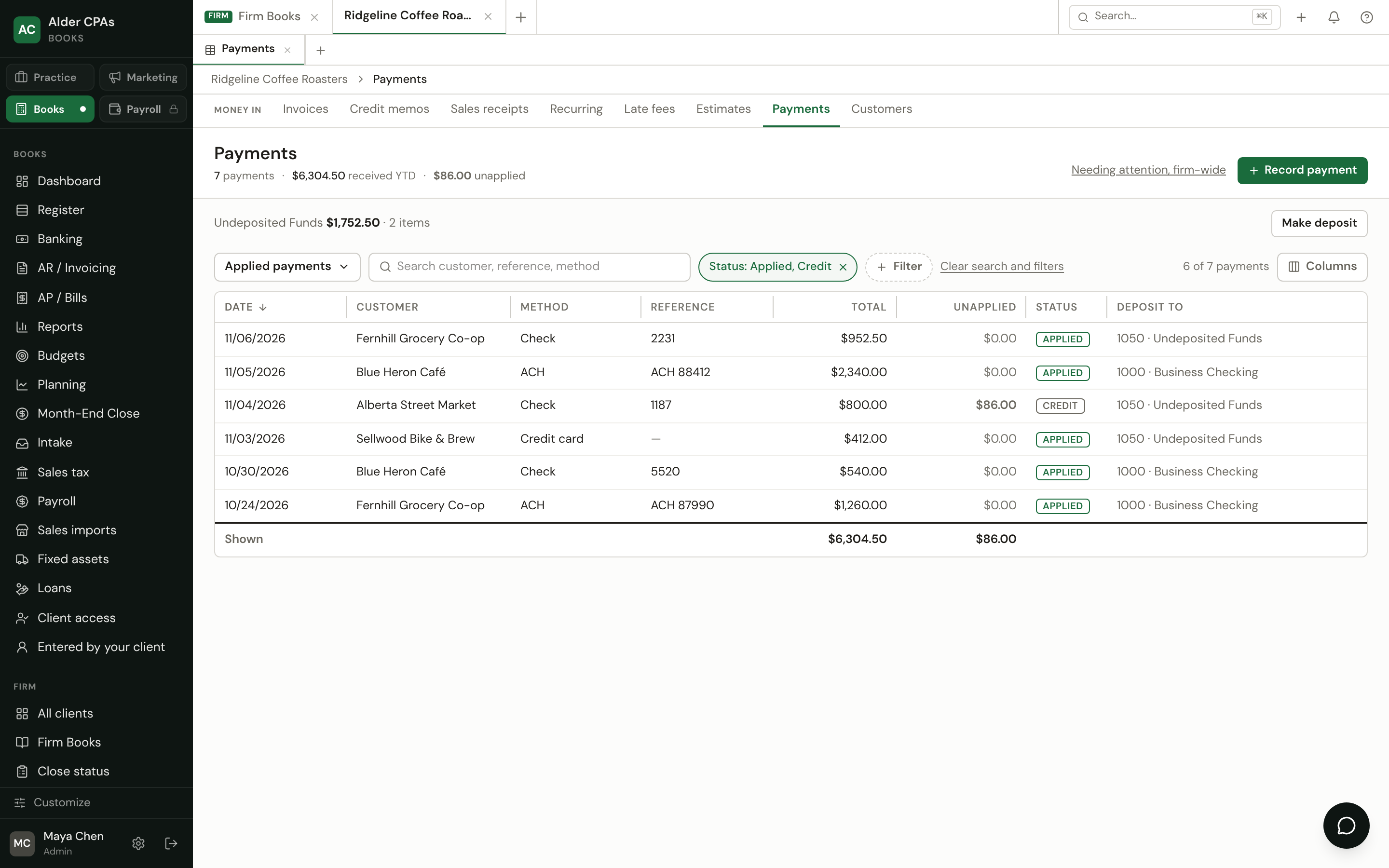 The Payments list for Ridgeline Coffee Roasters, with one payment holding $86.00 of credit
The columns, in order:
| Column | What it shows |
|---|---|
| Date | The day the payment was received. |
| Customer | Who paid. |
| Method | Check, Cash, ACH, Wire, Credit card or Other. |
| Reference | The check number or bank reference you entered. |
| Total | Everything received. |
| Unapplied | The part not applied to any invoice. |
| Status | Applied when nothing is left over, Credit when part of it is unapplied, Void when it was voided. |
| Deposit to | The account the money was posted to. |
The list opens on Status: Applied, Credit, so voided payments are hidden. Clear that chip to see them. Search finds a payment by customer, reference or method, and Filter narrows by status, customer, method, deposit account, date, total or unapplied amount. The Shown row at the bottom totals what is on screen. Click a row to open the payment.
Record a payment
- Click Record payment. You can also start from a customer's page, which chooses the customer for you, or from an invoice's Record payment button, where the customer is chosen, that invoice is ticked, and Amount received starts at its open balance.
- Choose the Customer. Their open invoices appear under Apply to open invoices, oldest due date first, and a line under the name shows their open balance, overdue amount and last payment.
- Check the Date, choose the Method, and enter a Reference (a check number or ACH reference) if there is one.
- Enter the Amount received.
- Check Deposit to (see Where the money goes).
- Check which invoices are ticked and how much goes to each, then click Record payment.
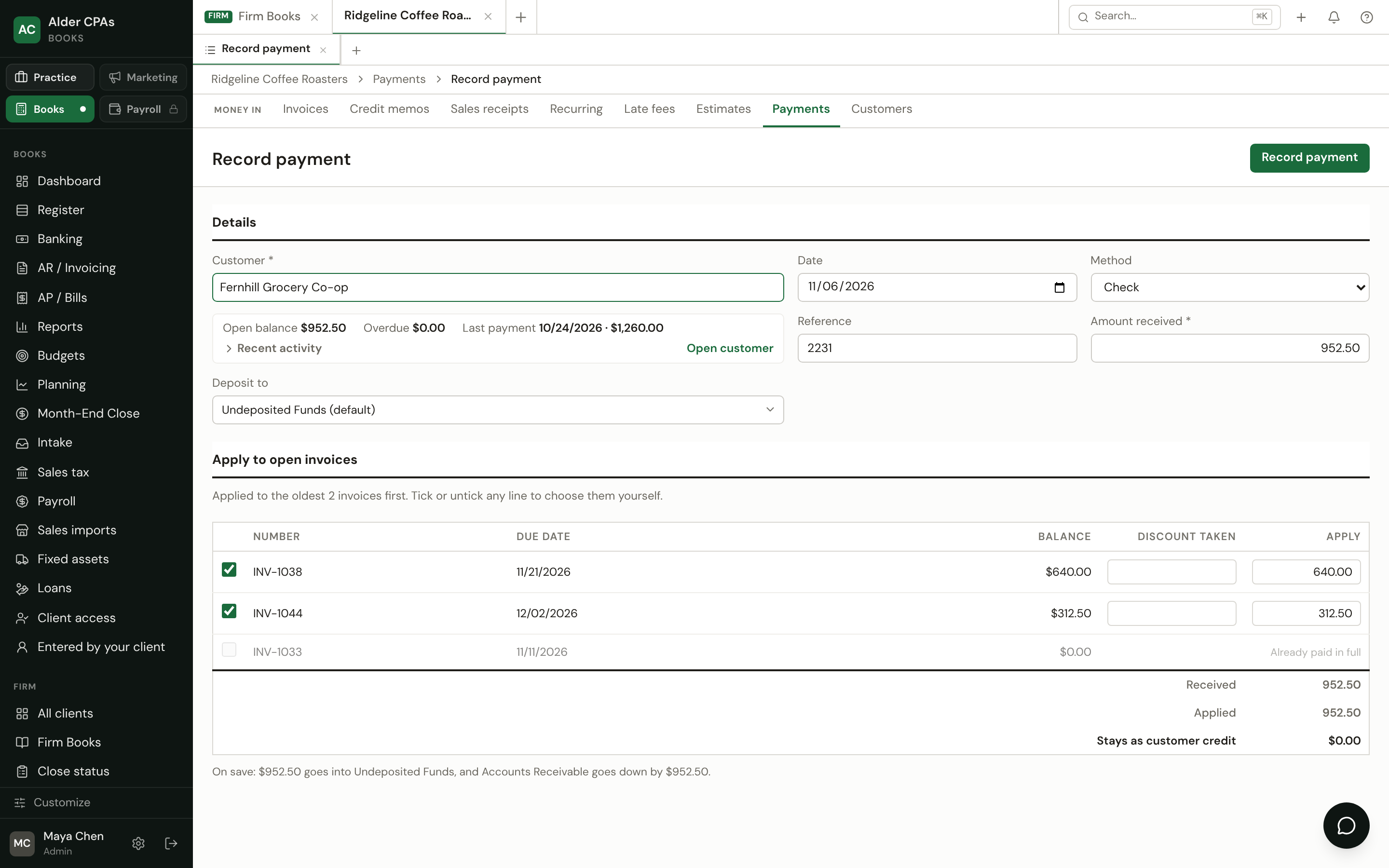 Recording Fernhill Grocery Co-op's $952.50 check, applied to its two oldest invoices
How Books fills in the invoices
You rarely have to tick anything yourself:
- One invoice for exactly the amount. If exactly one open invoice has a balance equal to what you received, Books ticks that one and says so: Applied to invoice INV-1038: the only open invoice for exactly this amount. Untick it to keep the payment as credit.
- Otherwise, oldest first. Books ticks the oldest invoices until the amount is used up, and the last one can be paid in part: Applied to the oldest 2 invoices first. Tick or untick any line to choose them yourself.
- Once you tick or untick a line, you're in charge. Books stops choosing for you. Each ticked line you haven't typed in is filled with whatever is left, in order; a line you type an amount into keeps what you typed. Unticking a line forgets what you typed there.
Invoices that can't take a payment are still listed, grayed out, with the reason in the Apply column, for example Already paid in full or Drafts can't receive payments.
Under the table, Received, Applied and Stays as customer credit add up as you go. If you apply more than you received, the last line reads Over by in red and Record payment stays off until you lower an amount. A line under the table says in words what will post, for example On save: $952.50 goes into Undeposited Funds, and Accounts Receivable goes down by $952.50.
Math in an amount
Every amount on these screens works out a sum when you leave the field or press Enter. Type 640+312.50 in Amount received and it becomes 952.50. You can use +, -, * (or x), / and parentheses, for example (125+50)/2.
A leading =, a dollar sign and commas are ignored, and the result is rounded to the cent once, at the end. If the sum can't be worked out, the field keeps what you typed, outlined in red, with the reason, such as Can’t divide by zero.
Early-payment discounts
The table on Record payment always has a Discount taken column. When an invoice offers an early-payment discount and its window is open, Books fills in the discount for the date you entered, and the note under it says until when, for example 2% if paid by Nov 12, 2026.
After that it says The 2% window closed … and fills nothing, though you can still type one. Changing the Date re-checks the offers. The invoice is settled by the cash plus the discount, the totals gain Discount taken and Clears lines, and the discount posts to the sales discounts account set in Settings → Account mapping.
Tips on a payment
If tips are turned on for the client, a Tip field appears. A tip is part of what you received but is not applied to any invoice: it posts to the tips account chosen in Settings › Tips.
Where the money goes
Leave Deposit to as it is and Books uses, in order: the deposit account saved on the customer, then the client's Default bank account, then Undeposited Funds (both set in Settings → Account mapping). The field shows which one it will use, for example Undeposited Funds (default). If none of them is set, it reads Choose a deposit account and Record payment waits until you pick one.
Use Undeposited Funds for checks and cash you take to the bank together; group them later with Make deposit so the bank line matches one deposit. Use the bank account itself when the money arrived on its own, such as an ACH payment.
A payment can start from the bank line too. In the Review queue, money in from a customer with open invoices shows Payment from … · 1 open invoice (or more) instead of a category, with a Receive payment button. It opens this form with the line's date, amount and bank account filled in; save the payment, then match the line to it. See Reviewing Bank Transactions.
Apply a customer credit
A payment with money left over shows a banner on its page, for example $86.00 of this payment is not applied to any invoice. Apply it to an open invoice, or it stays as customer credit.
- Open the payment (its status is Credit) and click Apply credit.
- Tick the invoice. Books fills in as much as the credit covers, capped at what is left.
- Check the line under the table: Fully applied, or the amount that will stay as credit.
- Click Apply credit.
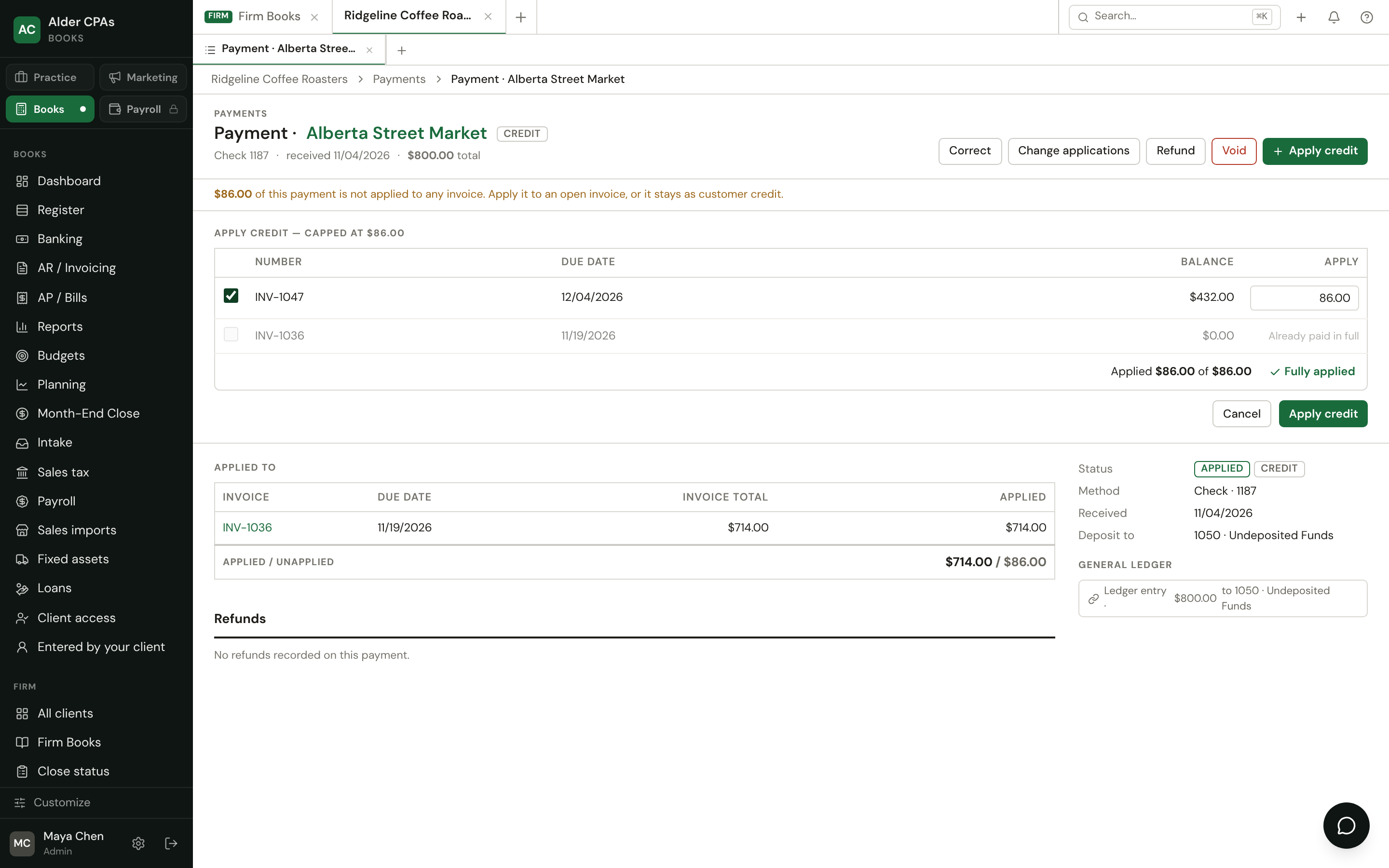 Applying Alberta Street Market's $86.00 credit to invoice INV-1047
The invoice's balance drops by the amount applied. Nothing new posts to the ledger: the money was already posted when the payment was recorded.
Credit can also come from a credit memo, which you apply from the memo itself. To work through every open credit for the client at once, open Register → All transactions → More → Match open credits. Books proposes where each credit should go, each with its rule (Exact amount or Oldest first); you untick or lower any match, and apply them together. The result page has Undo all.
Card payments, disputes and payments that didn't post
A customer who pays an invoice online, by card or by bank transfer, appears here like any other payment, with Credit card or ACH as its method. Its page adds a Payment section with what was received, any Surcharge collected, what each invoice got, and what is unapplied.
Processing fees are not part of this entry unless your firm posts fees with each payment (the firm's Settings → Payments & payouts, Fee settlement set to Net, a firm-wide setting that appears there once your firm has its own payment account connected); otherwise they post when the payout that carries the payment reports them (see Deposits, Card Payouts and Making a Deposit). The Payment section says which, following that setting: The card fee posts when the payout reports it, so the deposit matches the payout. or The card fee posted with this payment.
A payment made online is refunded, never voided. Its Void button is turned off with the reason: this payment was made by card online, so it is refunded, not voided. Refund sends the money back to the card and records it. For the same reason, Correct on a card payment changes only the Reference: the date, amount and Deposit to stay as the card processor recorded them, and the dialog says so.
What does this dispute mean?
When the customer disputes the charge with their card company, the payment shows This payment is disputed. The ledger is unchanged until the dispute resolves. Books does not reverse anything while the dispute is open, because you may win it.
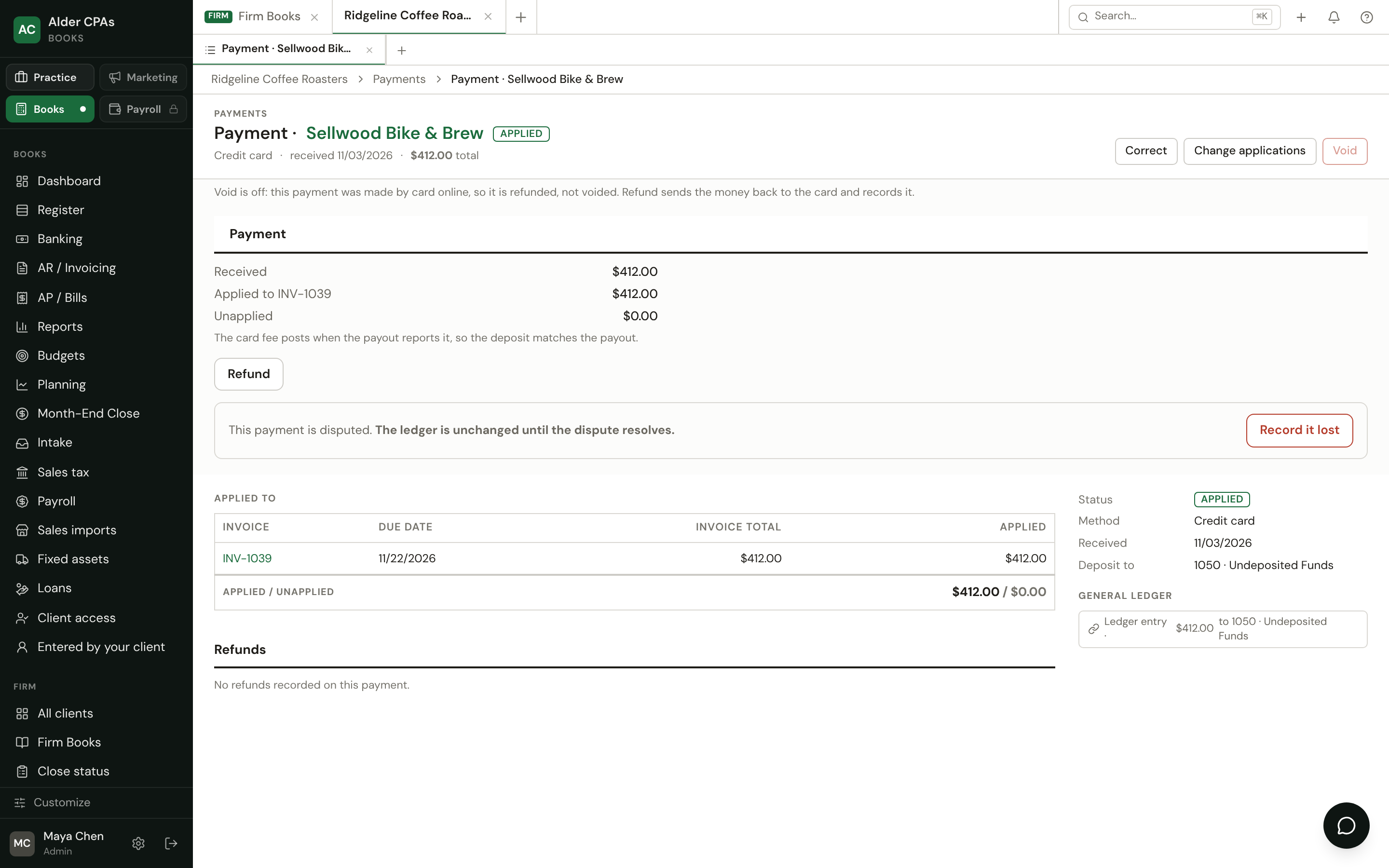 A disputed card payment from Sellwood Bike & Brew
-
If you win, the dispute closes on its own and nothing changes in the books.
-
If you lose, click Record it lost. Enter the Dispute fee the processor charged (optional) and Why it was lost (kept with the record).
Books works out what will happen before you confirm and says it in full, for example Sellwood Bike & Brew's $412.00 payment is taken back by the processor; the entry reverses it out of Undeposited Funds, dated Nov 8, 2026. 1 invoice is open again. PMT-0044 stays on record, marked Dispute lost. Nothing is removed.
If you enter a fee, the sentence also names the fee and the account it is booked to. The button names the amount, for example Reverse $412.00 from Sellwood Bike & Brew. The payment stays on record, marked Dispute lost.
Record it lost is turned off for anyone whose access is read-only (Your access is read-only. Ask an admin to record this.), and for your client's own users.
Why didn't this payment post?
Look at the top of the payment:
-
The payment succeeded; its ledger entry was not recorded. followed by the reason. The customer paid, but Books could not post the entry, for example because an account the entry needs isn't set up. Fix what the reason names, then click Record it again.
-
A card payment whose month was already closed when it arrived is not applied to its invoice until a person does it. It shows on Needs attention as Waiting on a closed month, and the payment's own page says so under the Payment section, for example $432.00 waits to be applied to invoice INV-1047: this payment arrived in a month that was closed. Apply it in the current period with Change applications, or reopen that month and apply it on its own date., with a Change applications button beside it.
Apply credit is turned off on that payment, and pointing at it gives the reason. Click Change applications and move the money onto the invoice, which applies it in the current period, or reopen the month and apply it on its own date.
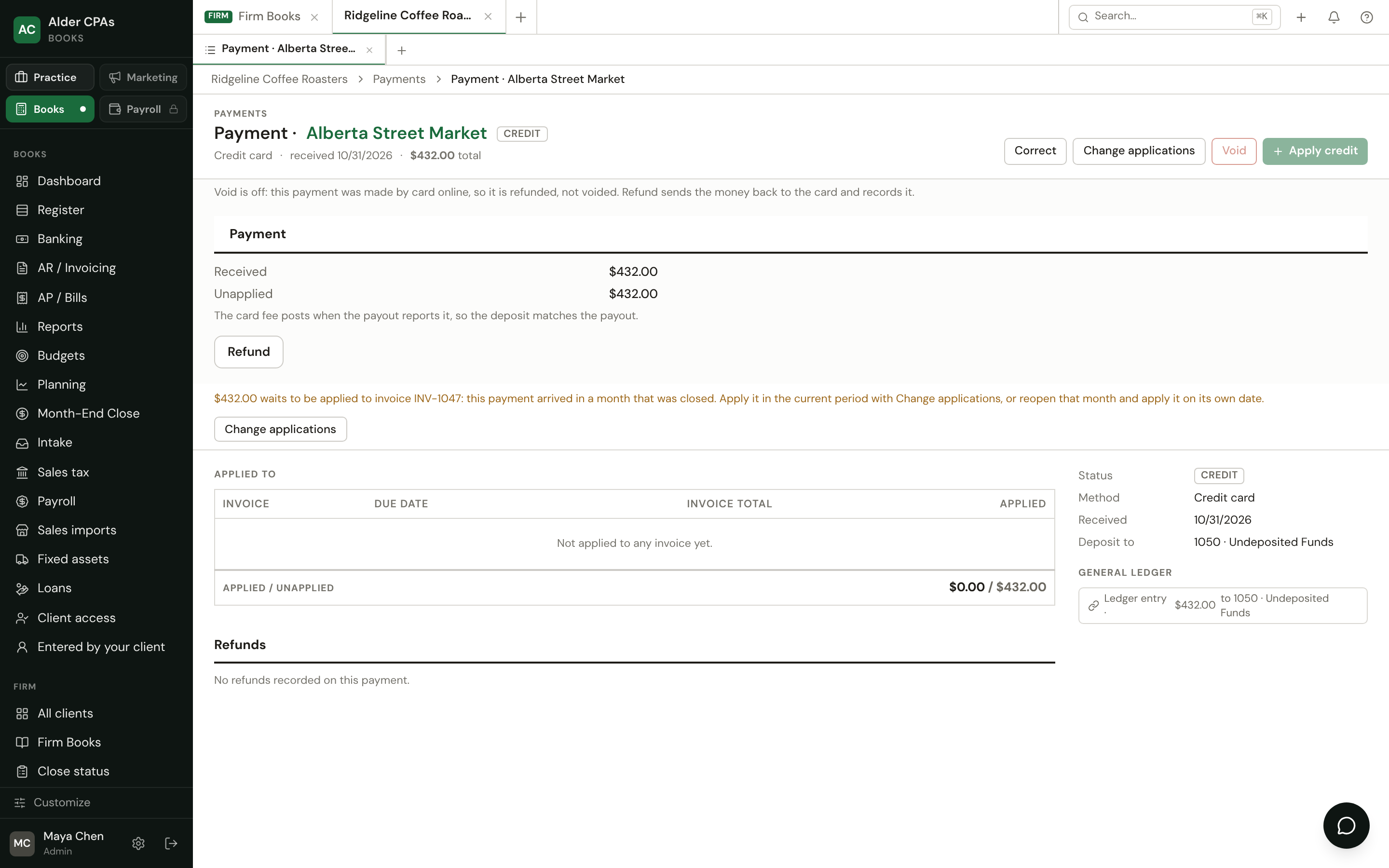 A card payment that arrived in a closed month: what waits, the invoice it waits for, and Change applications
Payments needing attention
Click Needing attention, firm-wide on the Payments page (Needing attention when you keep your own books) for one list of everything that needs a person, across every client whose books you can see. Each row has its kind, client, amount, detail and its next step.
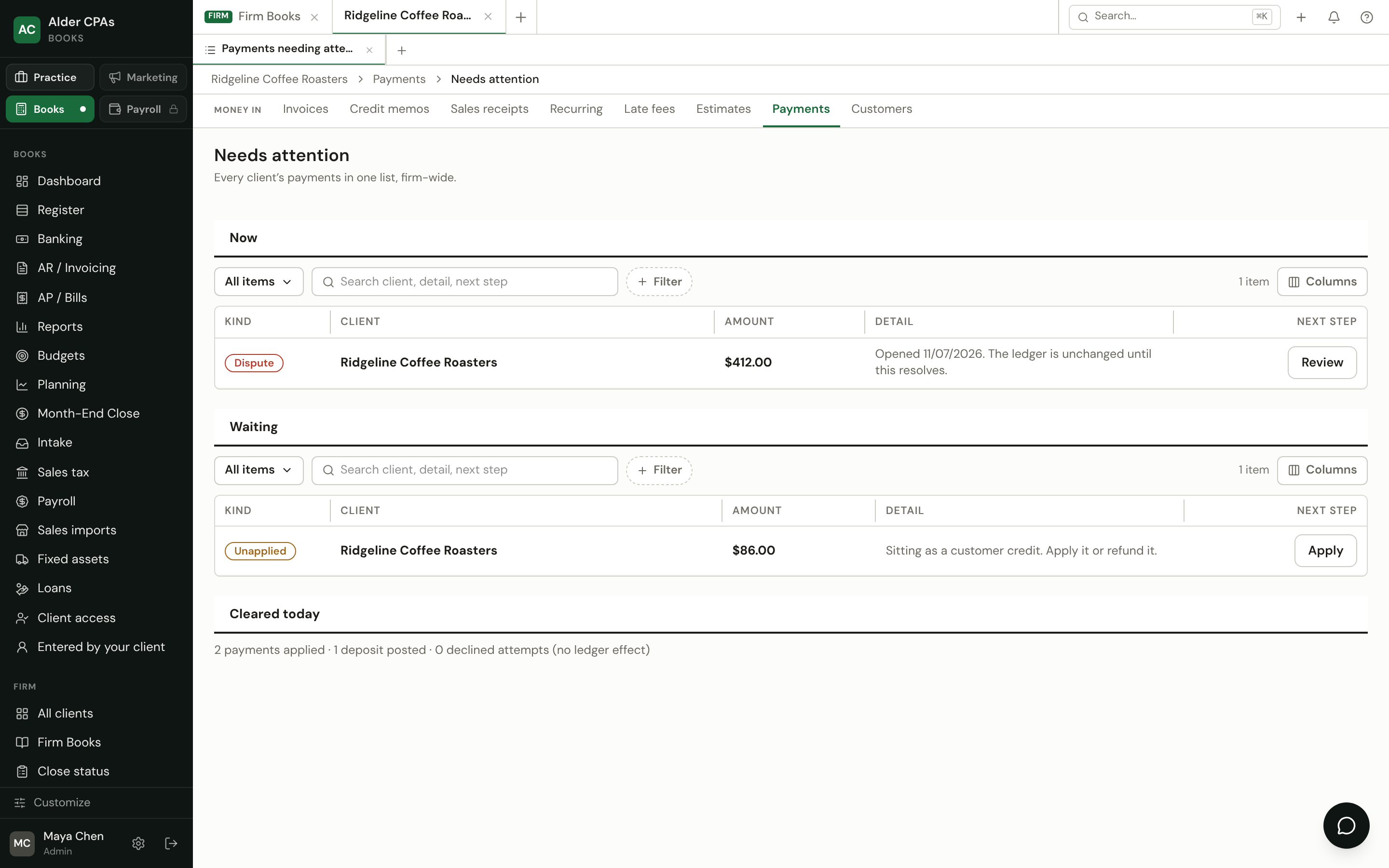 Payments needing attention: a dispute under Now and an unapplied credit under Waiting
| Kind | What it means | Next step |
|---|---|---|
| Entry failed | A card payment succeeded but its entry did not post. | Retry posting |
| Dispute | A card payment is disputed. The ledger is unchanged until it resolves. | Review |
| Waiting on a closed month | A card payment arrived in a closed month and waits to be applied. | Apply in this period (or Apply once the month is open again) opens the payment; apply it there as described in Why didn't this payment post? |
| Charge failed | A customer's online payment attempt was declined. Nothing was posted to the ledger. | Resend invoice when the attempt was paying a Books invoice: the row opens that invoice, where you can send it again. Otherwise the step reads Ask the customer to pay again, with no button. |
| Unapplied | A payment is sitting as customer credit. | Apply |
| Waiting | An event from the card processor has waited longer than usual for an earlier one. | Details, where you can Retry now or Dismiss it |
Rows that need you now are under Now; credits and long-waiting events are under Waiting. Cleared today counts what posted today: payments (payments applied), card payouts (deposits posted), and declined attempts, which never touch the ledger. Click a row to open what it names.
Fix or undo a payment
Every change below is checked by Books before it is saved, and the dialog tells you what will happen, or why it can't, in words. The before and after are kept in the client's audit history.
Correct the date, amount, account or reference
Click Correct, change the Received date, the Amount, Deposit to or the Reference, and click Review correction. Books shows what will change, then you save.
- The entry is edited in place. It keeps its number; nothing is reversed or posted again. The prompt says so, and what moves: The amount changes from $800.00 to $850.00, so the deposit account and Accounts Receivable each move by $50.00.
- The applications stay as they are. If the new amount is more than what is applied, the difference becomes unapplied credit. You can't lower the amount below what is applied: This payment has $714.00 applied to invoices, so its amount cannot go below that. Re-point or remove applications first.
- The customer can't be changed, because the applications belong to them.
- Changing only the Reference posts nothing. The prompt says so: The reference changes from “2231” to “2213”., Nothing posts to the ledger. and The ledger entry’s reference changes to match; no amount, date or account moves.
- On a card payment, only the Reference can change. The date, amount and deposit account are locked, with the reason: This payment was made by card online, so its date, amount and deposit account stay as the card processor recorded them. To send money back, refund it. The reference can still be corrected.
- If the payment is on a finished reconciliation and the change moves its amount, date or account, Books warns you and asks you to tick Change it anyway: the reconciliation will be off by this change before it saves.
- Leave it as it was closes the dialog without changing anything.
Move a payment to different invoices
Click Change applications. Each row starts at what this payment applies to it now. Change the amounts, click Review change, then Move the applications. Books won't let the applied total go over the payment, and says by how much. Nothing posts: only the invoice balances change.
Void a payment
Void a payment that should never have been recorded, such as a check entered against the wrong customer.
- Click Void.
- Read the two notes. The first lists each invoice the payment is taken off, what goes back on it, and the status it returns to, for example INV-1029 — $540.00 restored → back to Open ($540.00 due). The second says the entry will be reversed and on what date.
- Enter a Reason of at least 10 characters and click Void payment.
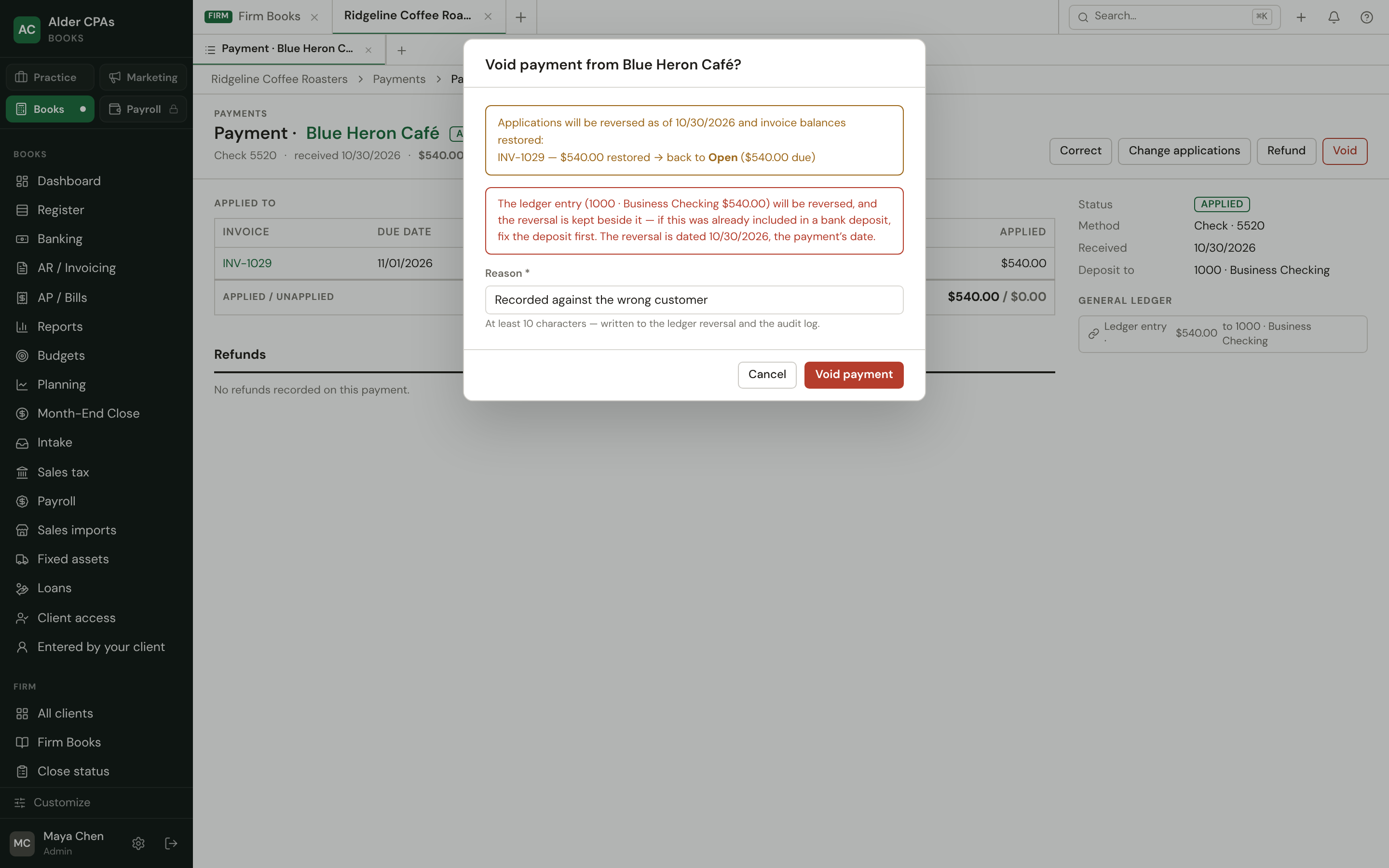 Voiding Blue Heron Café's $540.00 check, with the invoice it reopens and the reversal date
The reversal is dated on the payment's own date while that month is open, and on today's date once it is closed. Both entries stay in the register. If the payment was already part of a bank deposit, fix the deposit first.
Refund a payment
Use Refund when money goes back to the customer.
- Open the payment and click Refund (on a card payment, it's in the Payment section).
- Enter the Refund amount and a Reason of at least 10 characters. If the customer has a credit on this payment, the amount starts at that credit.
- Read What will happen. Books takes the refund out of the customer's unused credit on this payment first; only a refund larger than that reopens invoices, and the dialog names each one and the balance it returns to. A reversing entry posts, and both entries stay in the register.
- Click Refund with its amount, for example Refund $86.00.
What happens to the money depends on how the payment came in:
- A card payment: This sends the money back to the customer through the payment processor first, and Books records it once it is sent. It cannot be undone from here.
- A payment you recorded: Books records this refund. It does not send the money: return it to the customer yourself, by check or cash.
Each refund is listed under Refunds on the payment, with a Void refund button for a refund you recorded by mistake on a payment you recorded: it reverses the refund entry after you give a reason and Books shows what voiding it changes. A refund that reopened invoices can't be voided while the payment still stands: This refund reopened 1 invoice, and voiding it would not pay them again. Record the payment again to pay them.
On a card payment, Void refund is turned off, with the reason under the list: Void refund is off: this refund was sent back to the customer’s card and the money has left, so it cannot be voided. If the customer pays again, record that as a new payment. Once everything received has gone back to the card, Refund in the Payment section is turned off too, with Everything received on this payment has already been refunded. beside it, and the payment's Status and the badge beside its title read Refunded.
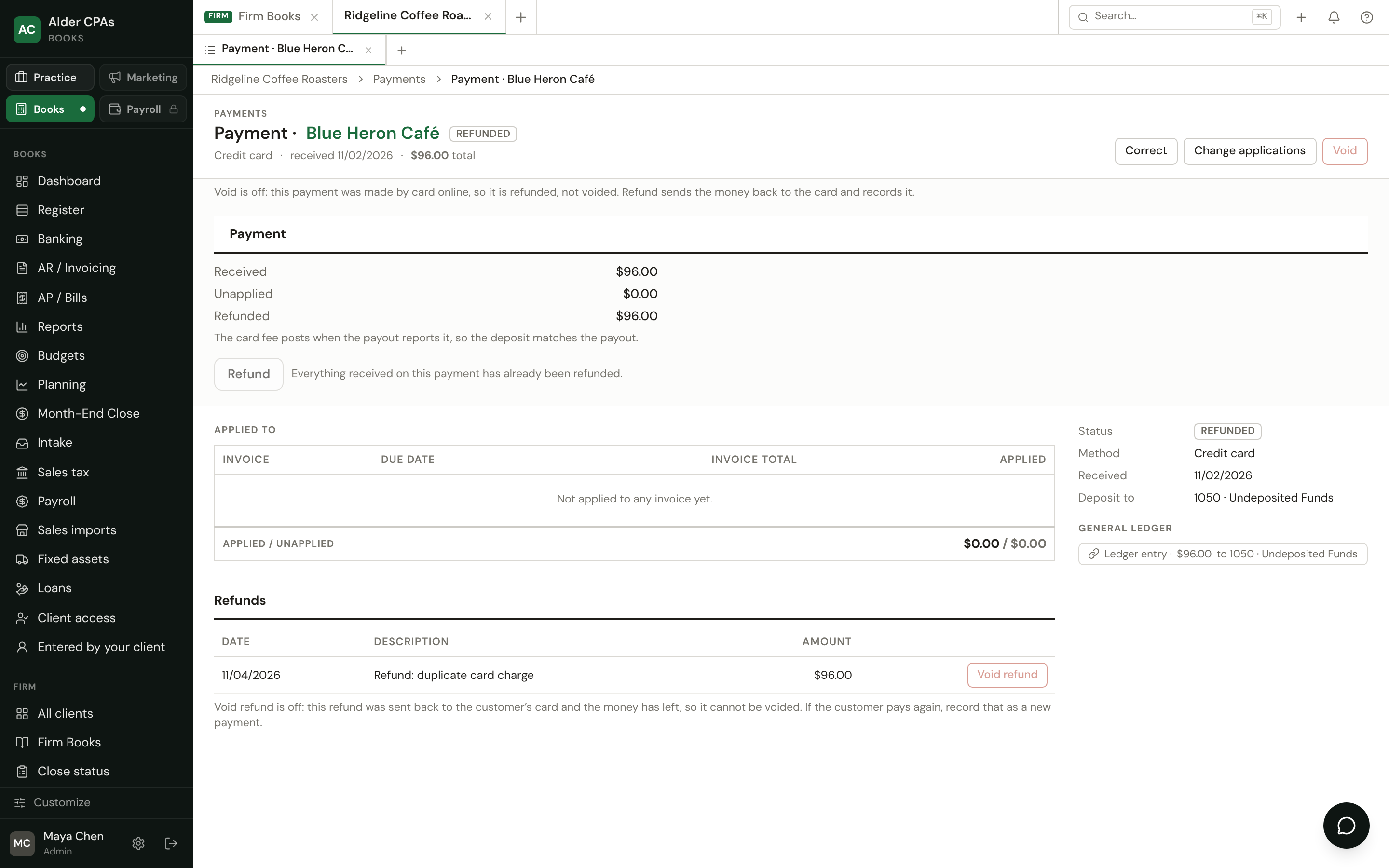 A card payment refunded to the card in full: it reads Refunded, and Refund and Void refund are off, each with its reason
Why can't I…
-
…click Record payment? The reason is beside the button. The usual ones: no customer chosen, the open invoices are still loading or could not be loaded, no deposit account can be worked out, more is applied than received, an amount isn't an amount, or the date is before the day these books start (These books start on …, so this payment can’t be dated …).
-
…record a payment that takes a discount? The client has no sales discounts account mapped. The message names it and links Open Account mapping; choose one there and save the payment again.
-
…tick an invoice? It is paid in full or a draft (or, if your firm uses Practice, billed there), and the reason is in its Apply column. Void invoices are not listed at all.
-
…save in a closed month? Books won't record or correct a payment into a hard-locked month. Voiding a payment from a closed month still works: the reversal is dated today instead. If the month is soft-locked with a closing password, recording, correcting, voiding and voiding a refund ask for the password.
The prompt is titled with the month, for example Oct 2026 is closed, and says Enter the closing password to unlock closed periods for 15 minutes, and what you were saving is sent again. Type the password and click Unlock for 15 minutes: Books records the payment (or makes the change) with no second click. Cancel saves nothing. A date in a fiscal year that has already ended asks you to confirm first.
-
…apply a credit? On a card payment that arrived in a closed month, Apply credit is off; use Change applications, as described in Why didn't this payment post?. Otherwise, the payment is dated in a closed month: This payment was received on Oct 28, 2026, in October 2026, which is closed. Applying $86.00 from it would change that month's figures. Reopen October 2026 to apply it.
-
…void a payment? Part of it was refunded: refund what is left instead. Books says: $100.00 of this payment has already gone back to the customer, so voiding it would take that money out a second time. Refund what is left instead ($700.00 of $800.00).
-
…void a card payment? It is refunded instead. See Card payments, disputes and payments that didn't post.
-
…correct the date, amount or account? On a card payment those fields are locked, with the reason; refund it to send money back. On a payment you recorded, the payment is matched to a bank feed line or was settled in a card payout, and Books names which; void it and enter it again.
A payment that came in with an opening balance has no posting of its own to correct; correct it with an opening-balance journal entry. While the customer is paying one of its invoices online at that moment, a correction waits until the checkout finishes or is canceled.
-
…move the applications? The payment took an early-payment discount: Void it and receive it again.
-
…refund? Everything received has already been refunded, or the dispute was lost and the payment already reversed. On a payment you recorded, the reason is under the button; on a card payment refunded in full, it is beside the button. On a card payment, Refund is hidden after a lost dispute.
-
…do any of this? Recording, applying, correcting, moving and refunding need the permission Apply payments, refund, resolve disputes; voiding a payment or a refund needs Void or reverse a posted entry, and so does correcting an amount, date or account. Record it lost needs a role that can make changes, not read-only access.
If your firm also uses Practice
When a client's invoices are billed through Practice, a payment against a Practice invoice is recorded in Practice billing, and Books posts it for you. An invoice that moved to Practice billing is still listed when you record a payment in Books, so you can see it is open, but it can't be ticked: its row says Billed in Practice — record the payment against its Practice invoice.
Anything Books holds back from Practice billing for a person shows on the payments Needs attention list as Held from Practice, and Resolve takes you to Settings → Billing from Practice.
Tips
- Type the sum on the check stub.
640+312.50in Amount received saves adding it up first, and Books ticks the oldest invoices for you. - Don't fight a leftover. An overpayment is credit, not an error. Leave it unapplied and apply it to the customer's next invoice from the payment, or from Match open credits at month end.
- Check the Needing attention list weekly. Disputes, unapplied credit and card payments that didn't post all land there, across every client.