
Take Payments Online
Connect a payment account so customers can pay an invoice by card or bank from a link, see what the customer sees, and know what Books does when the money arrives.
On this page
Connect a payment account and every invoice you send can carry a link the customer pays from, by card or, where the account takes it, by bank transfer. The payment lands in the books on its own: it is recorded against the invoice, the invoice's balance drops, and the money waits in Undeposited Funds until the payout reaches the bank.
Whose account takes the money depends on whose books the invoice is in:
- A client's invoices are paid into the client's own payment account, paid out to the client's own bank. The client is the seller on the card statement, not your firm. This needs the client's books on Premium.
- Your firm's own invoices (or your own business's, if you keep your own books) are paid into the payment account set up in the firm's Payments & payouts settings.
An invoice is never paid through somebody else's account. A client with no connected account of its own is not offered online payment, even if your firm has one.
Books offers online payment only where something can take the money. When a client has no working payment account, its invoice email carries no pay button and the invoice's link becomes an Invoice link that shows the amount due and your client's payment instructions instead. Books tells you before you send: The email will not offer online payment: online payment isn’t set up for this client.
Connect a client's payment account
- Open the client, then Settings → Payments.
- Under Online payments, click Connect. Books asks for a two-step code first if you haven't entered one on this sign-in.
- Finish the payment processor's own setup steps: the business's details, who owns it, and the bank account payouts go to. The processor's screens name it; your client's customers never see that name in Books.
- You come back to Settings → Payments. While the processor is still checking the details, the section shows Needs attention with a Finish setup button; once it can take payments and pay them out, it shows Connected.
Who can connect: a firm owner or admin with Books settings on the client, or someone at the client whom you've given Connect a payment account in their access. If the client isn't on Premium, the section reads Take card and bank payments on your invoices instead, with what it takes to turn it on.
What the Online payments section shows
| Row | What it tells you |
|---|---|
| Account | The client's name and the last characters of its payment account. Open your payment account opens the processor's own dashboard. |
| Takes | Card and bank, or Card. Payments paused means the processor needs more information, with the date it's due, for example Payments paused · information due by Nov 20, 2026. |
| Payouts | The bank payouts go to and how often, for example To bank ···· 6612 · daily. |
| Processing fees post to | The expense account the processor's fees post to. Change opens Account mapping. If none is set, it says so: No account set. Payouts with a fee can’t post until one is. |
| Connected | When, and by whom. |
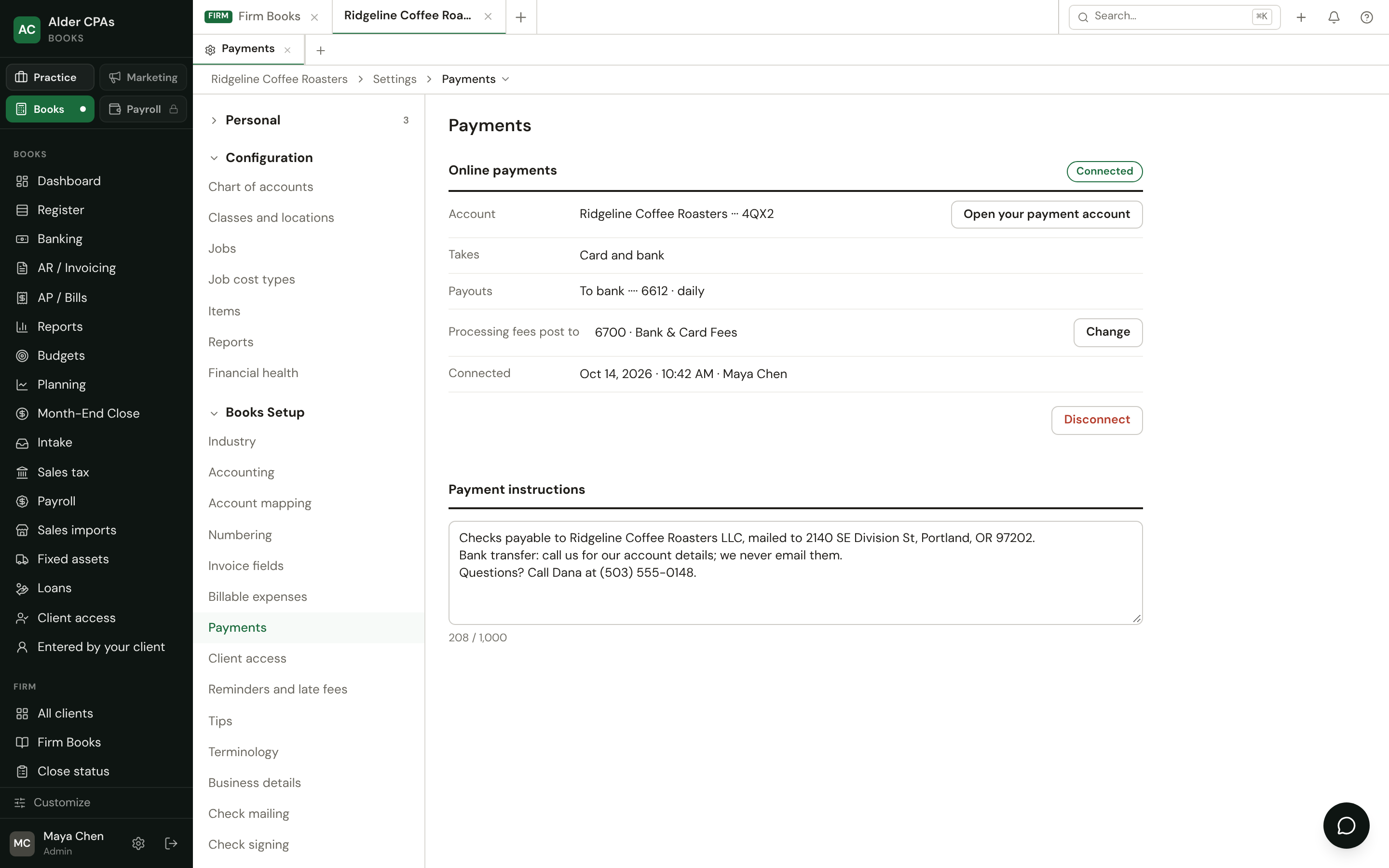 Ridgeline Coffee Roasters' Settings → Payments: a connected account taking card and bank payments, and its payment instructions
Disconnect
Click Disconnect, give a reason, and confirm. Books tells you what happens first: New online payments on this client’s invoices stop, and its pay links show the payment instructions instead. Any checkouts already open still settle. Refunds, disputes and payouts keep working, and the history stays.
Write the client's payment instructions
Under Payment instructions, type how the client's customers can pay by other means: a mailing address for checks, bank details for a transfer, a phone number. Up to 1,000 characters; it saves as you type. Every plan has this, whether or not the client takes payments online.
These instructions are what the invoice link shows when nothing takes payment online, under How to pay.
Set up payments for your firm's own books
Your firm's own invoices are paid through Settings → Payments & payouts, at firm level. With nothing connected yet, the page says No online payments yet and offers Set up online payments, which runs the same processor setup as above, also after a two-step code. A half-finished setup has a Finish setup button that picks up where it stopped. Until then you can still record a payment by hand (Record payment →).
If Books can't read how your firm connects online payments, it offers nothing to connect rather than guess, and says How this firm connects online payments could not be read, so nothing to connect is offered yet. Reload the page to try again.
Send an invoice with a pay link
Once a payment account is connected, the email that sends an open invoice carries a Pay invoice online button that opens the invoice's pay page. Nothing else to turn on. When nothing can take the money, the email carries the PDF and no pay button, and the send prompt warns you first.
On the invoice itself, the Payment link section shows whether a link is live, with Create a link (or Replace link) and Copy link for when you want to send it some other way. Its states:
| State | Meaning |
|---|---|
| Live | A link is live for this invoice. |
| Expired | The link expired. Anyone opening it is asked for a new one. Create a new link to replace it. |
| Revoked | The link no longer opens. Send a new one if the client still needs to pay. |
| Not sent | No link yet. |
The same section says whether partial payments are allowed for the client. Under Attempts, every time someone tried to pay is listed with its Date, Method, Amount and Result (for example Declined, Refunded). A declined attempt changes nothing in the ledger.
When the client has no payment account of its own, the section is called Invoice link instead, with Create an invoice link, Replace invoice link and Copy invoice link, and it says what the link does: It shows the amount due and how to pay this client; it takes no payment online, because the client has no payment connection of its own.
What your customer sees
The link opens a page with the seller's name and logo at the top: the client's own on a client's invoice, your firm's on yours. Below it:
- The balance due in large type, and its due date (Balance due · due Dec 4, 2026).
- A Summary of the invoice lines, its sales tax, any late fee (Late fee · Nov 1, 2026) and what was already paid.
- Amount, when partial payments are allowed: How much would you like to pay? The customer can't pay more than is due: That is more than the $432.00 due. You can pay up to $432.00.
- Add a tip, when the client takes tips: No tip, the suggested percentages with their amounts, or Custom.
- How would you like to pay? with Card and, when the account takes bank payments, Bank transfer. Card details are entered on the processor's secure step, never on this page.
- Total, with Payment, any Card surcharge (when you add one to card payments), any Tip, and Charged today, and a button that names the actual total, for example Pay $432.00.
After paying, the customer comes back to Thank you — your payment is being confirmed. You’ll see it here shortly. or, once the invoice is paid in full, Your payment went through and is being confirmed. You can close this page. If they cancel: Payment canceled. Nothing was charged.
When an invoice link takes no payment online, the page shows the same invoice summary, then How to pay with the client's payment instructions.
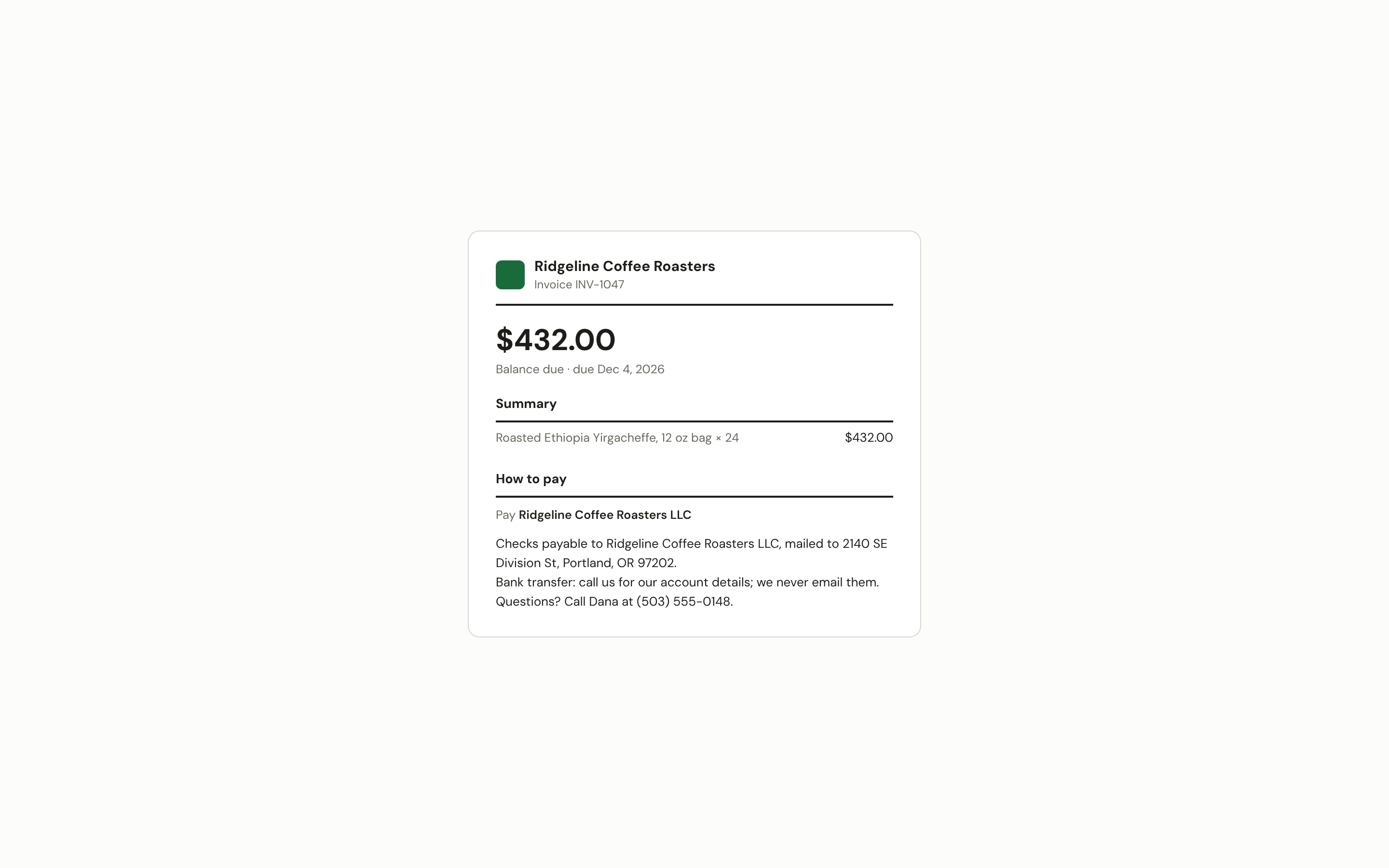 An invoice link for a client with no payment account connected: the balance, the summary and How to pay
Messages your customer might see
| Message | Why |
|---|---|
| This link no longer works | The invoice is paid in full, or the link expired or was replaced or revoked. Send a new link if they still owe. |
| Online payment isn’t set up | The payment account was disconnected or can't take payments right now. |
| This invoice can’t be paid online. Contact … to pay another way. | Nothing can take this payment online. |
When a customer pays
The payment appears on the client's Payments list, applied to the invoice (unless its month is already closed; see Record a Payment and Apply Credits). It waits in Undeposited Funds.
The processor's fees post when the payout that carries it is recorded, unless your firm's Settings → Payments & payouts has Fee settlement set to Net, in which case each fee posts with its payment. That firm-wide setting appears there once your firm has its own payment account connected; until then, fees post with the payout.
When that payout reaches the bank, post its deposit so the bank line matches it in one click: see Deposits, Card Payouts and Making a Deposit.
A card payment is refunded from Books, never voided; its date, amount and deposit account stay as the processor recorded them, and a refund that went back to the card can't be voided. A dispute leaves the books unchanged until it is resolved: see Record a Payment and Apply Credits.
When will payouts start? Once the client's Online payments section shows Connected, meaning the account can take payments and pay them out. Payouts go to the bank and on the schedule shown in its Payouts row.
Why can't I…
-
…click Connect? The reason is under the button. Usually: you don't hold Books settings on this client (or Connect a payment account if you are the client's own user), or these are your firm's own books, which take payments through the firm's Payments & payouts settings.
-
…connect, even though I clicked through? A message at the top of the page says why nothing was connected, for example Taking payments online is a Premium feature for this client. Nothing was connected. or This client already has a connected payment account. Disconnect it before connecting another.
If the two-step code wasn't entered on this sign-in: Connecting needs a two-step code entered since you signed in. Press the button again and enter the code from your authenticator app. Nothing was connected.
-
…see a pay button on my client's invoice? The client has no connected account that can take payments, or isn't on Premium. The send prompt says so before you send.
-
…change the payment instructions? Only a firm owner or admin with Books settings on the client can.
If your firm also uses Practice
If your firm uses Practice, the card connection for your firm's own invoices is managed in your practice settings. Books' Payments & payouts page then links there (Connect a processor in your practice settings →) instead of starting a second connection, so your firm never ends up with two.