
Import Sales from Your Point-of-Sale System and Match Card Deposits
Turn each point-of-sale report into one balanced journal entry, map its lines to accounts once, and clear the card and cash deposits that follow.
On this page
Sales imports turn the summary your client's register prints at the end of the day (a daily report, a Z-out, or a whole month) into one journal entry. Books reads the report, checks that it adds up, shows you the entry line by line, and posts it once every line has an account.
The card and cash sales it records then wait for the bank deposits that clear them, and you match each deposit to its sales day, with the card fees posted in the same step.
You map each line once. The first report from a register asks which account each of its lines posts to: every sales category, discount, tender, tips line and so on. Books remembers those choices for this client and that register, so the next report fills itself in. Only a line it has never seen asks again. Account choices are remembered per client: mapping a report under one client does nothing for another.
Understand the Sales imports page
The header names the client, the point-of-sale system the reports come from, as the newest report printed its name (for example, point of sale: Front Counter POS), and the kind of reports it sends (Z-out reports, daily reports, period reports, or mixed reports when it sends more than one kind). Two buttons sit on the right: Mapping and Match a deposit.
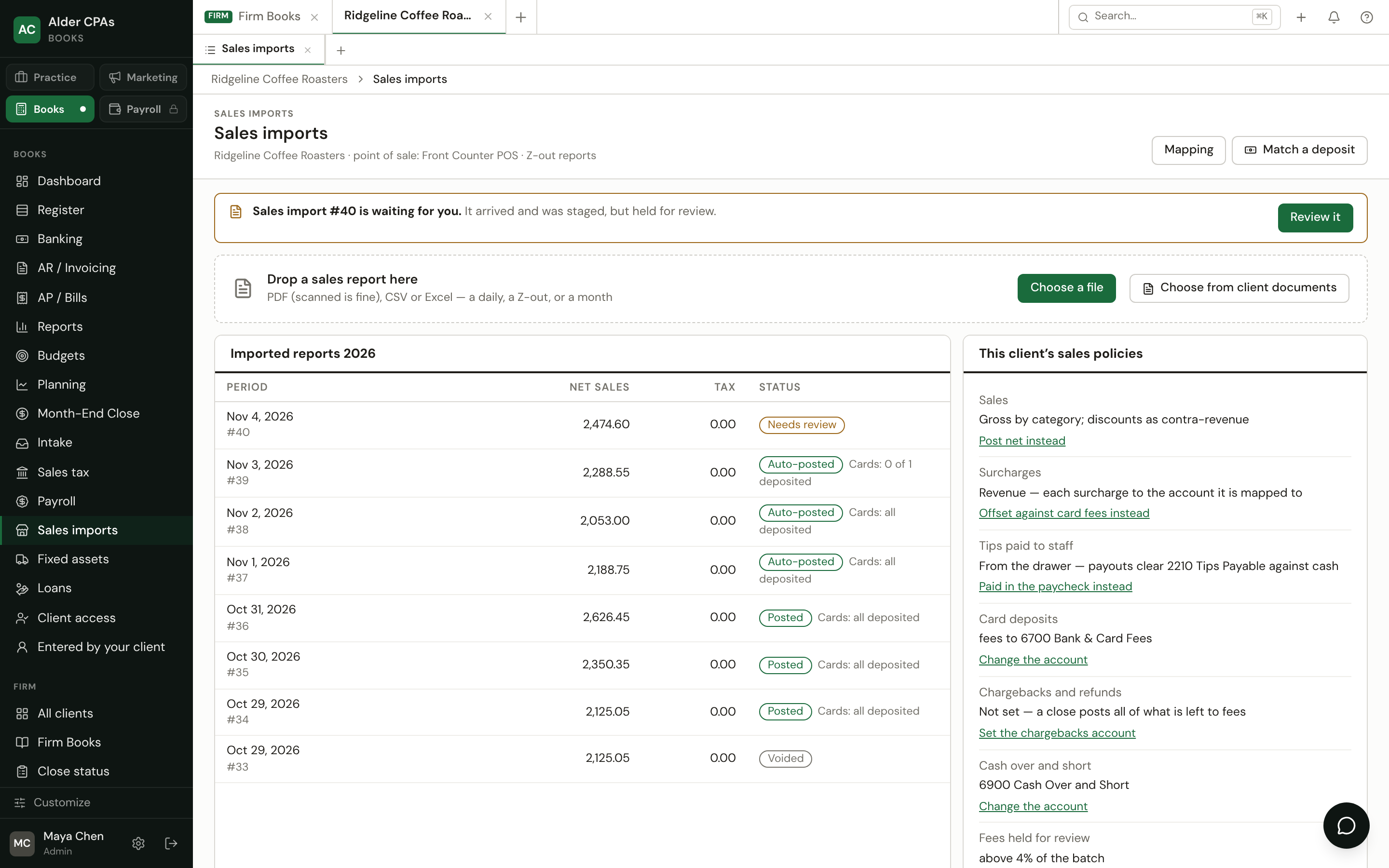 The Sales imports page for Ridgeline Coffee Roasters, with a held report waiting, the imported reports and the client's sales policies
From top to bottom:
- A held report, when there is one: Sales import #40 is waiting for you. It arrived and was staged, but held for review. with Review it. See Why is this sales import held?
- The drop zone: Drop a sales report here, with Choose a file and Choose from client documents.
- Imported reports: one row per report, newest first, with these columns:
- Period — the day (Nov 3, 2026) or the range (Oct 1 – 31, 2026), with the import number under it.
- Net sales and Tax — as the report printed them.
- Status — Staged (imported, not posted yet), Needs review (arrived on its own and was held), Posted, Auto-posted (posted on arrival with nobody opening it) or Voided. A posted report that took card payments adds how far the bank has caught up: Cards: 0 of 1 deposited, or Cards: all deposited.
- This client's sales policies, on the right: the client's standing choices, described in Set the client's sales policies.
Click a report's period to open it.
What you can import
| File | What happens | Plan |
|---|---|---|
| CSV or Excel export from the register | Read in your browser, on the spot. | Every plan |
| PDF (a scanned page is fine) | Read once, then checked against the totals it prints. | Clients on Premium |
A file can be a daily report, a Z-out, or a month. Books reads a register's own summary layout, and a sales ledger that lists one row per sale: it checks each row's arithmetic to the cent and adds the rows up, and a row that doesn't add up refuses the file, naming the row. A file that holds more than one report becomes one import per report.
On a client without Premium, the drop zone reads CSV or Excel export from your point-of-sale system — a daily, a Z-out, or a month, and a dropped PDF is refused before anything is read, with Upload the CSV export instead.
Import a report
- Open Sales imports for the client.
- Drop the file on Drop a sales report here, or click Choose a file. To use a report that is already in the client's documents, click Choose from client documents (only a PDF is read from there).
- Books saves the file to the client's documents, reads it, and opens the new import on its own page.
A PDF is read in the background. The page shows Reading Ridgeline Z-out 11-04-2026.pdf… You can keep working; it opens here when it is read., and you can leave the page in the meantime.
Books stops to ask you before it imports when:
- The file prints no business date. It asks for the day instead of guessing it.
- The file prints money that will not be posted with the sales, such as cash paid out of the drawer. It tells you before it imports.
- A CSV or Excel file has a money column Books has no role for. It asks what that column is.
- A report does not add up to the totals it prints. Its lines open for you to correct, and it is imported once the corrected figures add up to the report's own totals.
Reports that arrive by themselves
When a sales report reaches the client's documents without anyone dropping it here, the page offers it in a card above the drop zone, with Import it. The card says where the report came from; for a file you uploaded yourself it reads, for example, You uploaded Ridgeline Z-out 11-05-2026.csv on Nov 5, 2026. When several are waiting, a link such as 2 more reports are waiting lists the rest.
Not now stops offering that report here, for everyone at the firm. The file stays in the client's documents, and Dismissed reports lists it with Show it again.
Review and post a report
An import opens on its own page. The header shows the day, its status, and where it came from (business name, point-of-sale system, report type, file name and import number).
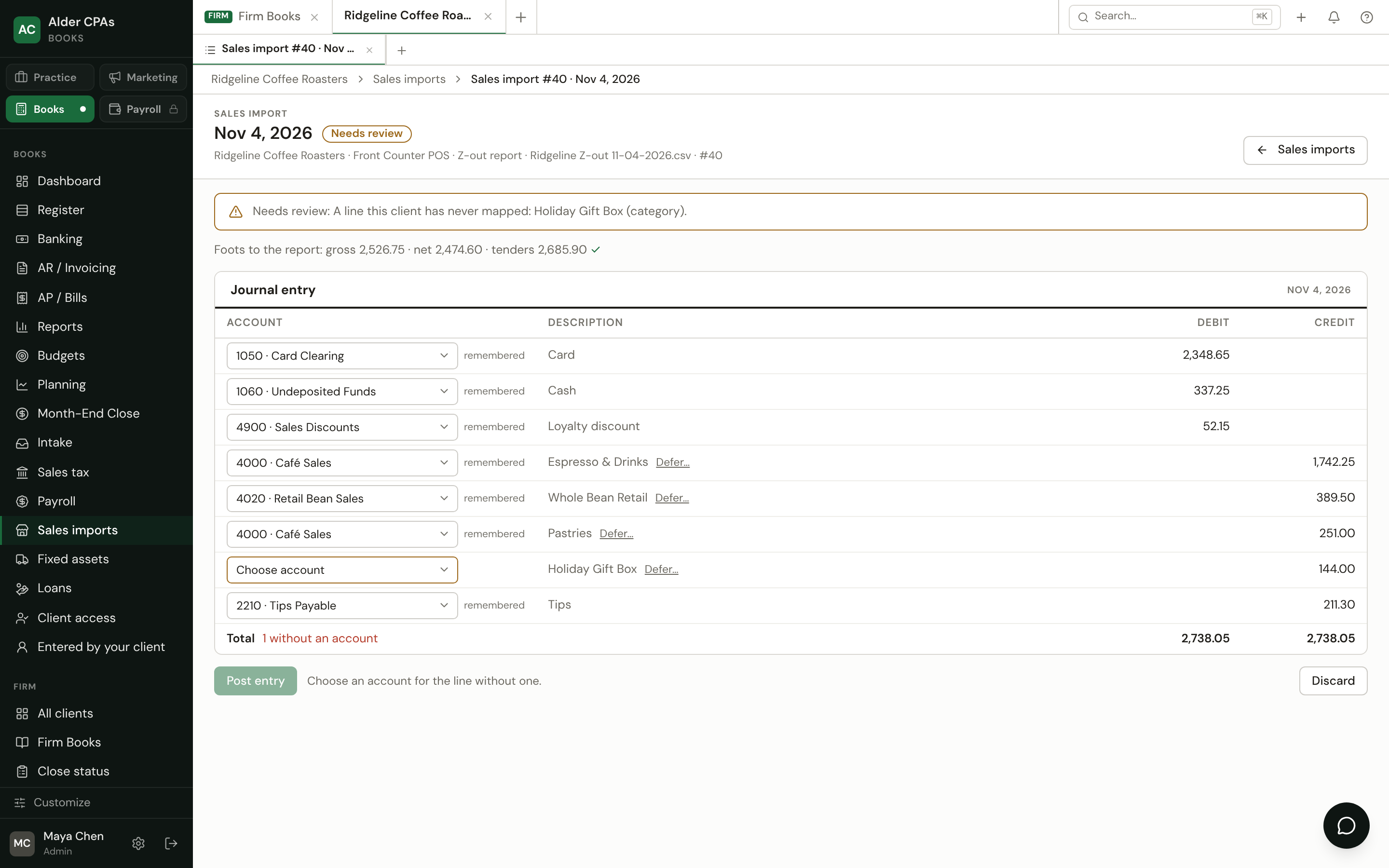 A held report: the journal entry with every line mapped except Holiday Gift Box, and Post entry waiting for it
- The check line under the header says the report adds up, with its totals: Foots to the report: gross 2,526.75 · net 2,474.60 · tenders 2,685.90 and a check mark. When the report does not add up it reads Does not foot: followed by each check that failed, and it cannot post.
- Journal entry is the entry exactly as it will post, dated the report's last day: Account, Description, Debit, Credit, one row per line the report prints, at its real figure, whether or not it has an account yet. Money taken in (card, cash) and discounts are debits; sales, tips and tax are credits.
- Total foots both columns. When the entry isn't ready, it says why in red: 1 without an account, Off by 0.40 or Nothing to post. Anything else that stops the post shows beside Post entry.
Choose accounts
Each line's account is chosen in its own cell.
- A line Books has seen before shows its account and the word remembered.
- A line whose name plainly names one of the client's accounts shows that account and the word suggested. A suggestion is saved when you post. Books suggests only when exactly one account's name plainly names the line; anything weaker stays on Choose account.
- Click Choose account and start typing. The account types a line usually takes are listed first under Suggested, with a one-line hint (for a tips line: Tips you collect for staff are usually owed to them.). If the account does not exist yet, choose Add "…" as a new account.
- Your choice is saved for this client right away, and remembered for every report after this one.
Some lines only accept certain accounts, because Books refuses anything else when it posts:
- A gift card line stays in a liability account (A gift card balance stays in a liability account.). A promotional gift card is the exception: its cost may go to an expense or income account.
- A house account line stays in a receivable (asset) account.
- A surcharge line never goes to an expense account. To offset surcharges against card fees instead, use the client's sales policies.
Earn a category over time
A sales category can be recognized over several months instead of on the day it is sold (for example, a prepaid subscription). Click Defer… beside the category and fill in:
- Deferred revenue — the liability account it waits in.
- Months — how many months it is spread over (1 or more).
- Starting after (months) — how many months after the report to start.
- Recognized into — the income account it moves to each month.
Click Defer. The row then shows, for example, deferred 12 mo. When the report posts, Books sets up the monthly schedule that moves it into income.
Post
When every line has an account and the entry balances, click Post entry. Until then the button is off and the reason shows beside it:
| What you see | What to do |
|---|---|
| Choose an account for the line without one. | Pick the account in the line's cell. |
| A check fails: the report does not foot, so it cannot post. | The report itself does not add up. Discard it and import a corrected export. |
| The entry does not balance. | Debits and credits differ. Check the report's figures, or discard it and import a corrected export. |
| Confirm the warning first. | Tick each warning under the entry once you have read it (for example, a report that overlaps one already posted). |
If a line's account is one Books will not post to (an archived account, for example), the reason shows in red on that line, and you choose another account there.
When the lines were mapped under another client
If this client has mapped nothing from this register, and another client at your firm has, the page asks, for example: These lines were mapped for Ridgeline Coffee Wholesale (7 lines). Is this report for Ridgeline Coffee Wholesale? with a link to Import it in Ridgeline Coffee Wholesale. If it is, discard this import and import the report there.
Discard a report you did not mean to import
On a staged import, click Discard, then Discard the import. Discarding deletes this staged import; nothing from it has posted, and its account choices stay saved. A posted report cannot be discarded; it is voided instead.
How do I map sales to accounts?
You map lines in the report itself, as described above. To see everything you have mapped for the client, click Mapping on the Sales imports page.
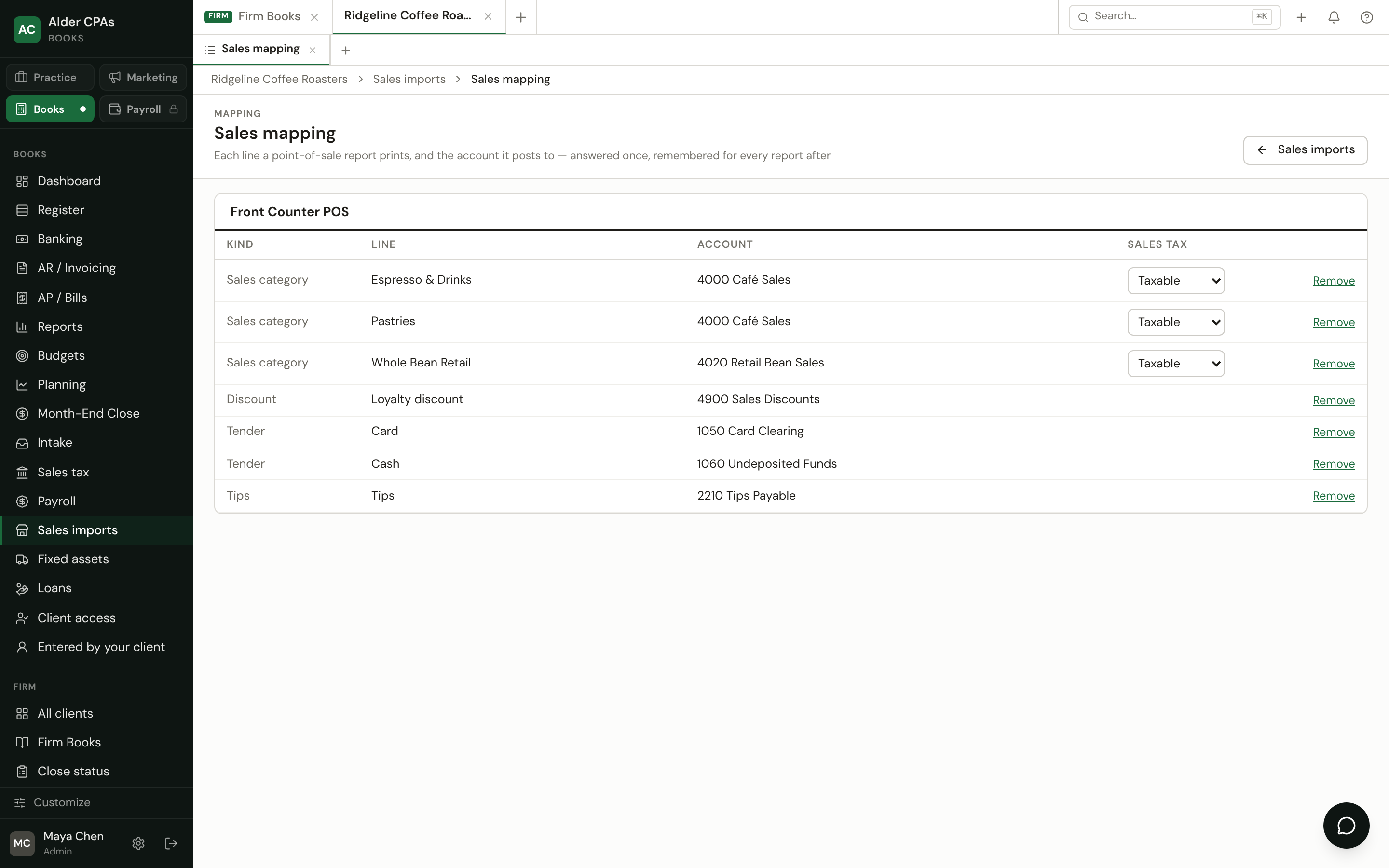 Sales mapping for Ridgeline Coffee Roasters: each line its register prints and the account it posts to
There is one table per point-of-sale system, with these columns:
- Kind — Sales category, Discount, Comp, Surcharge, Tax, Tips, Tips paid out, Non-revenue, Tender or Location.
- Line — the line's name as the report prints it.
- Account — where it posts. A deferred category adds, for example, deferred over 12 months, into 4000 Café Sales.
- Sales tax — for a sales category only: Taxable or Not taxable. A category you never mark is Taxable. Changing it saves at once and leaves the category's account as it was.
- Remove.
To change where a line posts, open the next report that prints it and choose the new account in its cell. The new choice is saved for the reports after it; reports already posted keep their entries. Changing the account leaves the rest of the line's mapping as it was, including a category's deferral and its class or location.
Discounts and sales tax
Every discount on a report reduces the client's sales in full. For sales tax, Books spreads each discount across the report's sales categories in proportion to their sales, so a discount comes off taxable sales only for its share on taxable categories. The share that lands on a category marked Not taxable comes off that category's exempt sales instead.
For example, a report with 100.00 of a taxable category, 100.00 of a category marked Not taxable and a 20.00 discount: 10.00 of the discount comes off each, so taxable sales are 90.00 and exempt sales are 90.00. On the client's sales tax return, the exempt part reads as that category on sales reports, marked not taxable (see Sales Tax: Rates, Exempt Sales and Filing the Return).
When a report prints its own Taxable sales line, Books takes that figure as the report's taxable sales instead, and the rest of its sales is exempt. On the return that part reads Exempt per the imported sales reports (their own printed taxable figure).
Remove a mapping
Click Remove. Books names the consequence first: Pastries stops posting to 4000 Café Sales. Reports already posted keep their entries; the next Front Counter POS report that prints it asks again.
The register is named as its reports print it. When no report on hand printed that name, the sentence ends …the next report from this point of sale that prints it asks again. instead. Click Remove the mapping to confirm, or Keep it.
Books refuses to remove a mapping that a staged report still needs, with a message such as Sales import #40 is staged with Pastries, and would stop at mapping without it — post or discard it first.
Why is this sales import held?
When Import and post on arrival is on for a client, a report that reaches the client's documents on its own and is recognized as a sales report is imported and posted with nobody opening it. A report that is out of the ordinary is not posted: it is staged, marked Needs review, and the Sales imports page shows Sales import #40 is waiting for you. Open it, and the banner at the top says every reason, starting with Needs review:.
| Reason you see | What it means |
|---|---|
| The report does not tie. | One of the report's own totals does not add up. |
| A line this client has never mapped: Holiday Gift Box (category). | A new line needs its account. Choose it in the line's cell. |
| A person corrected a figure the reader read. | Someone corrected a figure Books read from the report. |
| A duplicate, overlap or same-file warning | The report repeats, overlaps or is the same file as one already imported. |
| A location this client has never mapped: … or A location this client has never posted: … | The report prints a location Books has not seen for this client. |
| Net sales of 4,812.00 are 62% above 2,968.00, … | Net sales moved more than 40% from what this client usually does. |
| Tax is …% of net sales against …% | The tax rate on the report moved, which usually means a rate change or a category mapped the wrong way. |
| Discounts and comps are 6.2% of gross sales (more than 5%). | Unusually heavy discounting. |
| The drawer was over or short by …, above the client's threshold of 5.00. | The cash drawer is off by more than the client's threshold. |
| Tips are 27.5% of net sales (more than 25%). | Unusually high tips. |
| This is a seasonal business with no report for … last year to compare with; a first-season period is held. | For a client marked seasonal, a report covering more than one day is held when there is no report for the same period last year. |
Fix what the banner names, then click Post entry as usual.
The same banner shows on every staged report, not only held ones. On a report you imported yourself it says why it was not posted on arrival, for example Auto-post is off for this client and system; a person posts it. That is not a problem; post it yourself.
Set the client's sales policies
The right-hand card on the Sales imports page holds the client's standing choices. Each one names what it does now, and most have a link to change it.
Post net instead, Offset against card fees instead and Turn on are checked before you click: if Books would refuse the change, the link is off with the reason under it. An account you choose is checked when you click Save, and the reason shows under it if Books refuses it.
-
Sales — Gross by category; discounts as contra-revenue, or Net by category — discounts and comps taken off each category. Switch with Post net instead or Post gross instead. The prompt says which reports change: reports posted from now on. Reports already posted stay as they were.
-
Surcharges — Revenue — each surcharge to the account it is mapped to, or offset against card fees. Offset against card fees instead asks for the Processing-fee account in the same step.
-
Tips paid to staff — asked once: From the drawer or In the paycheck; once answered, change it with Paid in the paycheck instead or Paid from the drawer instead. With In the paycheck, the card checks where your payroll import books its tips earning.
If that would be wage expense, it offers to clear the client's tips payable account from payroll (for example Clear 2210 Tips Payable from payroll), which points that payroll earning at it for payroll runs posted from then on (see Import Payroll and Map It to Accounts).
-
Card deposits — the account card fees post to, for example fees to 6700 Bank & Card Fees, with Change the account. Until one is set it reads No fee account yet — set it here, or when the first card deposit is matched, with Set the card fee account. Only an expense or income account is offered; choose it and click Save.
-
Chargebacks and refunds — where chargebacks post when you close a month's card sales. Until one is set: Not set — a close posts all of what is left to fees, with Set the chargebacks account. Only an expense or income account is offered.
-
Cash over and short — the account a cash or check deposit's difference posts to, with Change the account. Until one is set it reads Not set — a cash or check deposit that differs cannot be matched until it is, with Set the cash over and short account. Only an expense or income account is offered.
-
Fees held for review — the share of a card batch above which a fee waits for you to confirm it: above 4% of the batch by default. It has no link on the card.
-
Deferred categories — each category you deferred, with its months, or None. You defer a category from a report (see Earn a category over time).
-
Import and post on arrival — On, or Off with the count toward earning it, such as Off — 2 of 3 clean imports. Click Turn on or Turn off.
Earn posting on arrival
Posting on arrival is earned: it can be turned on only after 3 clean imports in a row from the same point-of-sale system. A report that was voided, a report where a person corrected a figure Books read, or a report that carried a duplicate, overlap or same-file warning someone confirmed starts the count again.
Until it is earned, Turn on is off and gives the reason. Posting on arrival is for clients on Premium, and it starts only once someone clicks Turn on.
Even when it is on, a report that is out of the ordinary is held for you, as described in Why is this sales import held?
Match card and cash deposits
A posted report records its card sales in a clearing account (and cash in the account you mapped for cash) until the bank deposit arrives. Each card, cash, check or other tender on a posted report becomes a deposit Books expects, due within five days after the report's last day. A report that prints no tenders is expected as one whole amount, and deposits can clear it in parts.
Click Match a deposit on the Sales imports page to open Card deposits.
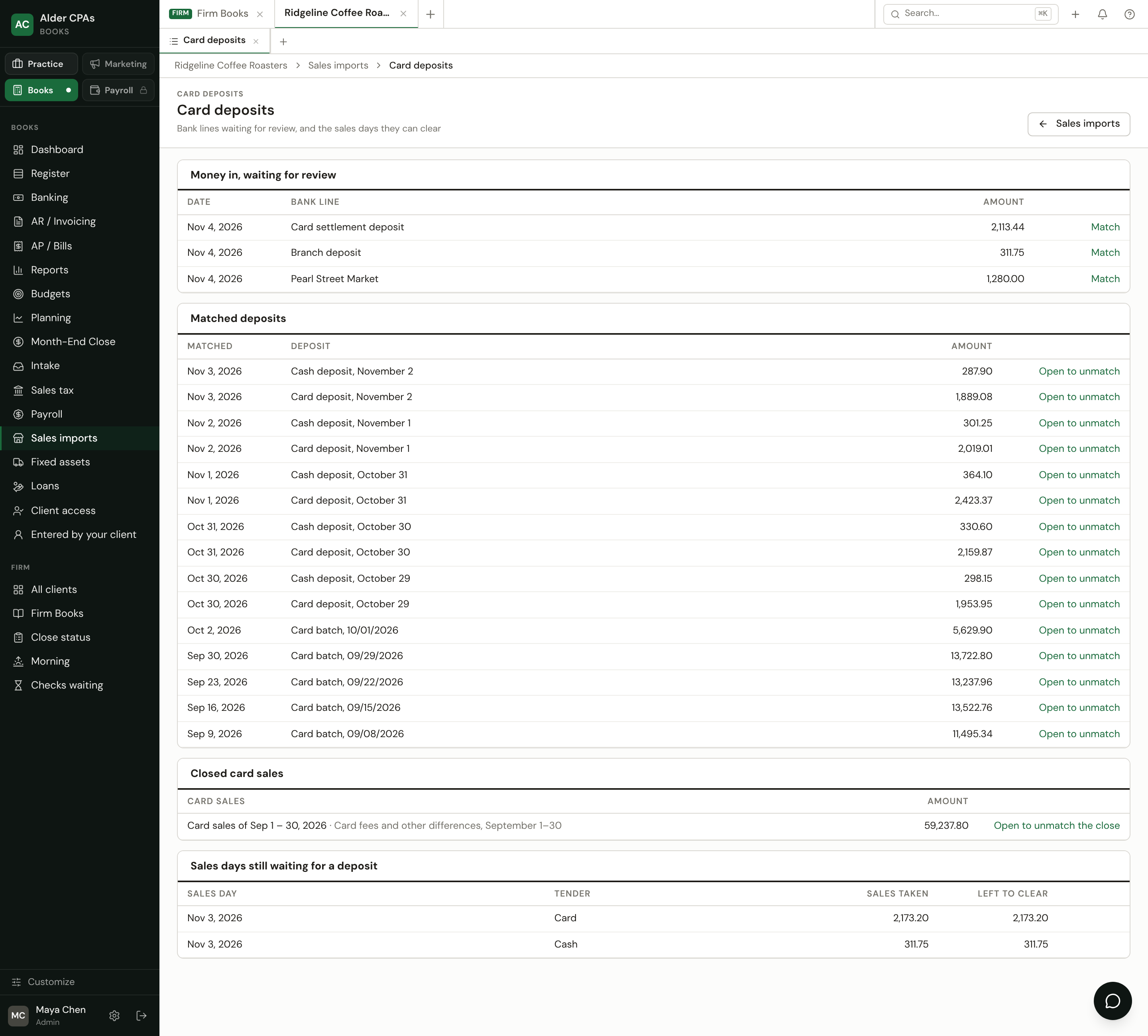 Card deposits: money in waiting for review, the matched deposits, September's closed card sales, and the sales days still waiting for a deposit
- Money in, waiting for review — every deposit on the client's bank feed that is still in the Review queue, with Match on each.
- Matched deposits — every bank deposit already matched to sales days, newest first (a close is not listed here; it is under Closed card sales, below): when it was Matched, the Deposit (for example Card deposit, November 2) and its Amount, with Open to unmatch.
- Closed card sales — each period of card sales that has been closed (see below), with the card sales' total under Amount and, after the period, the close that cleared it, for example Card sales of Sep 1 – 30, 2026 · Card fees and other differences, September 1–30, and Open to unmatch the close. When none has been closed it reads No card sales have been closed.
- Sales days still waiting for a deposit — each open day and tender, with what it took and what is Left to clear. The amount column reads Card sales and tips when every row is a card row, and Sales taken when card and cash days are listed together. A day past its expected date is marked overdue.
Match one deposit
- Click Match beside the deposit.
- Books finds the sales days the deposit covers by the report dates and shows them under The card sales this deposit covers, ending with the total cleared from the clearing account. If the deposit leaves a fee or a difference to post and the client has no card fee account yet (or, for cash and checks, no cash over and short account), a banner says the deposit cannot be matched and offers Set the card fee account (or Set the cash over and short account) right there.
- What posts shows the entry: the bank for what arrived, the fee for the difference, and the clearing account for the full day. The share the fee is of the card sales shows on the right, such as 2.75% OF CARD SALES.
- Click Match and post fees (for cash or checks, Match and post the difference).
A card fee above the client's fee hold is still proposed, but held: the page reads, for example, Held — the fee of 85.20 is 4.62% of the 1,844.10 batch, above the 4.00% hold; confirm it before it posts and names what will post (This posts 85.20 of fees to 6700 Bank & Card Fees.). Check whether the batch is short a chargeback or a day, then tick I have checked it — post the difference and match.
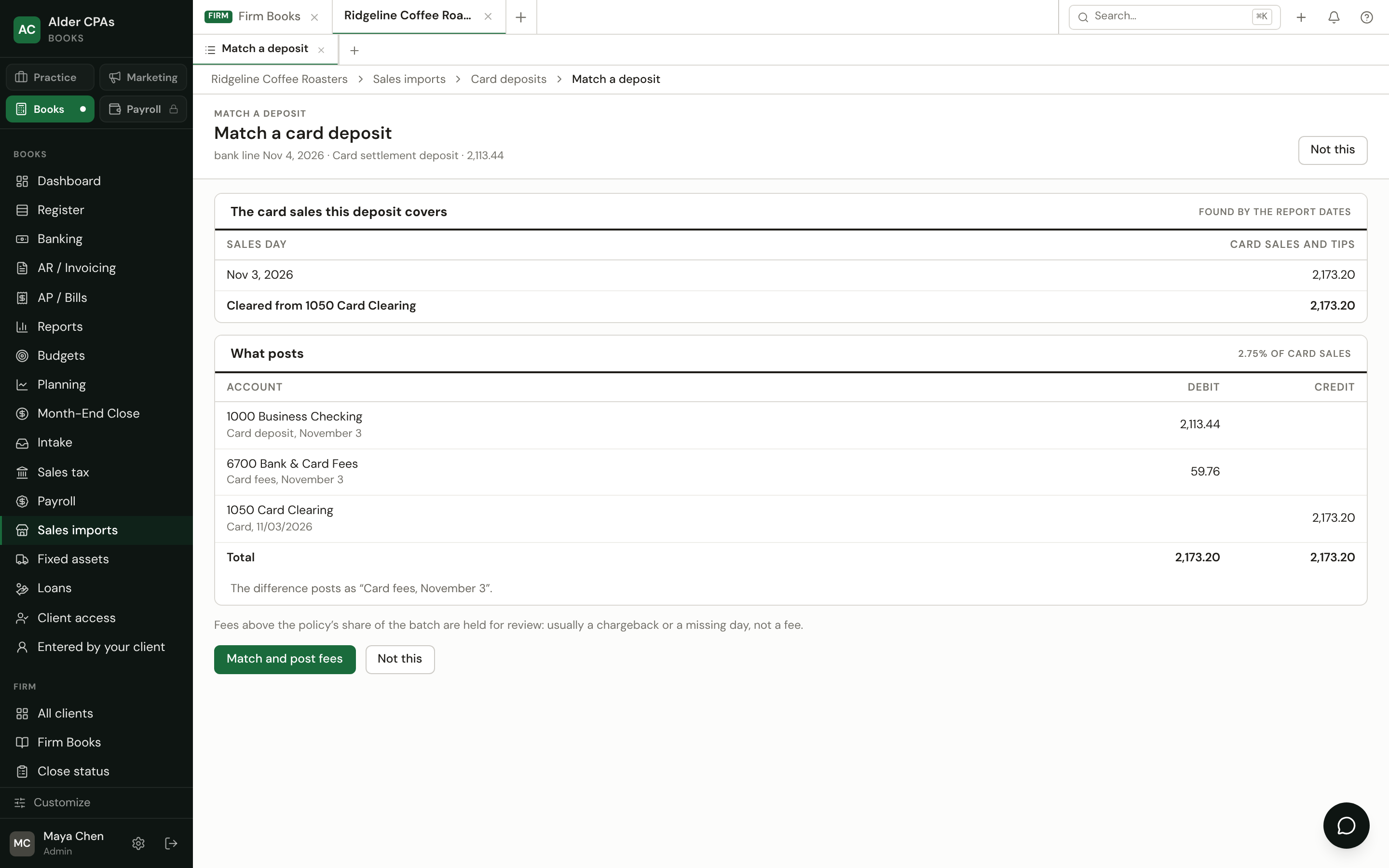 Matching a card deposit of 2,113.44 to the card sales of Nov 3: 59.76 posts as card fees
In the example, Nov 3's card sales and tips came to 2,173.20 and the bank deposited 2,113.44 on Nov 4. The match posts 2,113.44 to Business Checking, 59.76 to 6700 Bank & Card Fees as Card fees, November 3, and clears 2,173.20 from Card Clearing. The bank line leaves the Review queue matched to that entry, so do not post it again from Reviewing Bank Transactions.
Books proposes days on one account and one tender: the newest open days ending on or before the deposit date.
- Cards. The days must come to at least the deposit, with a fee of no more than 20% of them (or the fee hold, if it is higher). Books can also leave out newer open days from the 14 days before the deposit, so a batch that settles Friday's sales on Monday still finds Friday on its own.
- Cash or checks. The days are proposed when the deposit is within 5% of them, or within the client's threshold if that is larger.
- Banked together. Cash, check and other days from the 14 days before the deposit are proposed when exactly one combination of them adds up to the deposit to the cent.
Why doesn't the card deposit match?
When Books cannot propose days for a deposit, the page says why and Match and post fees stays off.
No run of open sales days on one account adds up to this deposit. It may belong to something other than a sales report.
No open days fit the deposit by the rules above. The usual causes: the day's report has not been imported and posted yet, the deposit covers more days than are open, or the processor kept back much more than fees (a chargeback or refund). It may also simply not be a sales deposit.
Two runs of open sales days are equally close to this deposit — … — so neither is proposed: which days it covers is for a person to decide.
Two sets of days fit equally well, and at least one of them is not a card run (cash, checks or other). (Between two card runs, Books proposes the one that starts at the newer day.)
Held — the cash deposit is 12.50 short, above the client's threshold of 5.00; confirm it before it posts
A cash or check difference above the client's threshold. The banner names what will post, for example This posts 12.50 short to 6900 Cash Over and Short. Tick I have checked it — post the difference, then match.
This bank account is not mapped to a general ledger account yet
Link the bank account to an account in the chart first.
A deposit that is not a sales deposit is not one to match here: click Not this and handle it in the Review queue.
A month's card sales, cleared batch by batch
When a client imports a report for more than one day (a month, say), its card sales arrive at the bank as many batches. On Card deposits, such a row has Clear, which opens Clear the card sales of Oct 1 – 31, 2026:
-
Under Bank lines waiting for review, the deposits dated from the period's first day to five days after it was expected are ticked, oldest first, while they fit what is left. Tick or untick any line; the foot shows how many are ticked and what would be left.
-
Click Match N batches. Each line posts the bank and card clearing at its own amount, with no fee. Fees post once, at close.
-
When the last batch is in, use Close these card sales. What is left is split: type any Chargebacks and refunds (they go to the client's chargebacks account; the field is off until one is set in the client's sales policies on the Sales imports page), and the rest posts as Processing fees.
The button names the result, such as Close with 612.40 to fees. A fee part above the client's fee hold is held until you tick I have checked it — post it. The prompt says what posts, that it is dated the period's last day, and that A batch that arrives later will not match them.
A one-day report clears whole from its bank line instead.
Fix or undo
| What | How | What happens |
|---|---|---|
| A staged import | Discard → Discard the import | Deleted; nothing had posted; its account choices stay saved. |
| A posted report | Void, say why, Void the entry | The entry is reversed. The report and its reversal stay as the record. |
| A matched deposit | On Card deposits, click Open to unmatch beside it under Matched deposits. Its page reads Already matched; say why, then click Unmatch | Unmatching reverses the deposit entry and puts these days back to waiting. |
| A closed month of card sales | On Card deposits, click Open to unmatch the close beside it under Closed card sales. Say why, then click Unmatch the close | Unmatching the close reverses its entry and opens these card sales again; a batch can be unmatched only after it. See Undo a month's close. |
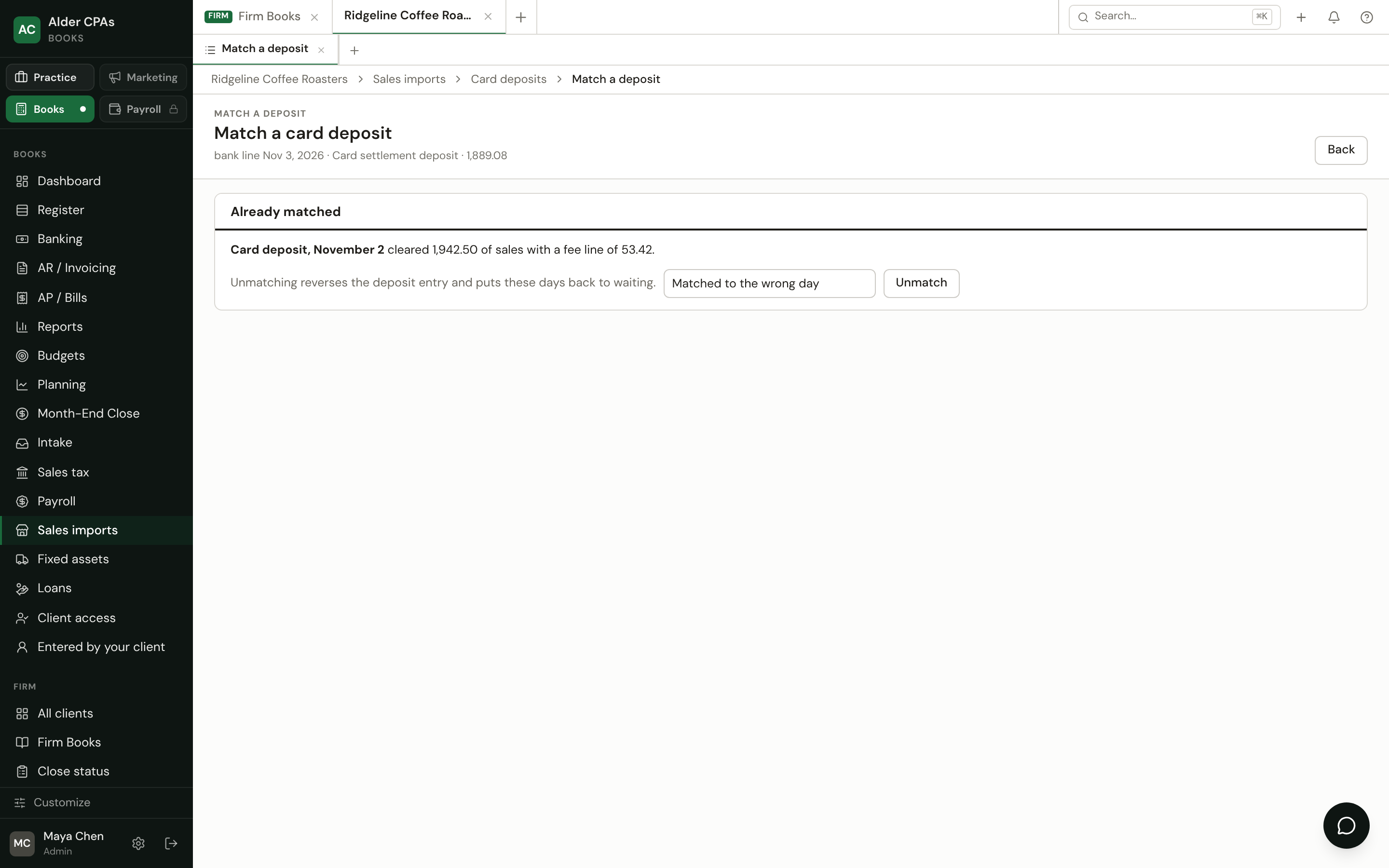 A matched card deposit opened from Matched deposits: Already matched, with the reason typed and Unmatch
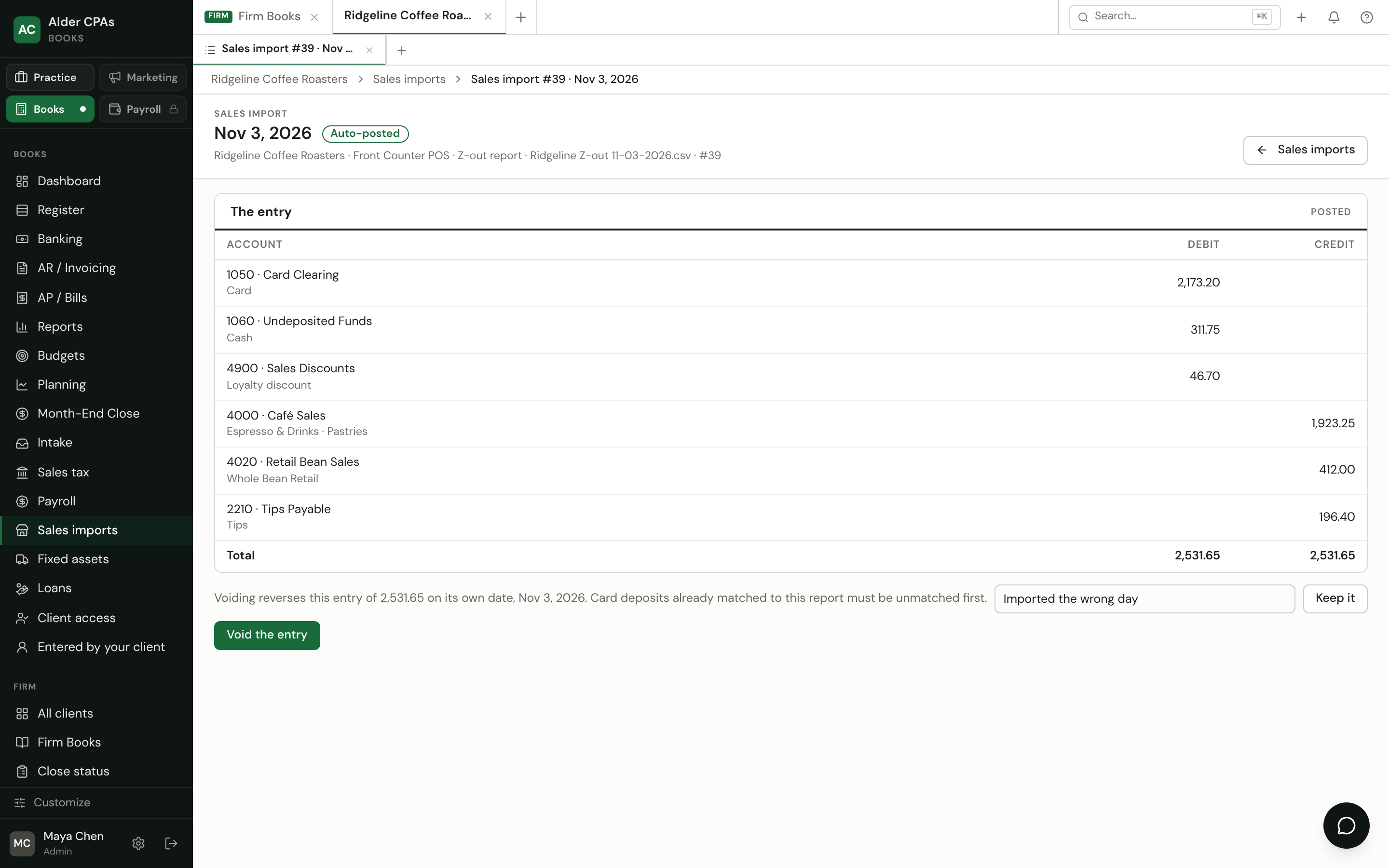 A posted report with Void open, the reason typed in
Undo a month's close
Once a month's card sales are closed, the close's remainder was worked out from its batches, so Books undoes them in order: the close first, then any batch.
- On Card deposits, find the month under Closed card sales and click Open to unmatch the close. Its page (Clear the card sales of Sep 1 – 30, 2026) lists every batch and the close under Cleared so far, the close marked close.
- Type why in the box beside Unmatch the close. The button stays off until you type at least three characters; the reason is kept with the reversal.
- Click Unmatch the close. Its entry is reversed and the card sales are open again, with what the close had cleared back in card clearing.
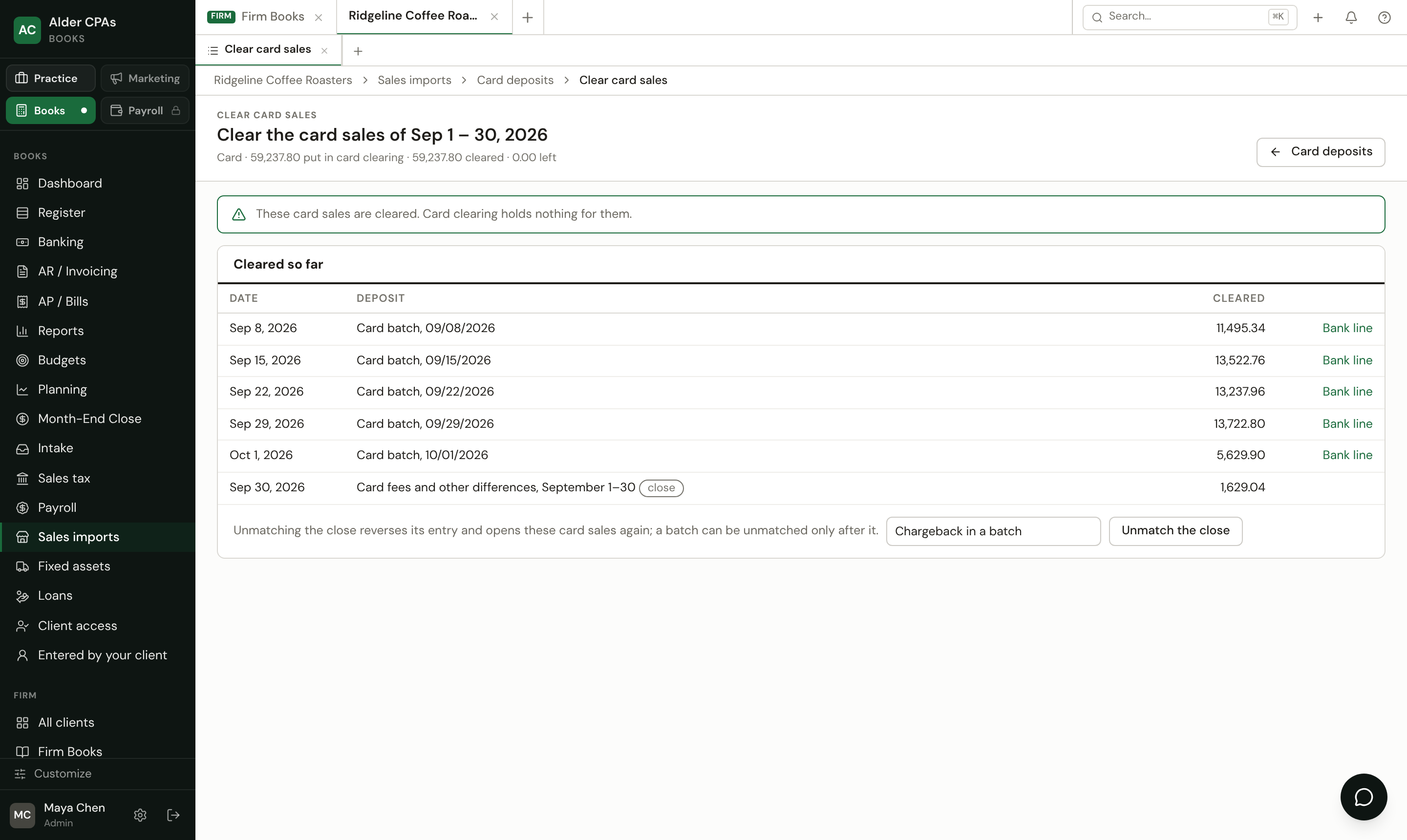 September's card sales opened from Closed card sales: five weekly batches and the close under Cleared so far, with a reason typed beside Unmatch the close
If you open one of that month's batches first (from Matched deposits), its Unmatch is off and the page says why, for example Card batch, 09/08/2026 belongs to card sales that have been closed by Card fees and other differences, September 1–30; unmatch the close first., followed by Open the card sales to unmatch the close, which takes you to step 1's page.
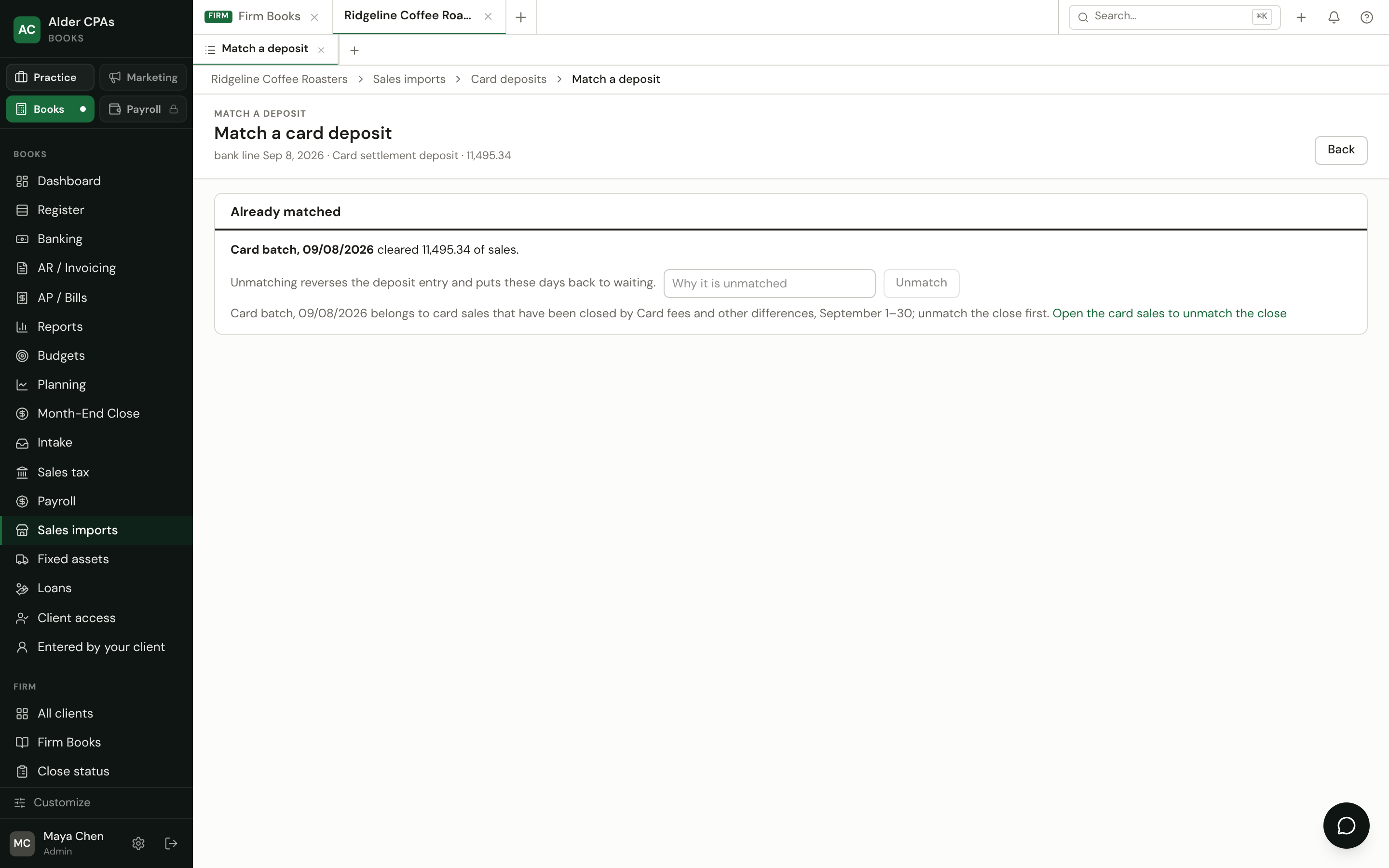 A September card batch opened from Matched deposits: Unmatch is off, with the reason and a link to the card sales
After the close is unmatched, a batch unmatches like any matched deposit. To close the month again, use Close these card sales on the same page (its button names the result, such as Close with 1,629.04 to fees).
When you void a report:
- Say why. The reason is kept with the reversal, and Void the entry stays off until you type at least three characters.
- Unmatch its deposits first. Books refuses with, for example, Sales import #39 has 1 day cleared by a bank deposit (Card deposit, November 3); unmatch it first. Find the deposit under Matched deposits on Card deposits. If its card sales have been closed, unmatch the close first (Undo a month's close), then the batches.
- The reversal date. The reversal is dated with the original entry when that month is open, and today when it is closed. If you void into a month locked with a closing password, Books asks for it. The prompt names the date before you confirm, for example Voiding reverses this entry of 2,531.65 on its own date, Nov 3, 2026. When the month is closed, it names today's date and adds because its own month is closed.
- Deferred categories unwind. Months already recognized are reversed, and months not yet recognized are removed.
- To post the report again, import it again. A voided report shows Voided in the list, and its page opens with a banner (Voided: Imported the Oct 28 export by mistake. The entry was reversed; the record of what was posted stays.) above the entry, marked Reversed.
Voiding is for members of your firm. A client user who can import sales sees Void turned off, with the reason.
Why can't I…
- …import at all? Your role needs the permission to import sales for this client. Without it, the drop zone and buttons are off and say why.
- …import a PDF? Reading a PDF is for clients on Premium. Without it, a dropped PDF is refused before anything is read, with Upload the CSV export instead, and Import it on a PDF that arrived by itself is off (Reading sales report PDFs is part of Premium.). Import the CSV or Excel export instead; it goes through the same checks, mapping and posting.
- …choose a report from the client's documents? Only a PDF is read from there, so without Premium Choose from client documents is off (Reports are read from the client's documents only as PDFs, which is part of Premium.). On Premium, choosing anything else says Only a PDF is read from the client's documents. Download a CSV or Excel export and drop it here instead.
- …drop this file? A file Books doesn't read as a sales report is refused: Notes.docx is not a sales report this import reads. Drop a PDF, CSV or Excel export. (Without Premium it ends Drop the CSV or Excel export.)
- …post this report? The reason shows beside Post entry; see the table under Post.
- …turn on posting on arrival? It is earned after 3 clean imports in a row, and it is for clients on Premium.
- …match a deposit with a fee or a difference? The client needs a card fee account (cards) or a cash over and short account (cash and checks). Set it in the sales policies, or from the banner on the deposit's own page.
- …unmatch this card batch? Its month's card sales have been closed, so Unmatch is off with the reason. Click Open the card sales to unmatch the close, unmatch the close, then the batch (Undo a month's close).
- …remove this mapping? A staged report still prints that line. Post or discard it first.
- …discard a posted report? Posted reports are voided, never deleted.
If you also use Practice
When your firm also uses Practice, your client can upload each day's or month's report in the client portal, including in answer to a document request, without emailing a file. It lands in the client's documents, and the Sales imports page shows it in a card such as New sales report from the client (with the request's name when it answered one), with Import it.
Pair that with Import and post on arrival: once the client has 3 clean imports in a row and you have clicked Turn on (on Premium), a report that arrives this way can post with nobody opening it, and a report that is out of the ordinary waits for you as Needs review.
Shortcuts and tips
| Where | Key or trick | What it does |
|---|---|---|
| Any account cell | Type part of a name or number | Narrows the list as you type. |
| Any account cell | ↓ / ↑ | Moves through the list. |
| Any account cell | Enter | Picks the highlighted account. |
| Any account cell | Esc | Closes the list. |
| Any account cell | Type a name that does not exist | Add "…" as a new account creates it without leaving the report. |
| Chargebacks and refunds | Type a sum, such as 125+87.50 | Worked out to the cent when you leave the field or press Enter. |
- Read the foot, not the lines. The Total row tells you at a glance what is left: 1 without an account, or the amount it is off by.
- The order never jumps. Lines stay in the order the report printed them while you choose accounts.
- Look before you change a policy. Post net instead, Offset against card fees instead and Turn on check the change first and, if Books would refuse it, are turned off with the reason under them.
- Use the cards column. On the list, Cards: 0 of 1 deposited on an older posted report is the quickest sign a card deposit has not been matched yet.
- Keep the bank and the register in step. Import each day's report before you review that week's bank lines, so the card deposits have days to match.
For setting up the clearing and tips accounts these reports post to, see Your Chart of Accounts. For bringing in the bank lines the deposits come from, see Upload a Bank Statement or Bank File.