
Invoice Templates and Your Logo
Set how your invoices look (layout, logo, accent color, what each invoice shows, terms and footer) with a live preview, choose the default, and pick a template per invoice.
On this page
Invoice templates decide how an invoice looks when your customer gets it: the header style, the logo, the accent color, which details and line columns print, the payment terms note and the footer.
Your firm keeps one set of templates, and every client's invoices pick from it. Alder CPAs uses Alder standard for most clients and a Ridgeline Coffee template, with the roaster's own logo and colors, for Ridgeline Coffee Roasters' wholesale invoices.
An invoice keeps the template it was sent with. Editing a template changes drafts and invoices sent from now on, never one already sent, so a customer's copy never changes after the fact. Sales tax always prints the way the books posted it, one line per jurisdiction, whatever the template says.
Understand the templates list
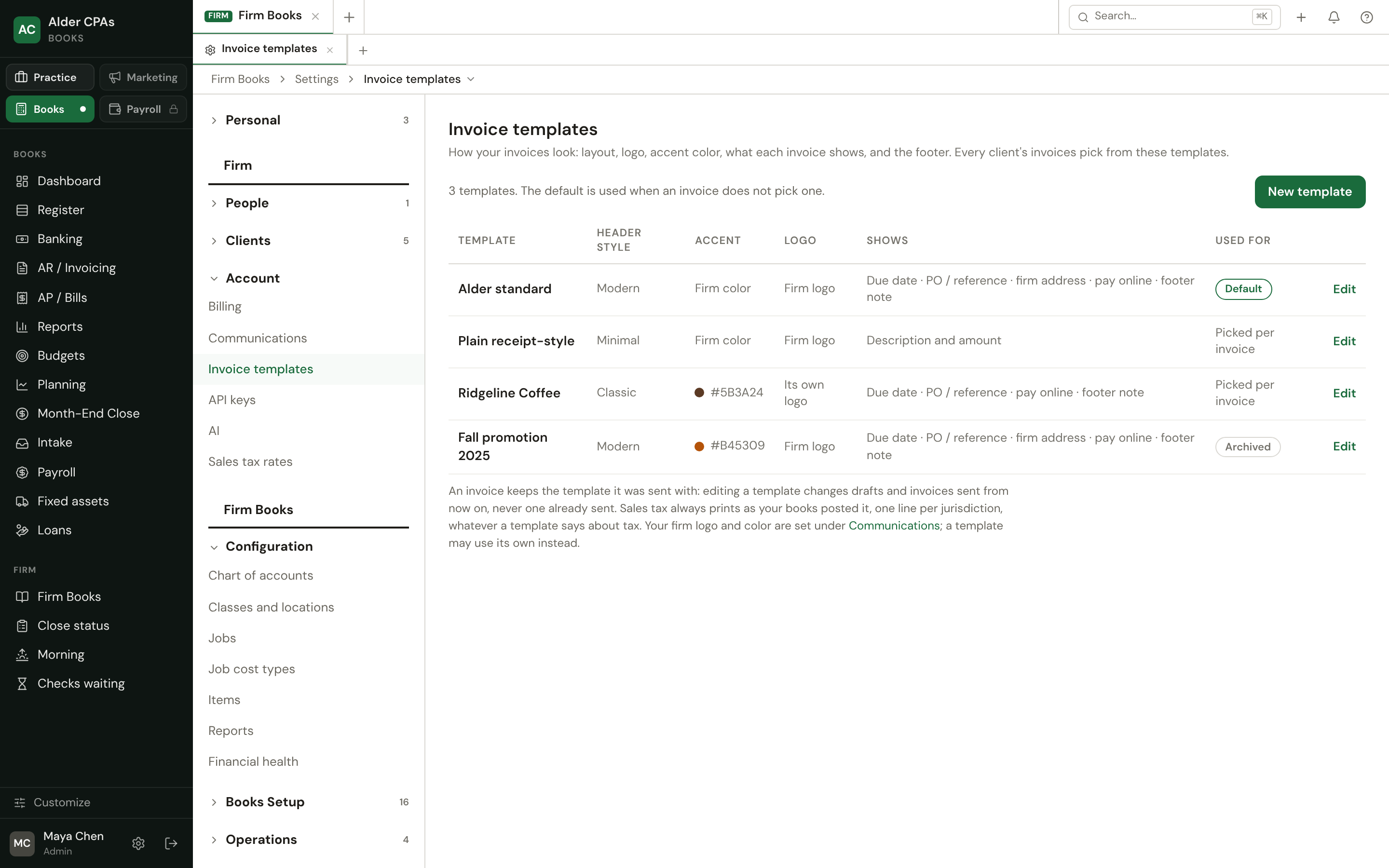 The Invoice templates list at Alder CPAs: a default, two templates picked per invoice and one archived
The line above the table counts the templates in use and says how the default works, for example: 3 templates. The default is used when an invoice does not pick one. Archived templates aren't counted.
| Column | What it shows |
|---|---|
| Template | The template's name. Click it to open the template. |
| Header style | Modern, Classic or Minimal. |
| Accent | The template's own color, or Firm color. |
| Logo | Its own logo, Header text only, or Firm logo. |
| Shows | What the invoice prints besides its lines, such as Due date · PO / reference · firm address · pay online · footer note. A Minimal template shows Description and amount. |
| Used for | Default, Archived, or Picked per invoice. |
The default template comes first, then the rest by name, with archived templates last. If no template is the default, the line above the table says so, and an invoice that picks none prints the standard look.
Create or edit a template
- Click New template. Books creates a template named New template with the Modern header style and opens it.
- Change what you like. Each change saves as you make it: a choice (a header style, a color, a font, a checkbox) at once, and a text field when you click out of it. The top of the page says Saving…, then Saved at and the time. Once the page says Saved at, going back to a setting the template had before (Modern, then Classic, then Modern again) is saved like any other change.
- Watch the Live preview on the right. It draws a sample invoice with your firm's name and address and the template's settings.
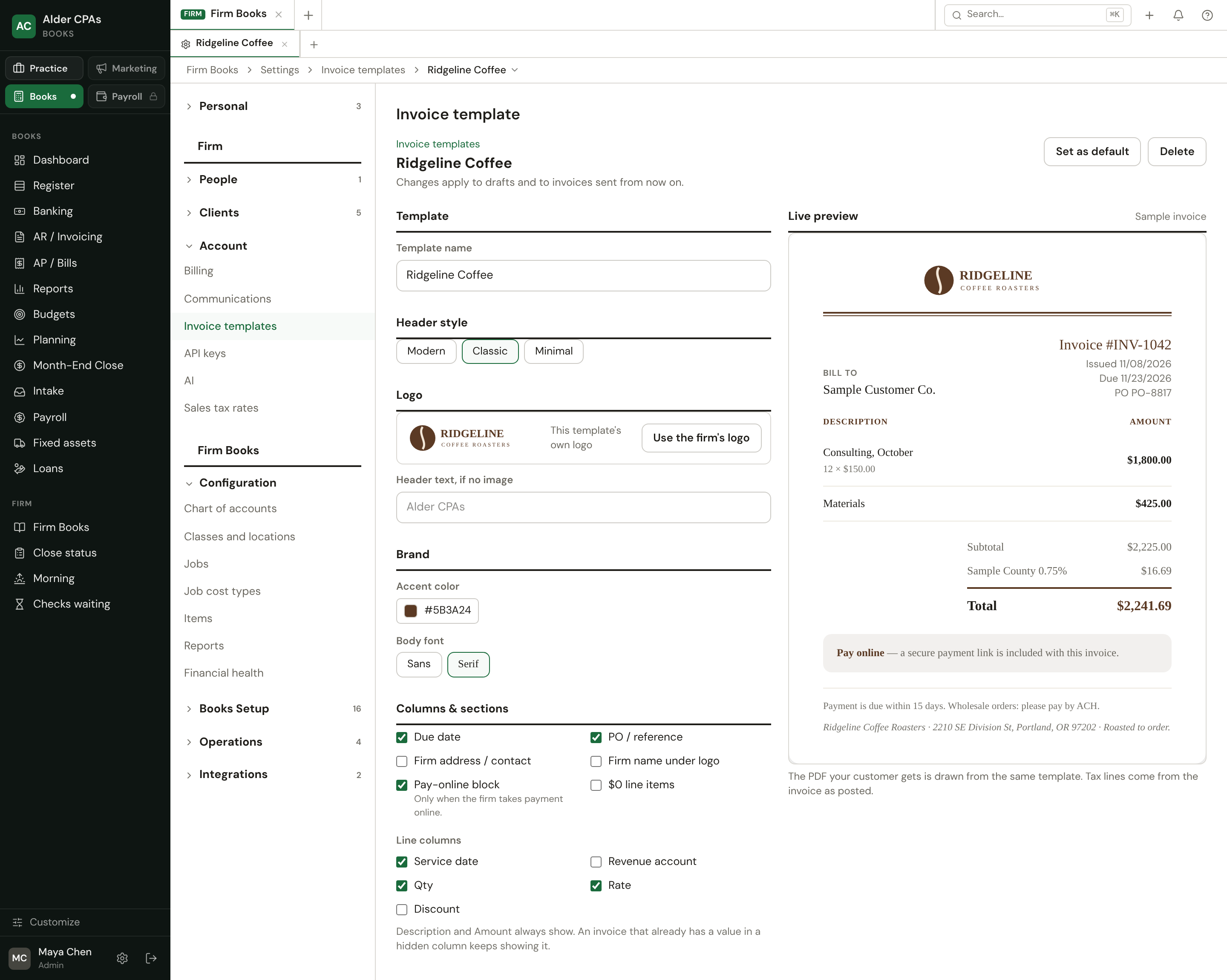 Editing the Ridgeline Coffee template: its own logo, the Classic header, a brown accent and serif type, with the live preview
The editor's sections, top to bottom:
| Section | Settings |
|---|---|
| Template | Template name, 1 to 80 characters. |
| Header style | Modern (logo left, invoice details right, a colored table header), Classic (centered letterhead, ruled sections) or Minimal (a plain line table with no color band). |
| Logo | The firm's logo by default, or Change for this template to give this template its own. Header text, if no image is what prints in the header when there's no logo. |
| Brand | Accent color (the firm's color unless you pick one) and Body font, Sans or Serif. |
| Columns & sections | Due date, PO / reference, Firm address / contact, Firm name under logo, Pay-online block (printed only when the firm takes payment online) and $0 line items. |
| Line columns | Service date, Revenue account, Qty, Rate and Discount. Description and Amount always show. |
| Payment terms | Net days (0 to 365) and a Terms note. |
| Notes | Footer, up to 2,000 characters. |
A few details worth knowing:
- Line columns set the invoice screen too. The columns you turn off here are hidden when someone writes an invoice with this template, and on the printed invoice. An invoice that already has a value in a hidden column keeps showing it, so nothing on it disappears. A Minimal template prints Description and Amount, plus Service date and Discount when they are on; with Qty and Rate on, each line's quantity and rate print under its description. The note under Line columns says which, for example Minimal prints the Description, Discount and Amount columns.
- Qty needs Rate. A line carries both or neither, so turning Rate off turns Qty off with it, and Qty stays off (Quantity needs a rate.) until Rate is back on.
- Terms have an order. A customer's own terms come first. The template's Net days apply to a customer set to the firm's terms; left blank, the firm's terms apply. The preview's sample invoice prints Payment is due within 15 days. (or Payment is due on receipt. for 0 days) followed by your Terms note.
- Invoice numbering isn't part of a template. It has its own page, linked at the bottom of the editor.
Add your logo
There are two places a logo can live:
- Your firm's logo is the default for every document: invoices, estimates, statements and reports. Set it under Settings → Account → Communications, in Letterhead & branding, where you can also set the firm's Accent color. Without a logo, documents carry the firm name as text. Changing it there is an owner or admin action.
- A template's own logo overrides the firm's on invoices printed with that template. That is how one firm can send invoices in a client's brand, as Alder CPAs does for Ridgeline Coffee.
To give a template its own logo:
- Open the template. Under Logo, click Change for this template.
- Drop a file on the box, or click it to choose one: PNG, SVG or JPG, up to 2 MB.
- The logo uploads and saves, and the preview shows it.
To go back to the firm's logo, click Use the firm's logo.
A logo that is too large or the wrong kind of file is refused before it uploads, with the reason under the box: That file is not a PNG, SVG or JPG. Pick one of those. or That file is 3.4 MB; the limit is 2 MB.
Choose the default template
Open a template and click Set as default. Books confirms it, naming the template that was the default before. A new invoice uses the default unless someone picks another; the old default stays available to pick. An archived template can't be the default.
Pick a template on an invoice
On the invoice screen, the Template field in the header lists the firm's templates. The first choice is the default, by name; the others follow. Archived templates aren't offered. Edit beside the field opens Invoice templates in a new tab, so you don't lose the invoice you're writing.
The template is fixed on the invoice when it's sent. After that, the Template field can't be changed.
Delete, archive or restore a template
Click Delete on a template. Books checks first and the prompt tells you which of two things will happen:
- No invoice or recurring schedule uses it: it is deleted. The prompt reads, for example, No invoice or recurring schedule uses Plain receipt-style, so it is deleted. Its settings are kept in the change history.
- Something uses it: it is archived instead, and the prompt says how many invoices and recurring schedules use it: Ridgeline Coffee is used by 14 invoices and 1 recurring schedule, so it is kept for them and archived: it is no longer offered on new invoices. Every invoice that uses it keeps its look, and so do their PDFs.
The button in the prompt is Delete and the template's name, whichever of the two will happen.
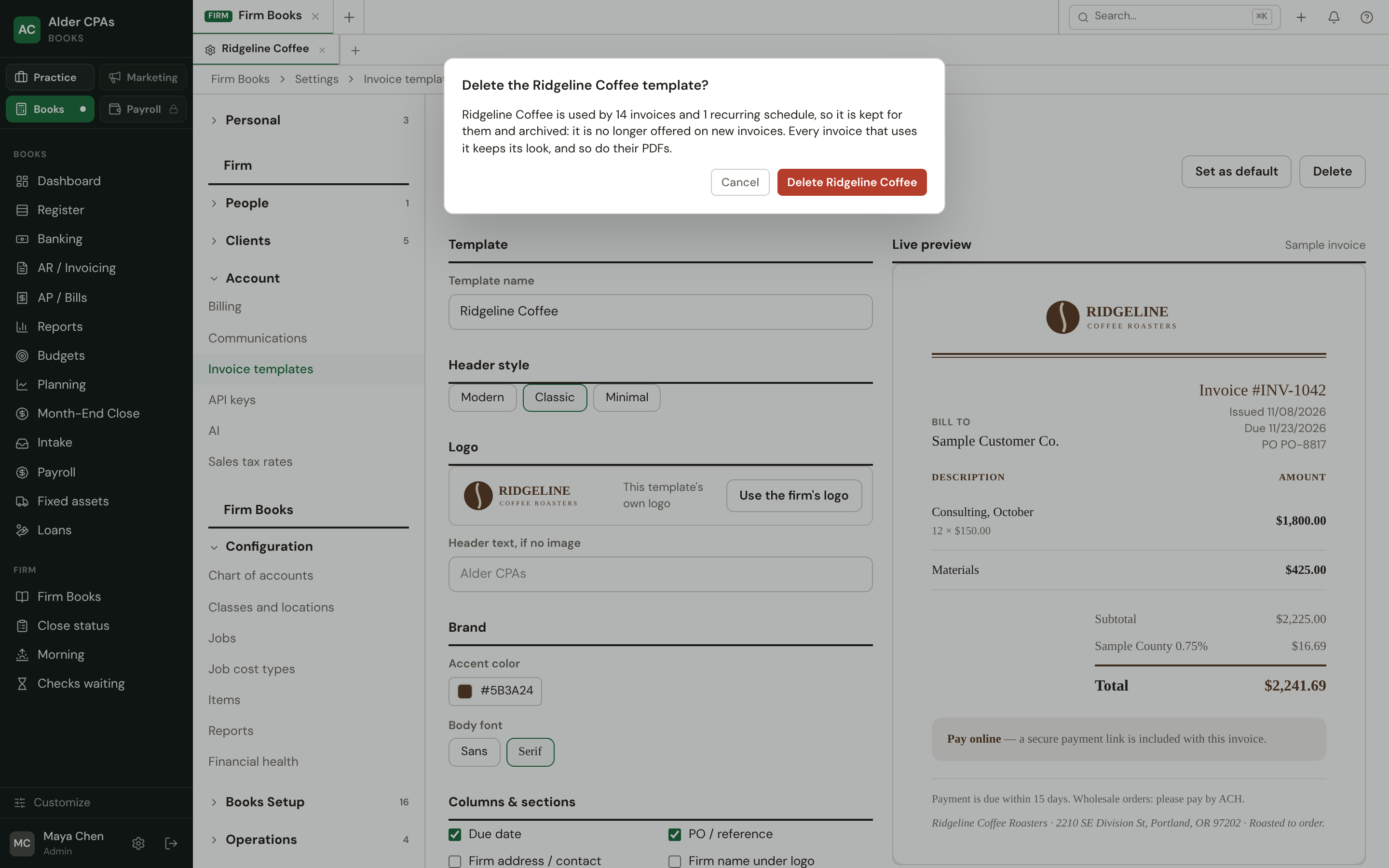 Deleting the Ridgeline Coffee template, which 14 invoices and a recurring schedule use, so it will be archived
The default template can't be deleted: make another template the default first.
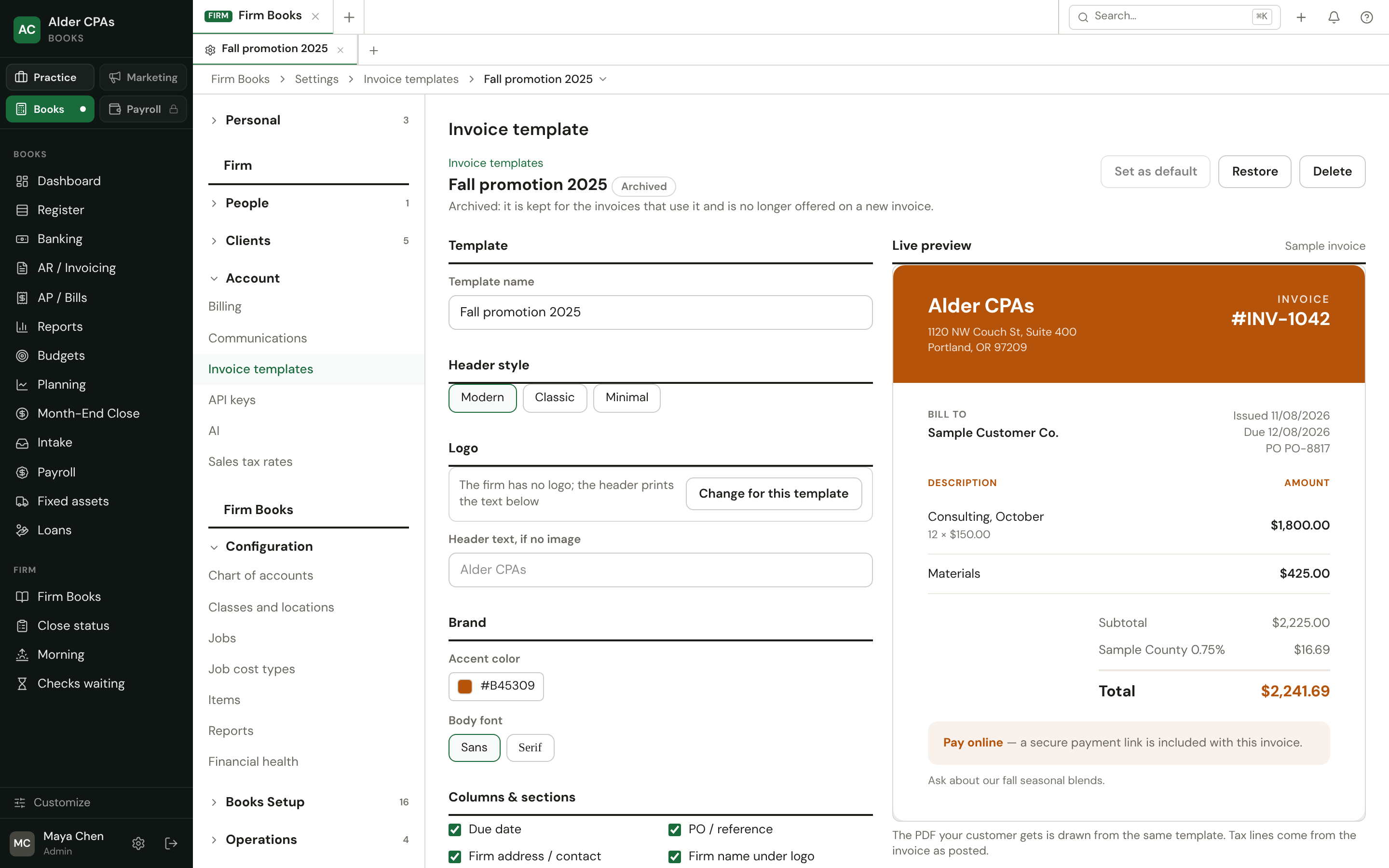 An archived template, Fall promotion 2025, with Restore
To bring an archived template back, open it and click Restore. It is offered on new invoices again (it isn't made the default). Books confirms: Fall promotion 2025 is offered on new invoices again. A template can be archived and restored again as often as you need.
Why can't I…
- …change a template? Templates belong to the firm. Changing them needs the Settings — Firm permission; without it, the list shows View instead of Edit, the buttons are off, and the page says why. You can still see every template and its preview, and pick it on an invoice.
- …delete this template? It's the default. Make another template the default first.
- …make this template the default? It's archived. Restore it first.
- …turn on Qty? Rate is off. Turn Rate on first.
- …change the template on this invoice? The invoice was already sent, so it keeps the template it was sent with.
If your firm also uses Practice
Practice and Books share one set of invoice templates. A template you change in Books changes in Practice's template editor too, and the other way around, so a client's Books invoices and your firm's Practice invoices look the same.
Why does this template look different in Practice? A firm with Practice on sees one more group in the editor, Practice time invoices, with Hours and rate columns and Flat tax line. Those two apply only to Practice's own time invoices.
A Books invoice ignores both: its lines print quantity and rate, and its sales tax prints as the books posted it, one line per jurisdiction. So the same template can show an hours column or a single tax line on a Practice invoice and not on a Books invoice.
With Practice on, the Delete prompt also says the change reaches Practice: an archived template is no longer offered on new invoices, here or in Practice, and a deleted one disappears there too.
With Practice on, your firm's logo, color and sending identity are managed in Practice's settings; Settings → Account → Communications in Books shows them read-only, with a link to Practice.