
Invoice Numbering, Fields and Business Details
Set the number series your invoices and other documents take, add your own fields to invoices, and choose the name and address that print on invoices and statements.
On this page
Three Settings pages decide how a client's invoices look before anyone types a line: Numbering sets the number each document takes next, Invoice fields adds fields of your own to the invoice, and Business details holds the name, address and phone the client's invoices and statements print.
Each set of books has its own copy of all three. A change on Ridgeline Coffee Roasters' books changes only Ridgeline's documents. Your firm's own books have their own pages too: open the Firm Books tab, then Settings.
A number already on a document is never issued again. Books will not let you set a next number at or below one already used under the same prefix, and it tells you the lowest number you can use instead. Changing a series never renumbers documents you already have.
Understand the Numbering page
Document numbers lists every document Books numbers for these books, with a count beside the title (8 documents).
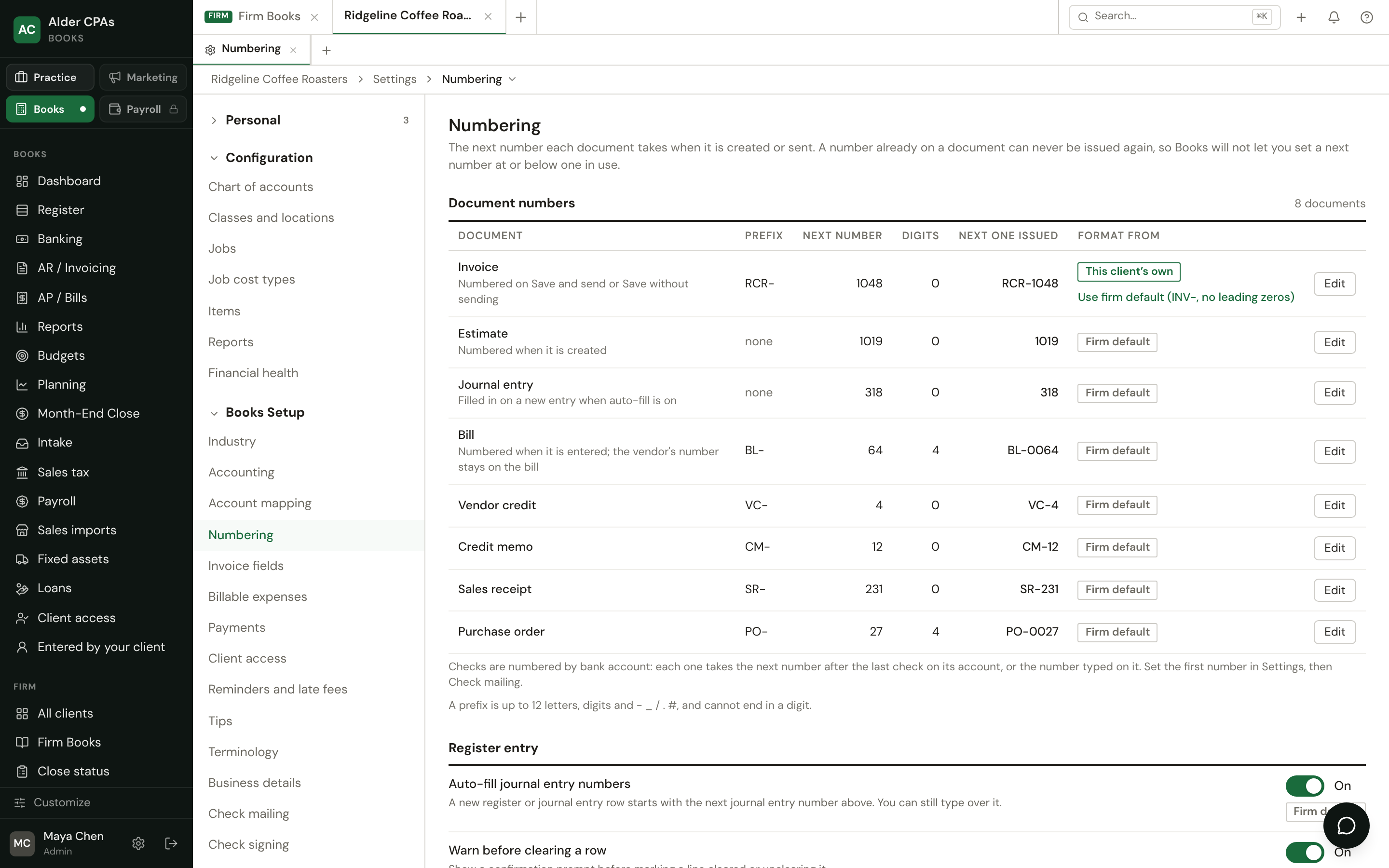 The Numbering page for Ridgeline Coffee Roasters, with the invoice series on the client's own format
The columns, in order:
- Document — the document, with a short line saying when it takes its number. An invoice is Numbered on Save and send or Save without sending; a bill is Numbered when it is entered; the vendor's number stays on the bill.
- Prefix — the letters in front of the number, such as RCR- or BL-. none means the number stands alone.
- Next number — the number the next document takes.
- Digits — the width the number is padded to with zeros. 0 means no padding.
- Next one issued — the number the next document will carry. BL- with next number 64 and 4 digits reads BL-0064. Books works it out the same way it issues the number. For invoices and estimates, if a document already holds the next number under that prefix, this column already shows the one after it.
- Format from — where the prefix and digits come from (see Firm defaults).
The series that matter most day to day:
Invoice
The invoice, when it goes on the books: Save and send or Save without sending. An invoice kept with Save draft has no number yet, unless you type one on it yourself. Invoices Books makes for you, such as a recurring invoice, take the next number the same way.
Estimate
Each estimate, when it is created. Change the Estimate row and the next estimate takes the new prefix and number.
Journal entry
A journal entry made on the journal entry page, when it posts. In the register, a new row starts with this number filled in only when Auto-fill journal entry numbers is on, and a number you type there wins.
Bill
Each bill you enter. Books' own number sits beside the vendor's number, which stays on the bill.
Credit memo, Sales receipt, Vendor credit, Purchase order
Each one as it is created, unless you type a number on it yourself. A number already used is refused.
Checks are numbered by bank account, not on this page. The note under the table says so: Checks are numbered by bank account: each one takes the next number after the last check on its account, or the number typed on it. Set the first number in Settings, then Check mailing.
A mailed check never takes a number below the Starting check number under Settings → Check mailing. A bill payment carries the number typed on it, if any. See Mail Checks for a Client.
How do I change invoice numbering?
- Go to Settings → Numbering.
- Click Edit on the Invoice row. The row opens in place.
- Change the Prefix, the Next number, or the Digits. Next one issued updates as you type, so you can see the result before it saves.
- Press Enter or click out of the field. Each field saves on its own, and Saved confirms it. Digits saves as soon as you pick a value.
- Click Done to close the row.
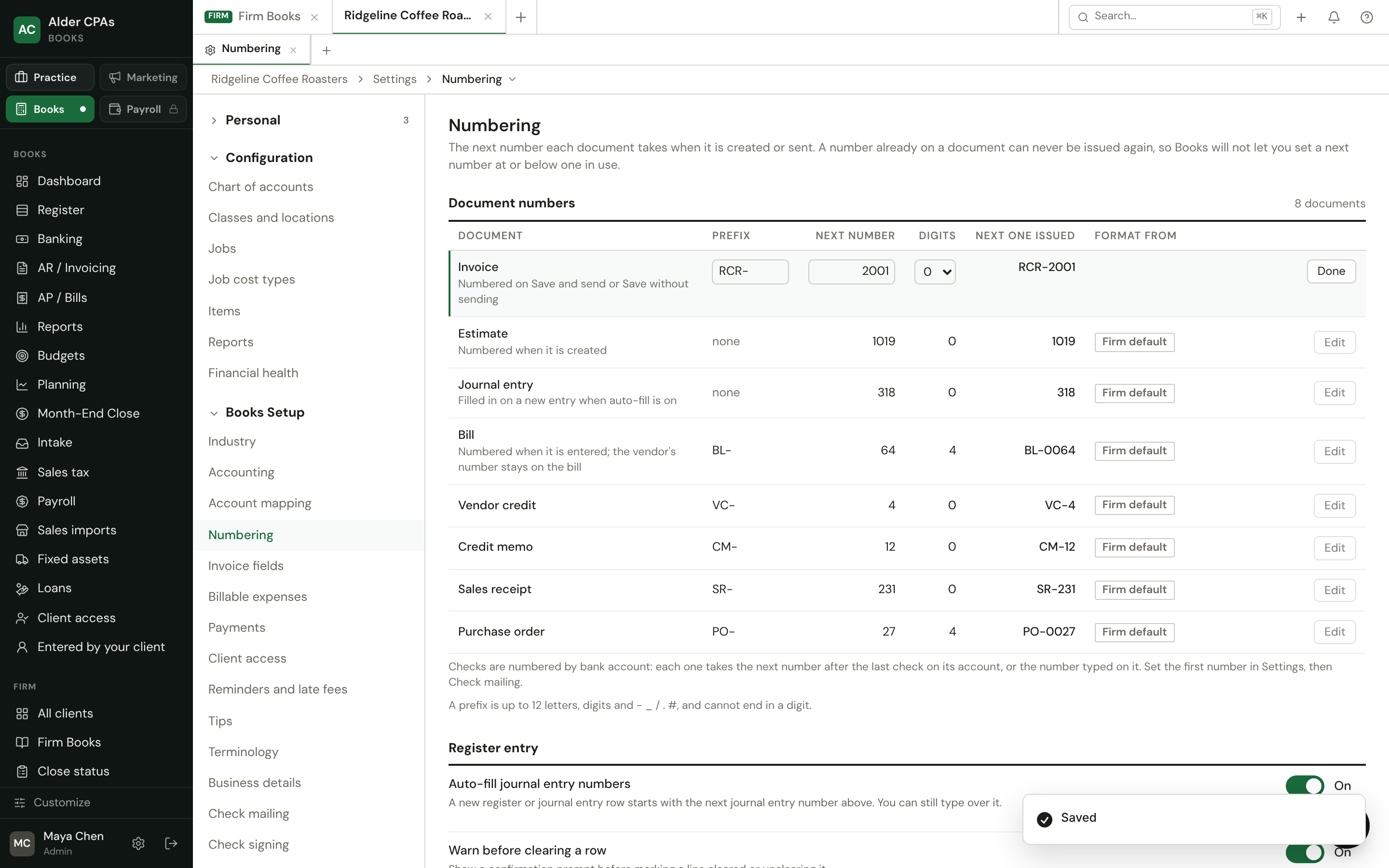 The Invoice row open for editing, with RCR-2001 as the next invoice number
There is no Save button. Whatever you leave in a field is what the series uses from the next invoice on.
The same steps change the other rows. Only one row can be open at a time; while one is open, the other Edit buttons are turned off, and pointing at one shows Finish the row you are editing first.
Rules for a series
- Prefix — up to 12 characters: letters, digits and
-_/.#. It cannot end in a digit, because it would run into the number. Add a separator: RCR-, not RCR1. - Next number — a whole number from 1 to 2,147,483,647.
- Digits — 0 to 10.
When a number is already in use
If the next number you type is at or below one already on a document under the same prefix, Books refuses it, names the number in use and tells you the lowest one allowed:
RCR-1047 is already used. Set the next number to 1048 or higher.
The message shows on the row and in a notice, and the row goes back to what was stored. Type the number it suggests, or a higher one.
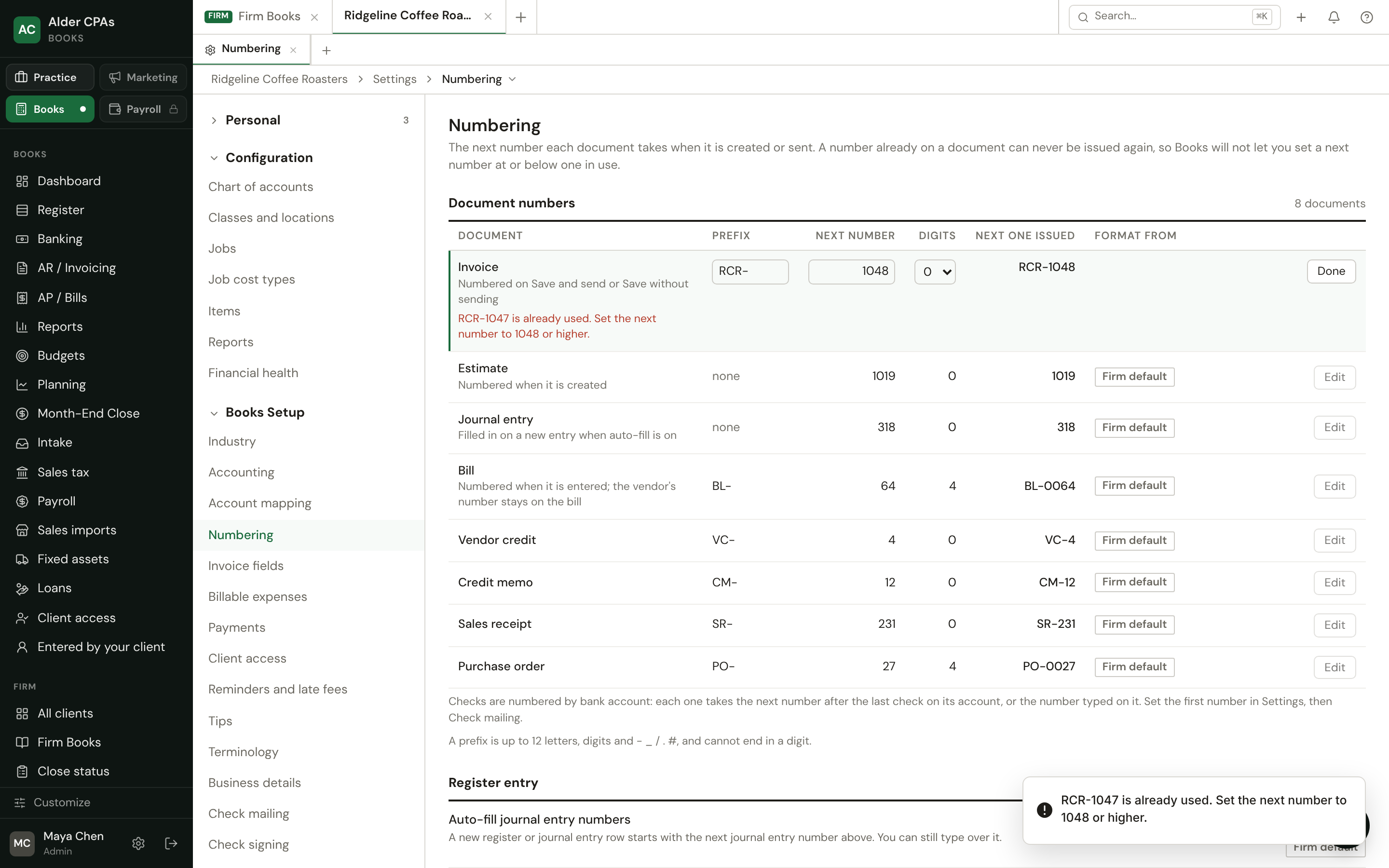 Books refusing a next number that is already used, and naming the lowest one allowed
Books compares numbers under the prefix you enter. If you change the prefix from INV- to RCR-, only numbers already used under RCR- count against the new next number; your INV- invoices keep their numbers.
Books also guards the numbers as it issues them. An invoice never takes a number at or below one already used under its prefix: if you typed a higher number on an invoice yourself, with the prefix exactly as the series writes it, the series skips past it. A credit memo, sales receipt or vendor credit skips a number already on another one.
Type a number on one invoice
To give one invoice a particular number, type it in the number box on the new or draft invoice (it reads On save until you do). That invoice keeps your number. Leave it blank and the invoice takes the next number in the series when you click Save and send or Save without sending; pointing at the box says so. A number already used on another invoice is refused.
Firm defaults for number formats
On a client of your firm, the Format from column says where each row's prefix and digits come from:
- Firm default — the row follows your firm's format for all its clients, or Books' standard format if your firm hasn't set one.
- This client’s own — someone set this client's format here. Use firm default (INV-, no leading zeros) beside it puts the row back on the firm's prefix and digits (a padded format reads like PO-, 4 digits). The notice reads Saved. Invoice format now follows the firm default (INV-, no leading zeros).
Only the format follows the firm. The next number is always each client's own, and going back to the firm default never moves it down.
Your firm sets these formats under Settings → Defaults for clients, from the Firm Books tab. A change there reaches every client that follows the firm default, and Books tells you how many: for example Applies to 13 clients that use the firm default. 1 has its own and keeps it. Numbers already issued never change, and no next number goes down.
A business that keeps only its own books has no firm defaults, so it sees no Format from column.
The rest of the Numbering page
Below the document numbers, two more sections set how numbers behave elsewhere in Books:
- Register entry — Auto-fill journal entry numbers (a new register or journal entry row starts with the next journal entry number), Warn before clearing a row, New entry row at the top, and Fill from the payee’s last entry with Also fill the amount.
- Chart of accounts — Account number digits: 3, 4, 5 or 6. New accounts are suggested with this many digits; you can always type any number, and existing account numbers are never reformatted.
Add your own fields to invoices
Settings → Invoice fields adds fields to these books' invoices: a pickup location, a delivery window, the roast date on each bag. Each field is either shown to the customer or kept internal.
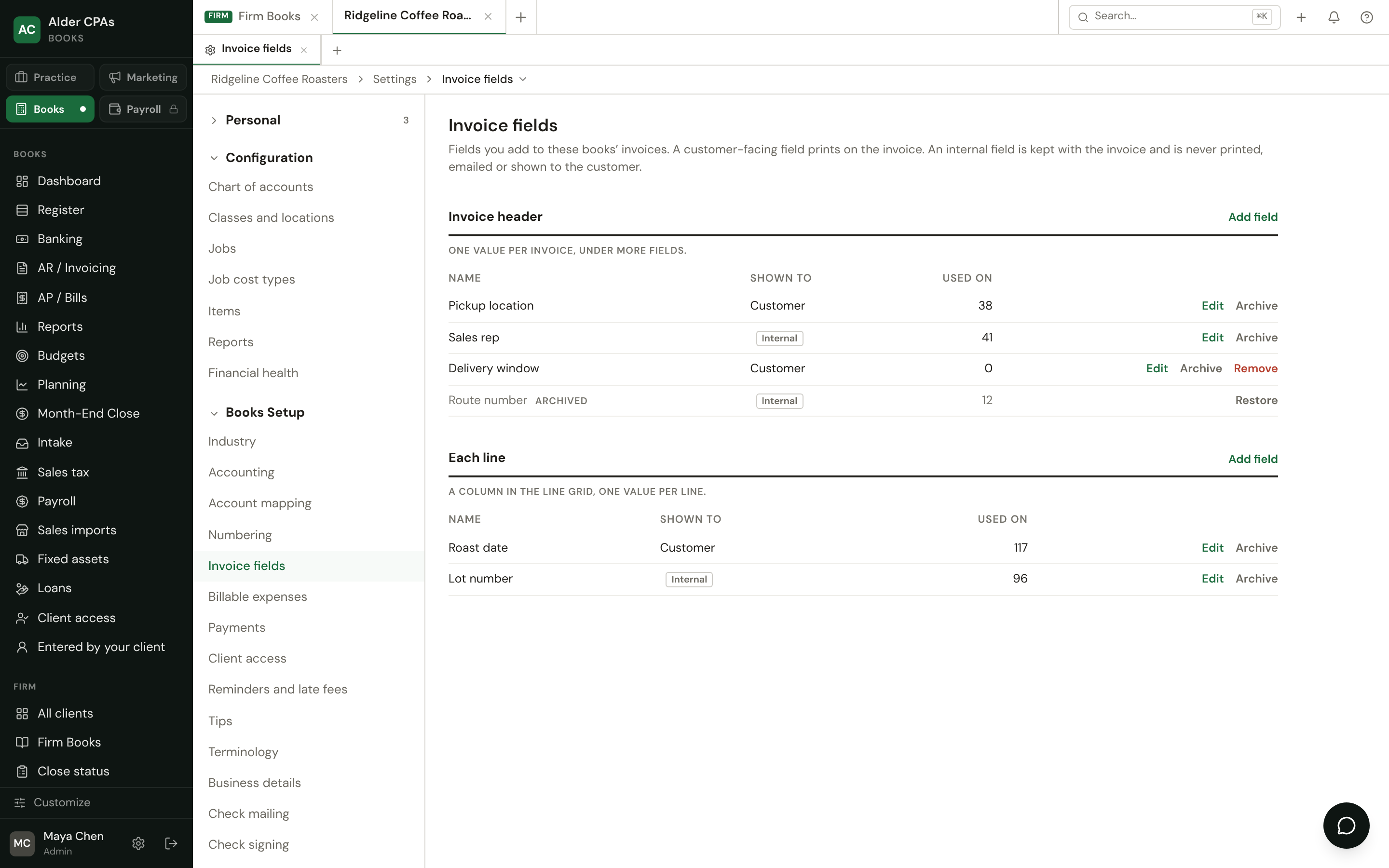 Invoice fields for Ridgeline Coffee Roasters: header fields and line fields, customer-facing and internal
The page has two sections:
- Invoice header — One value per invoice, under More fields. On the invoice, these appear when you open More fields.
- Each line — A column in the line grid, one value per line.
Each section lists its fields with Name, Shown to (Customer, or an Internal badge) and Used on (how many invoices, or invoice lines, hold a value for it).
Add a field
- Click Add field in the section where it belongs: Invoice header or Each line.
- Type a Name, up to 60 characters.
- Choose Shown to:
- The customer: it prints on the invoice
- Internal. Never printed on the invoice and never sent to the customer.
- Click Save field. The notice reads Added Grind.
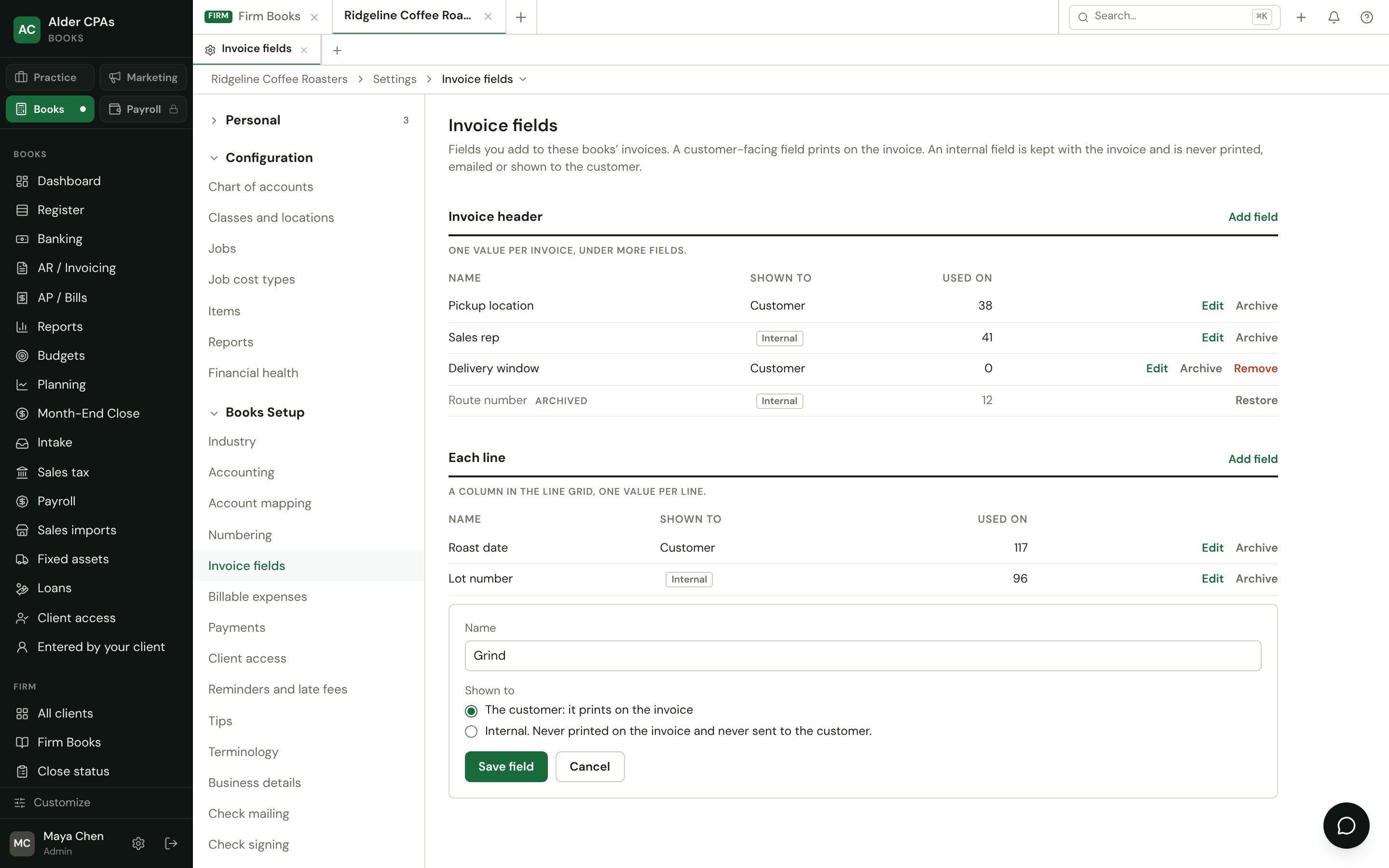 Adding a customer-facing line field named Grind
An internal field is kept with the invoice for your team: it is never printed, emailed or shown to the customer. Use it for things like a sales rep or a lot number.
A field stays in the section it was made for. To have the same thing on each line instead of once per invoice, add a new field under Each line.
Rename a field or change who sees it
Click Edit on the field, change the Name or Shown to, and click Save field.
Why can't I …
… change numbering, fields or business details at all? These pages need the Books settings and account mappings permission. Without it, the controls are turned off and the page says You need the "Books settings and account mappings" permission for this. Ask an admin to grant it.
… set this next number? It is at or below a number already used under that prefix. The message names the number in use and the lowest one allowed: RCR-1047 is already used. Set the next number to 1048 or higher.
… save this prefix? A prefix is up to 12 letters, digits and - _ / . #, and cannot end in a digit. Add a separator such as - after the letters.
… add a field with this name? These books already have an active field by that name in the same section: These books already have a field named Grind. Use another name. Pick another name.
… remove this field? Only a field nobody has used can be removed. Once a field holds a value on any invoice, archive it instead.
… export a statement? Statements need a complete set of business details. See Business details.
Fix or undo
Archive, restore or remove a field
- Archive — the field stops being offered on new invoices and keeps showing on every invoice that used it. The notice says how many: Archived Sales rep. It stays on the 41 invoices that use it. Archived fields stay in the list, marked Archived.
- Restore — offers an archived field on new invoices again. If an active field already has its name, rename one of them first.
- Remove — appears only when Used on is 0. Books asks No invoice uses it. Remove it for good?; click Remove to delete it, or Keep. A removed field is gone, but Books keeps a record of what it was.
Undo a numbering change
Edit the row again and type the old values back. The one limit is the collision rule: you can't go back to a number that a document has used since. Every change to a series is recorded with what it was before and after.
Set the name and address that print
Settings → Business details is who the business on these books is: the name, address and phone its invoices and statements print.
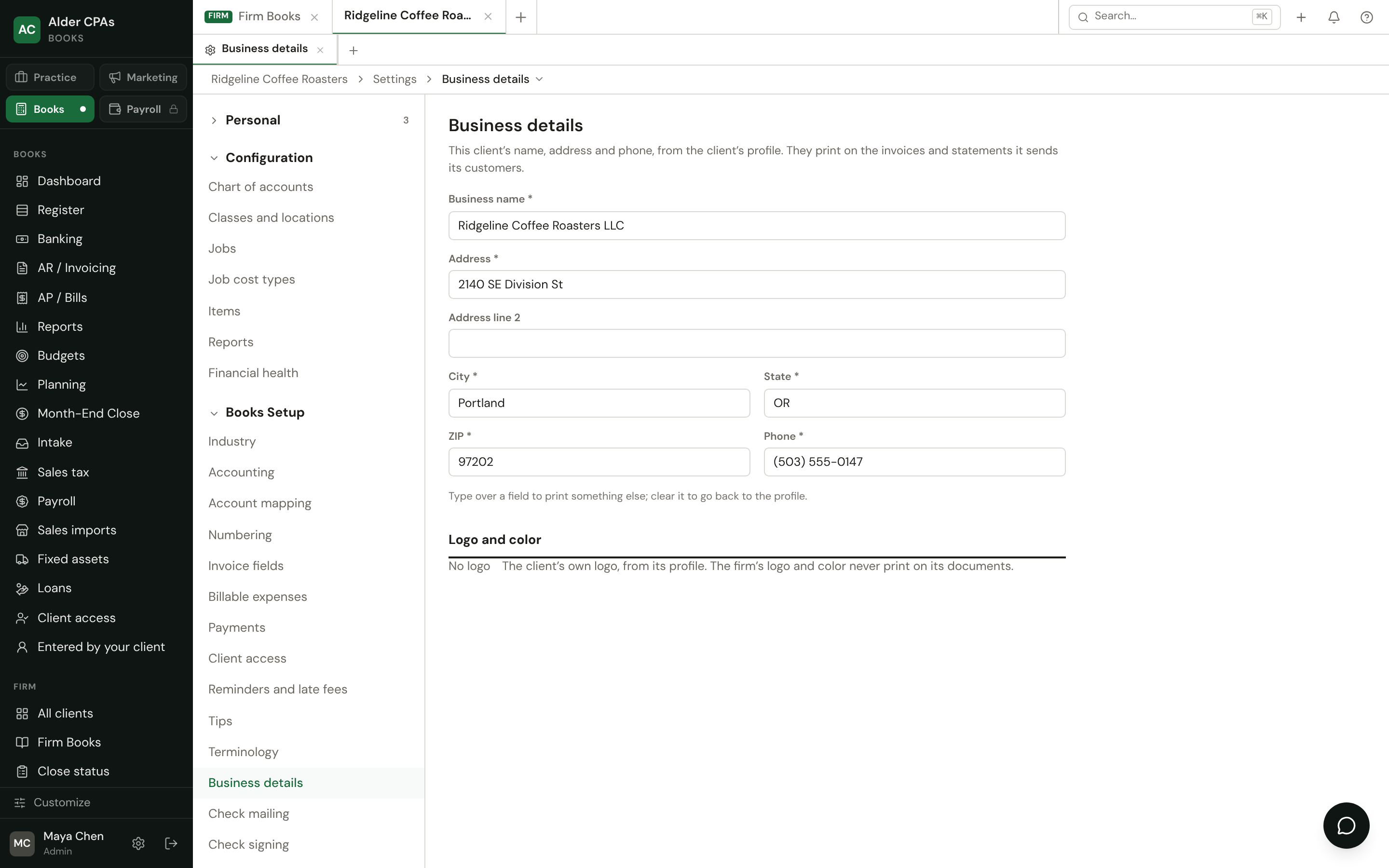 Business details for Ridgeline Coffee Roasters
Where the values come from depends on whose books these are:
- A client's books print the client: its name and address from the client's profile. The page reads This client’s name, address and phone, from the client’s profile. They print on the invoices and statements it sends its customers. The page also says The firm’s logo and color never print on its documents.
- Your firm's own books print your firm, from your firm's profile.
The fields are Business name, Address, Address line 2, City, State, ZIP and Phone. All but Address line 2 are required for statements; a required field that is empty is outlined, with Statements need this. under it.
Print something different from the profile
Type over a field to print something else on the documents. The field saves when you click out of it or press Enter. Clear it to go back to the profile's value, which shows in the empty field as a hint. Changing a field here does not change the client's profile.
A client's profile has no phone number, so on a client's books the Phone you type here is the one that prints.
On your firm's own books, if your firm's profile is missing something, the page says so and links to your firm's details, where you can add it once for every place that reads it.
What prints where
- Invoices print the business name and address.
- Customer statements print the name, address and phone. A statement can't be exported until every required field is filled in; the export window names what is missing and links here.
Logo and color
The Logo and color row shows the logo these books' documents carry. On a client's books it is the client's own logo, from its profile, or No logo. On your firm's own books it shows your firm's logo and color, with Change in Letterhead & branding to change them.
If you also use Practice
A client's logo lives on its profile, and the profile is kept in Practice. If your firm also uses Practice, open the client's page in Practice and click or drop an image onto the round picture at the top. That logo then shows on the client's Business details page in Books and goes on the documents its books send, so Ridgeline's invoices arrive with Ridgeline's own logo at the top.
Tips
- Imported invoices carry on where they left off. When a client's invoices came over from another system, the invoice series continues from the numbers the client already has, in the same format. A prefix someone chose on this page, or Use firm default, stays: the imported format never replaces it.
- Save draft keeps a number free. Ctrl+Shift+S (Cmd+Shift+S on a Mac) on the invoice saves it as a draft with no number, so an invoice that never goes out does not use one up.
- Press Enter to save a field on both Numbering and Business details. On Numbering, Digits saves the moment you change it.
- Check Next one issued before you leave the row. It shows exactly what the next document will carry.
- Use internal fields for your team's notes on an invoice: they stay with the invoice and never reach the customer.
- To set Reminders and late fees for overdue invoices, see Payment Reminders and Late Fees. Other client settings, like the reporting basis, are under Settings too.