
Create and Send an Invoice
Write an invoice, save it to the books, email it with its PDF, and follow it until it is paid.
On this page
An invoice records a sale the customer pays for later. Ridgeline Coffee Roasters invoices its wholesale accounts (cafés, a grocer, a hotel) for each delivery of roasted beans, and the invoice does two jobs: it tells the customer what they owe, and it puts the sale and the receivable on the books. In Books those are separate steps you can take together or apart: save puts the invoice on the books, send emails it.
Saving an invoice is what posts it, not emailing it. A draft is not on the books. It keeps a number only if you typed one; otherwise it is numbered when it is saved. Save without sending numbers the invoice and posts it, and emails nothing. Save and send does the same and then emails it with its PDF. Once posted, an invoice can be voided but not deleted.
Understand the Invoices list
AR / Invoicing → Invoices lists the client's invoices. The line under the title counts them and gives what is open and what is overdue, for all of the client's invoices, whatever filter you have on.
The columns are Number, Customer, Issue date, Due date, Total, Balance, Status and Delivery. Memo is there too, hidden until you turn it on under Columns. A draft has a number only if you typed one.
Status marks the exceptions: an open invoice carries no badge, so Overdue, Partial, Draft, Paid, Void and Written off stand out, and Overdue replaces Partial once the due date has passed with a balance left. Delivery shows what became of the last email: Queued, Sent, Delivered, Opened, Bounced, Marked as spam, Not sent or Canceled, or Not emailed.
The list opens on Open invoices. Filter by Status, Due (Overdue or Not overdue), Customer, Issue date, Due date, Total or Balance, and search by number, customer or memo. The Shown row totals what is on screen, leaving drafts and voided invoices out.
Tick invoices to act on several at once, or select saved invoices and click Send selected to email them together.
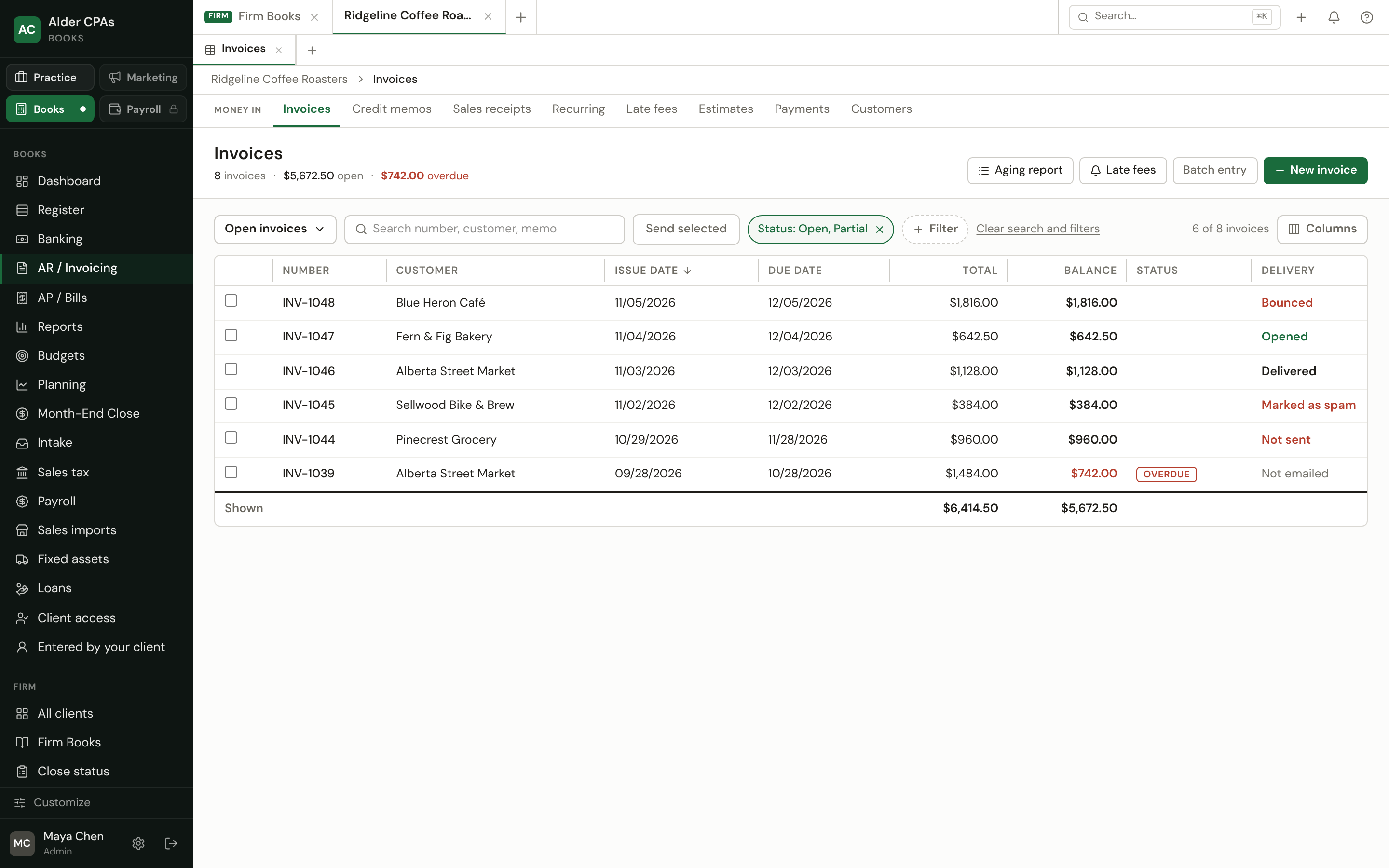 The Invoices list for Ridgeline Coffee Roasters: six open invoices, one overdue, with what became of each email
Create an invoice
- Click New invoice.
- Choose the customer. Under the name, Books shows what they owe (Open), what is Overdue, their last payment and recent activity, with Open customer, so you know who you are billing before you bill them. Bill to shows the billing address; Edit changes it for this invoice.
- Check the header:
- Invoice # — leave it empty and the next number is assigned when you click Save and send or Save without sending (it reads On save); a draft saved empty stays unnumbered. Or type one. A number the client already uses is refused, whatever its case: INV-1042 and inv-1042 are the same number.
- Issue date, Terms and Due date. The due date comes from the terms and can be changed.
- PO # and Template. More options holds Retainage % (if you hold back part of the invoice), Custom days and a Terms note.
- More fields — any fields set up for these books in Settings → Invoice fields.
- Add the lines: Item (or type a description), Description, Revenue account, Qty, Rate and Amount. Amount works itself out from quantity times rate and can be typed over. The template you choose decides which columns show (such as Service date and Discount). Add line, Add shipping and Paste lines sit under the grid.
- Check the totals: Subtotal, Discount (type a percent or an amount), Total, Amount paid and Balance due.
- Add a Memo (on invoice) if you like. It is printed on the invoice footer.
- Save it, one of these ways:
- Save and send — numbers it, puts it on the books and emails it with its PDF to the address shown beside the button (Sends to …).
- Save draft — keeps it as a draft: not on the books, nothing sent.
- From the arrow beside Save and send: Send with options… to choose recipients and add a message, or Save without sending to post it and email nothing.
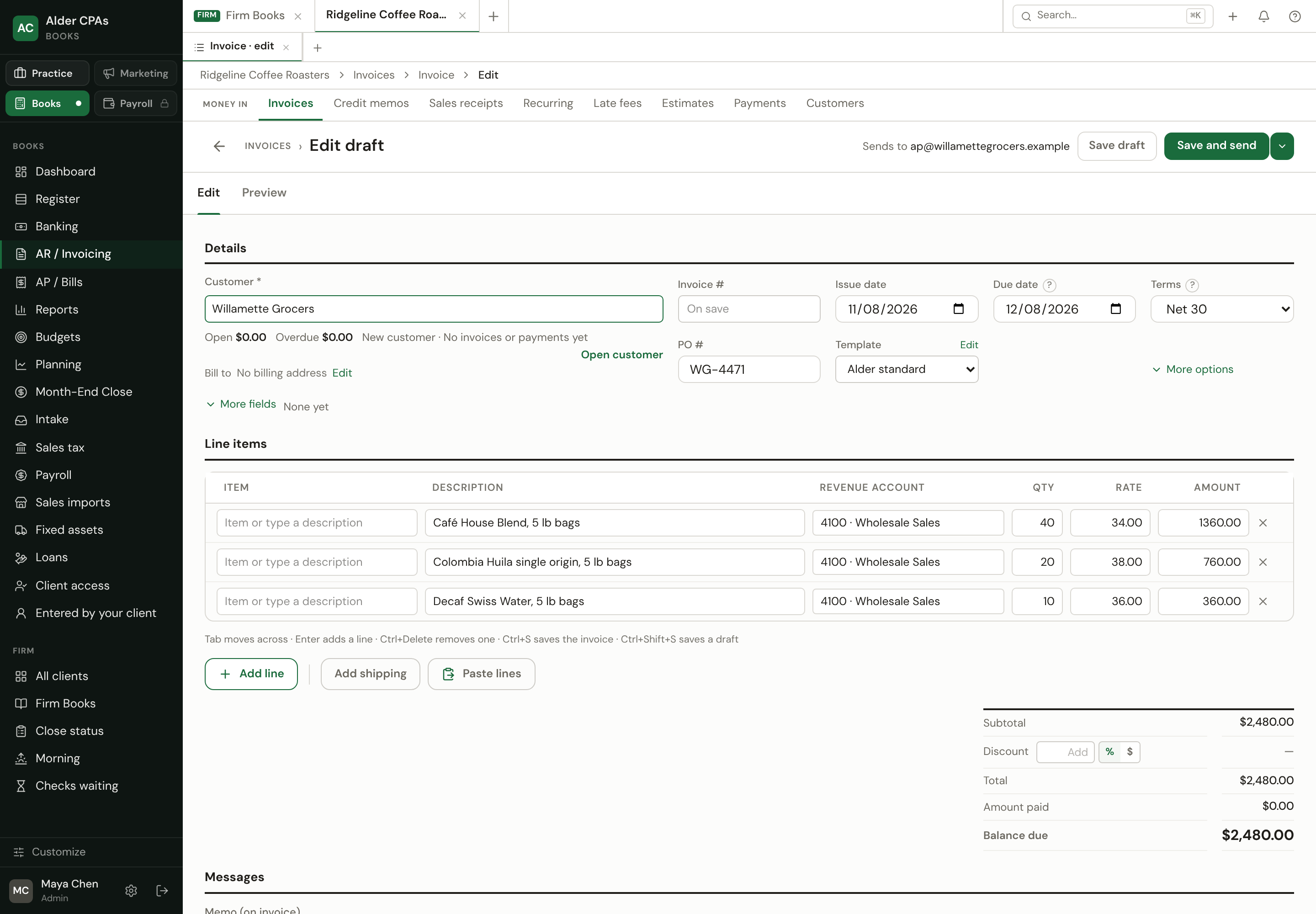 A draft for Willamette Grocers: the header, three lines of wholesale coffee and a $2,480.00 balance due
Switch to the Preview tab at the top to see the invoice as the customer will, then back to Edit. Nothing you typed is lost going back and forth, and you can save from either tab.
If you leave a new invoice before saving it, Books keeps what you typed. Come back to it and a line offers to restore it: You started a new invoice for this client on Nov 8, 2026 at 10:42 AM and didn't save it.
When the customer has no email address
Save and send stays off and says why: Blue Heron Café has no email address. Add one on the customer, use Send with options… to type one, or Save without sending.
Send an invoice you have saved
Open the invoice and click Send. It emails the invoice to the customer's address at once. Send with options… under Send lets you choose the recipients and add a note.
From a draft's page, Save and send opens the send panel (who it goes to, the template, the PDF, an optional note). Click Send and it shows what posting means, in figures, for example This posts the invoice to the ledger at $2,480.00 (receivable $2,480.00; sales $2,480.00) dated 11/08/2026, and emails it with the PDF attached to ap@willamettegrocers.example. and Once posted, the invoice can be voided but not deleted, and the customer will have seen it.
If nothing can take a payment online for this client, it also says The email will not offer online payment: and why. Click Send invoice to go ahead.
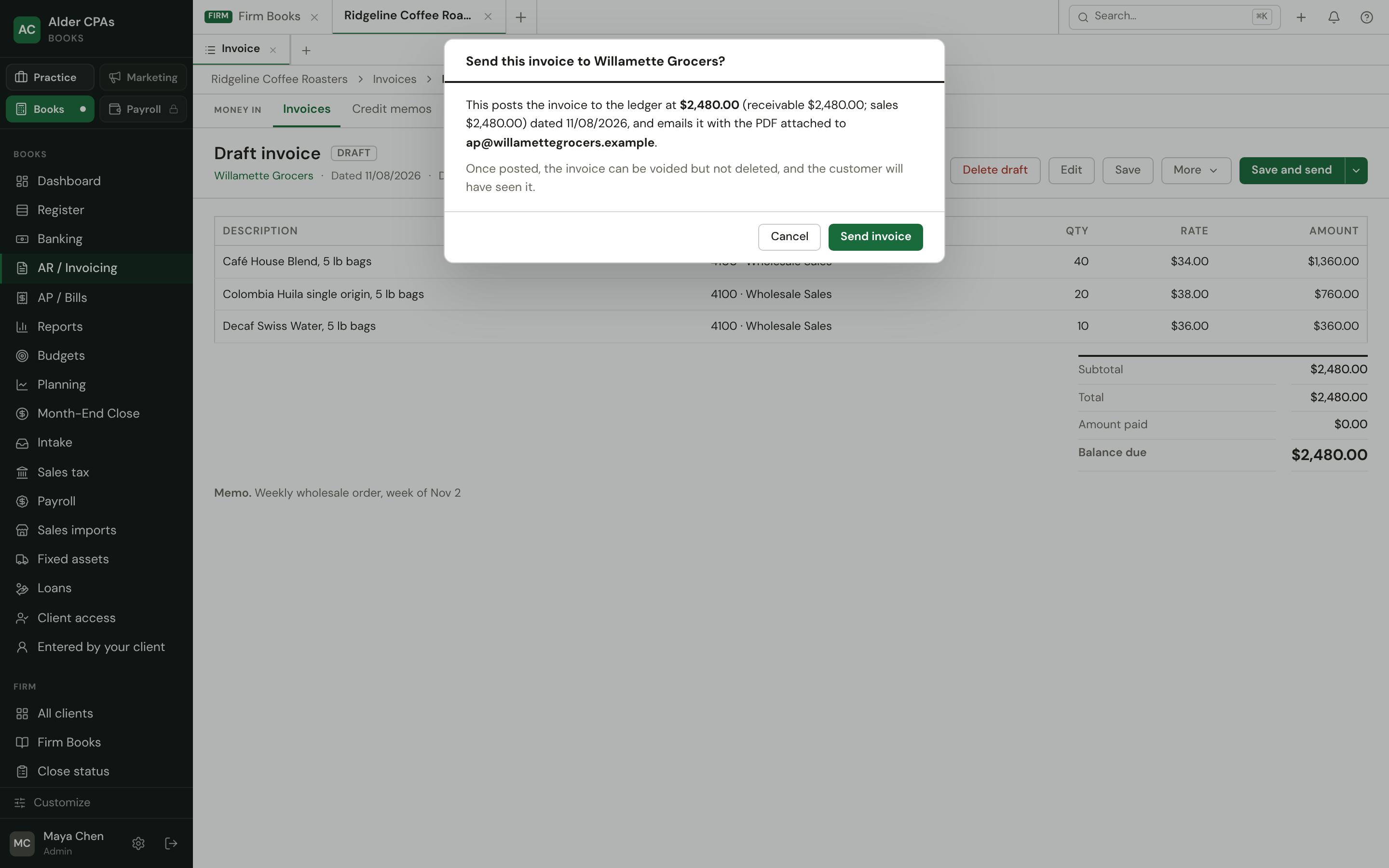 The prompt before a draft is sent: what it posts, in figures, and the address it goes to On a draft's page, Save (or Record as sent) puts it on the books without emailing it.
Saving and sending take the Send invoices and statements permission. Without it you can still write and save drafts, and the form says so.
Why didn't my customer get the invoice?
Open the invoice and look at its Delivery card. It shows the latest email and what happened to it; earlier ones are under Earlier emails.
| You see | What it means, and what to do |
|---|---|
| Not emailed. Use Send to email this invoice to the customer. | It was saved without sending. Click Send. |
| Queued / Sent | It is on its way, or has left. |
| Delivered / Opened | Delivered: the customer's mail server accepted it. Opened: the customer opened it, with how many times. |
| Bounced, with what the receiving mail server said, or The recipient's mailbox is full, so the email bounced. Ask the customer to make room or to give another address. | The receiving mail server refused it, often because the address is wrong. Type the right address in the box under it and click Save and resend. Leave Also update the customer record checked to fix the customer too. |
| Marked as spam by the recipient | This address is now on the do-not-email list, so the invoice cannot be emailed to it again. Reach the customer another way, or send to a different address. Correct the customer's email opens the customer. |
| Not sent, with the reason | For example The customer had no email address when it was sent. Add one on the customer record, then resend. |
| Canceled | The invoice was voided before this email went out. |
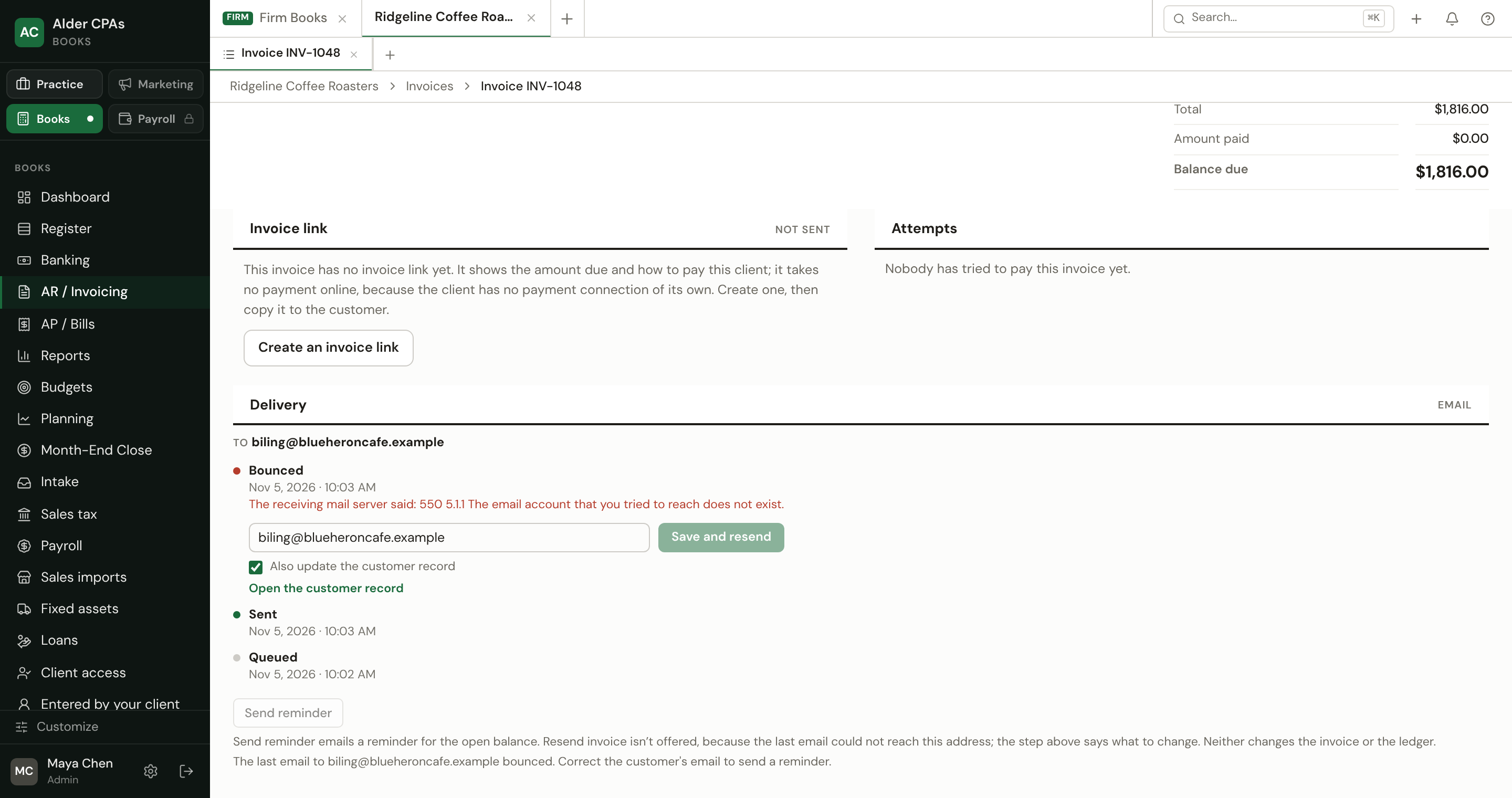 A bounced invoice email: what the receiving server said, the box to type the right address and resend, and Send reminder off with the reason
Send reminder emails a reminder for the open balance, and Resend invoice emails the same invoice again. Neither changes the invoice or the ledger.
After a bounce, a spam report or an address that can't receive email, Resend invoice isn't offered and Send reminder is off.
The card says Resend invoice isn’t offered, because the last email could not reach this address; the step above says what to change. and gives the reason under the buttons, for example The last email to biling@blueheroncafe.example bounced. Correct the customer's email to send a reminder. After a spam report it reads The last email to biling@blueheroncafe.example was marked as spam, so that address is on the do-not-email list. Change the customer's email to send a reminder.
To clear it, type the right address under Bounced and click Save and resend with Also update the customer record checked, or correct the customer's email. Then Resend invoice and Send reminder are offered again.
Both go to the customer's email as it is now, so a send to another address with the box cleared leaves them off until the customer's email is corrected.
Why is this invoice overdue?
An invoice is overdue once its due date has passed and it still has a balance. The due date comes from the invoice's terms (for example net 30 from the issue date) unless someone changed it. To chase it, send a reminder (see the article Payment reminders and late fees), or record the payment when it arrives with Record payment.
How do I take a payment online?
Online card and bank payments are set up for the client in Settings → Payments.
Change an invoice
A draft
Open it and click Edit. Change anything, then save it the same way as a new invoice. Each save keeps what the form holds, including a number, PO number, discount, bill-to address, field or template set back to a value the draft had before.
An invoice you have sent
Open it and choose More → Edit. A sent invoice is edited in place: its dates, terms, terms note, memo and lines change, and its ledger entry follows. Its customer, PO number, bill-to address, discount, template, sales tax choice, retainage and fields stay as they were sent. Click Review changes to see what the edit changes on the invoice and its ledger entry before anything is saved.
Fix or undo an invoice
- Delete draft removes a draft. It was never on the books.
- More → Void… voids a posted invoice. Give a reason of at least 10 characters. The invoice's entry is reversed, and any payments, credit memos or retainer draws applied to it are released; the dialog names each one and the date the reversal is dated.
- More → Write off… writes off what a customer will never pay.
- More → Duplicate starts a new invoice from this one.
Shortcuts and tips
| Where | Key | What it does |
|---|---|---|
| Invoice form | Ctrl+S (Cmd+S on a Mac) | Save without sending: numbers and posts it, emails nothing (on a sent invoice: review the change) |
| Invoice form | Ctrl+Shift+S (Cmd+Shift+S on a Mac) | Save draft |
| Invoice form | Ctrl+Enter (Cmd+Enter on a Mac) | Save and send (on a sent invoice: review the change) |
| Lines | Tab / Shift+Tab | Move across a line |
| Lines | Enter | Go to the next line's description, adding a line at the bottom |
| Lines | Ctrl+Delete | Remove the current line |
| Account on a line | ↑ / ↓, then Tab or Enter | Pick a suggested account |
Rate, Amount and Discount do math. Type 75+12.50 or 3x18.50 into a line's Rate or Amount and it settles to the result, to the cent: + and -, *, x or × to multiply, / or ÷ to divide, and parentheses group. A leading =, $, commas and spaces are ignored. A Discount also takes a percent, such as 10%.
- Save without sending is the right choice for an invoice you hand over in person or that the customer already has.
- Look at the customer panel before you save. A customer who is already overdue may need a call, not another invoice.