
Payment Reminders and Late Fees
Remind customers about open invoices on a schedule you set, and charge a late fee by your own rule, with every fee reviewed before it bills.
On this page
Most overdue invoices just need a nudge. Ridgeline Coffee Roasters sells beans wholesale to cafés, grocers and a hotel on net 15 and net 30 terms, and a few of them pay late every month. Payment reminders email those customers on a schedule you choose, before the due date, on it and after it.
Late fees add a charge by your rule when an invoice is still open past its grace days. Books does the arithmetic and lists what is due; a person decides what goes out, unless you turn on automatic sending for the reminders you trust it with.
Nothing is billed until someone saves a fee. Books works out which late fees are due and proposes them; they wait on the Late fees page until a person clicks Save or Dismiss. The one exception is a rule you set to Propose, then apply while Automatic sending is on. Then a proposal nobody dismisses is applied after its waiting days.
Understand the Reminders and late fees page
Everything here applies to one client's books. The page saves as you go: a switch or a choice saves the moment you change it, and a typed field saves when you leave it. There is no Save button.
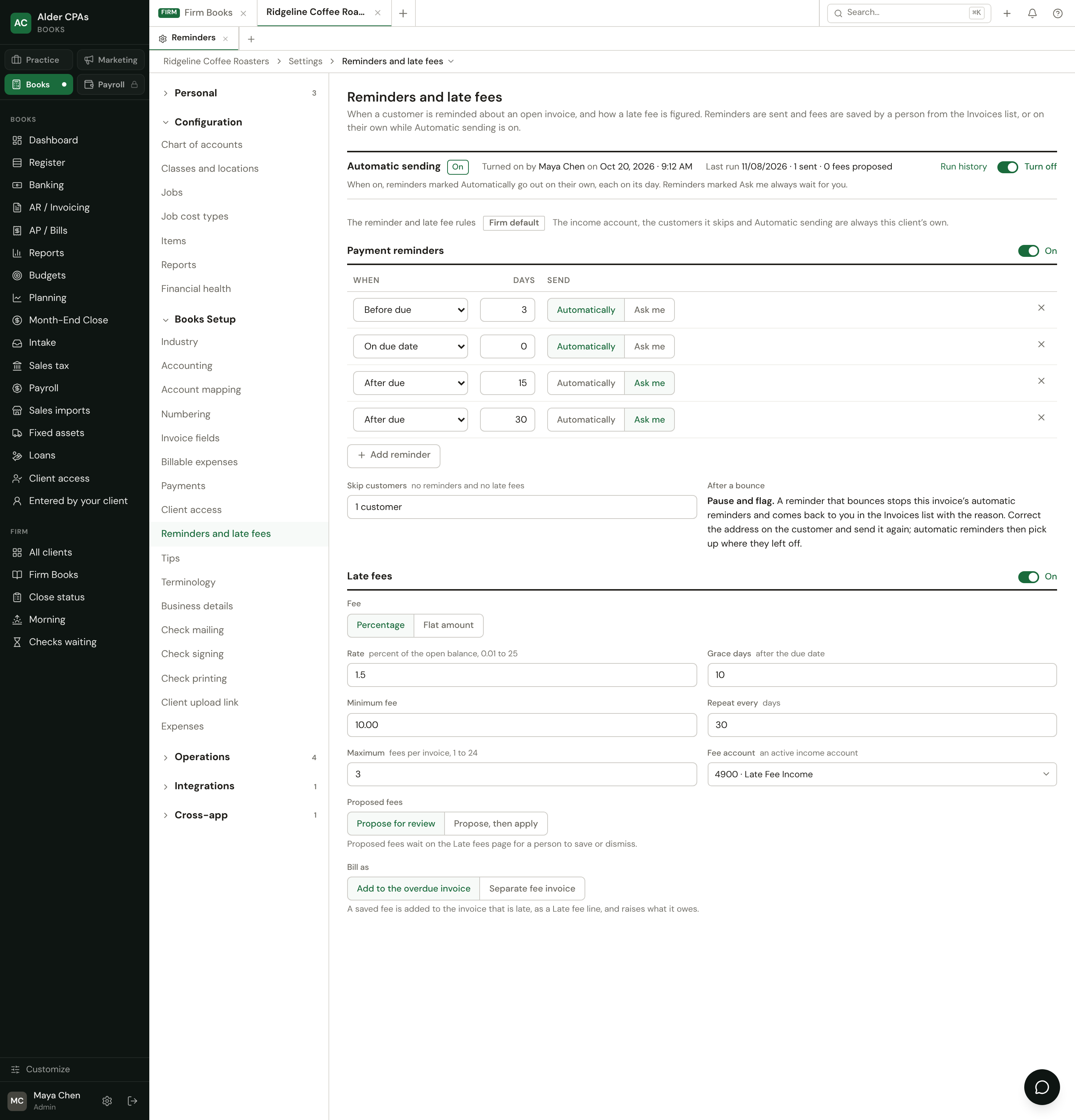 Settings → Reminders and late fees for Ridgeline Coffee Roasters: automatic sending on, four reminders, and a 1.5% late fee added to the overdue invoice
The page has three parts:
- Automatic sending — the switch that lets reminders marked Automatically go out on their own. See Turn on automatic sending.
- Payment reminders — when a customer is reminded.
- Late fees — how a fee is figured and billed.
Changing these settings takes the Books settings and account mappings permission and the Invoices, estimates and customers permission.
Rules that come from your firm
If your firm sets reminder and late-fee rules for all its clients, a line under the switch says where this client's rules come from: Firm default while they follow the firm, or This client's own once someone changes one here, with Use firm default to go back. The fee account, the customers this client skips and Automatic sending are always the client's own, never the firm's.
Set up payment reminders
- Turn on Payment reminders. If there are no reminders yet, Books adds one for you: 15 days after due, Ask me.
- For each reminder, choose When: Before due, On due date or After due, and the number of Days. A reminder on the due date is always 0 days. Before or after, it is 1 to 365 days.
- Choose how it is sent: Automatically or Ask me.
- Click Add reminder for another. A client can have up to 12.
Remove a reminder with the × at the end of its row. Turning Payment reminders off keeps the reminders you set, so turning it back on brings them back.
Automatically or Ask me is the most useful choice on the page:
| Send | What happens |
|---|---|
| Automatically | While Automatic sending is on, the reminder goes out on its own on its day. While it is off, the reminder waits in the Invoices list for you to send, and the row says so. |
| Ask me | The reminder always waits in the Invoices list for a person to send it, whether automatic sending is on or off. |
A common setup is a friendly automatic reminder 3 days before the due date and another on it, and Ask me for the ones after it, so a person looks at an overdue account before it is chased.
Skip customers
Skip customers lists the customers who get no reminders and no late fees: a partner you settle with differently, or a customer whose account you are handling by phone. Click the box, then tick each customer. The box shows how many are skipped.
What happens after a bounce
If the last email to a customer about an invoice bounced, was marked as spam or went to an address on the do-not-email list, that invoice's reminders stop going out on their own. The reminder comes back to you in the Invoices list, marked Needs a person, with the reason.
Correct the email address on the customer record, then send the reminder from the invoice (More → Reminder). Once an email about that invoice goes through, its automatic reminders pick up where they left off.
Set up late fees
- Turn on Late fees. If no rate is set yet, Books fills in 1.5%.
- Under Fee, choose Percentage or Flat amount.
- Fill in the rule:
- Rate — the percent of the open balance, 0.01 to 25. Or Amount for a flat fee.
- Grace days — how many days after the due date before a fee is charged.
- Minimum fee — for a percentage, the smallest fee charged.
- Repeat every — the days between one fee and the next on the same invoice.
- Maximum — how many fees one invoice can get, 1 to 24.
- Fee account — the income account the fee is recorded to. Only active income accounts are offered. If the client has none, Books offers to add one right there.
- Choose what happens to a proposed fee under Proposed fees:
- Propose for review — each fee waits on the Late fees page for a person to save or dismiss.
- Propose, then apply — a fee nobody dismisses is applied after the days in Apply after (0 to 30). This works only while Automatic sending is on. Until then, each proposed fee waits for you, and the page says so.
- Choose Bill as:
- Add to the overdue invoice — a saved fee is added to the late invoice as a Late fee line and raises what it owes.
- Separate fee invoice — a saved fee becomes its own invoice to the same customer, due on receipt.
Until the fee and the fee account are filled in, the page holds your late-fee change and says why: Late fees are saved once the fee is filled in. or Late fees are saved once a fee account is chosen.
How a late fee is figured
Books checks each open invoice that has a balance:
- The first fee comes due the first day the invoice is more than its grace days past due. With 10 grace days, an invoice due Oct 15, 2026 is due its first fee on Oct 26.
- Each later fee comes due once the invoice is another Repeat every days later, up to the Maximum. Each is numbered: First fee, Second fee, Third fee.
- A percentage is figured on what the invoice owes, not counting late fees already added to it, rounded to the cent. If that comes to less than the Minimum fee, the minimum is charged. At 1.5% with a $10.00 minimum, a $465.50 balance comes to $6.98, so the fee is $10.00. On $2,480.00 it is $37.20.
- No fee on a fee. A separate fee invoice never earns a late fee of its own, and an invoice whose only open amount is late fees gets no further fee.
- Skipped customers get none.
When fees are proposed. While Automatic sending is on, Books checks once a day and proposes every fee that has come due.
While it is off, fees are proposed when someone clicks Find late fees (on the Late fees page, Propose now opens it) and then Add … to review. Either way, a check after a gap catches up: every fee that has come due is proposed at once, each numbered, and each is dated the day of the check: a saved fee is recorded on that day, or its fee invoice is dated that day, so nothing is back-dated into an earlier month.
Each fee still shows the day it came due.
On the Late fees page and in Proposed late fees, a fee proposed later than the day it came due says both under its number, for example due 10/11/2026, proposed 11/08/2026, and its Days late is counted to the day it came due.
On the invoice, its line reads Late fee (due Oct 11, 2026). The number of fees is the same as if each had been proposed on its own day. Each is figured on what the invoice owes on the day of the check.
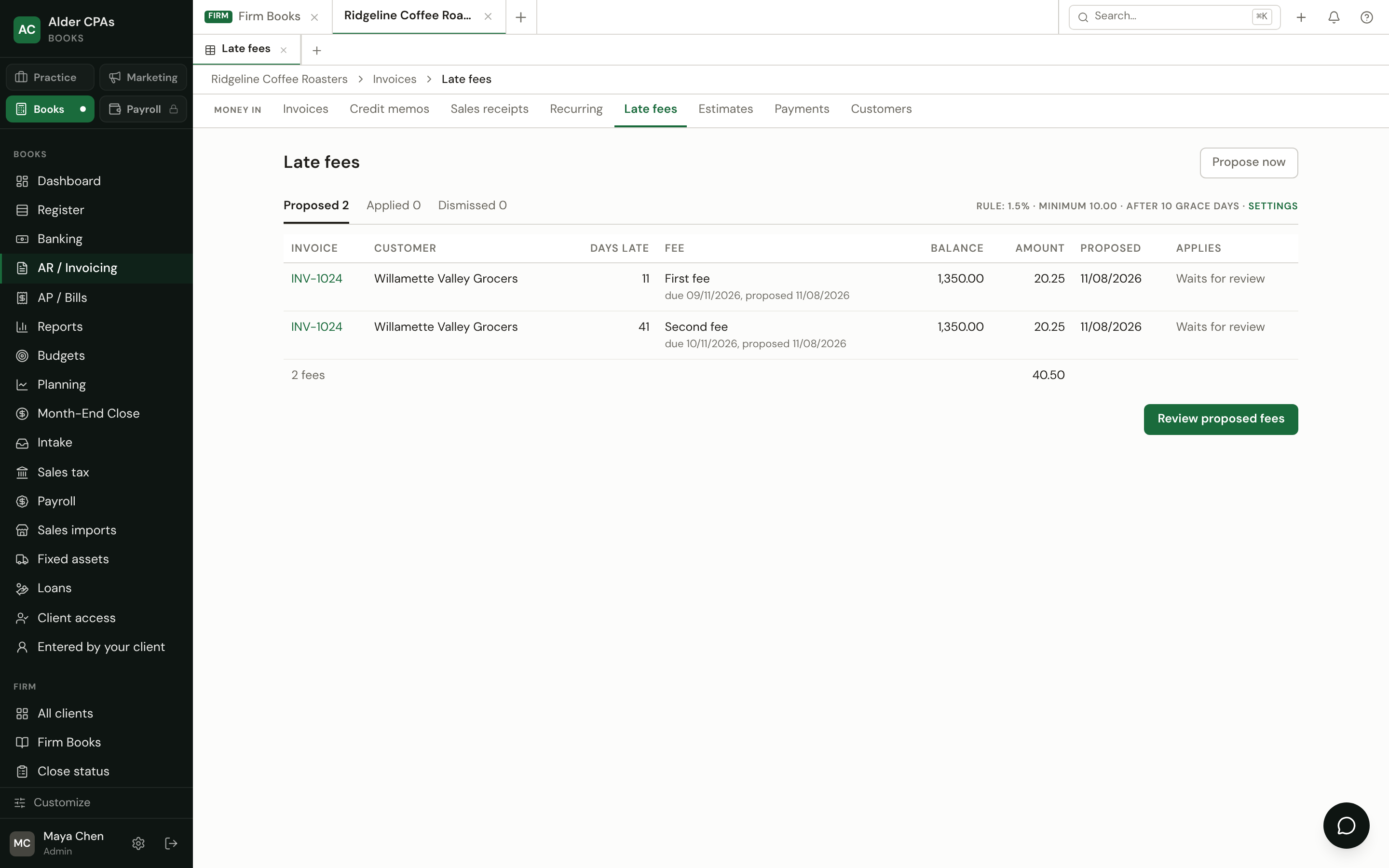 Two fees on INV-1024, proposed together on Nov 8 after a gap: the first came due 09/11/2026 at 11 days late, the second 10/11/2026 at 41 days late, $20.25 each
In the picture, INV-1024 for Willamette Valley Grocers was due Aug 31, 2026 with $1,350.00 open, and automatic sending was off. With 10 grace days and Repeat every 30 days, its first fee came due Sep 11 and its second Oct 11; the third would come due Nov 10. When someone checked on Nov 8, Books proposed the first two together: 1.5% of $1,350.00 is $20.25 each, $40.50 in all.
See what is due, on the Invoices list
When reminders are due or late fees are waiting, a strip above the Invoices list says so: for example 3 late fees proposed · $65.47 and 4 reminders due, each with a Review button. The strip disappears when there is nothing to review. The Late fees button at the top of the list opens the Late fees page at any time.
Send the reminders that are due
- On the Invoices list, click Review beside the reminders due.
- Payment reminders due opens with what would go out today, already run through every check, but not sent.
- Read the rows, then click Send with the number, for example Send 3.
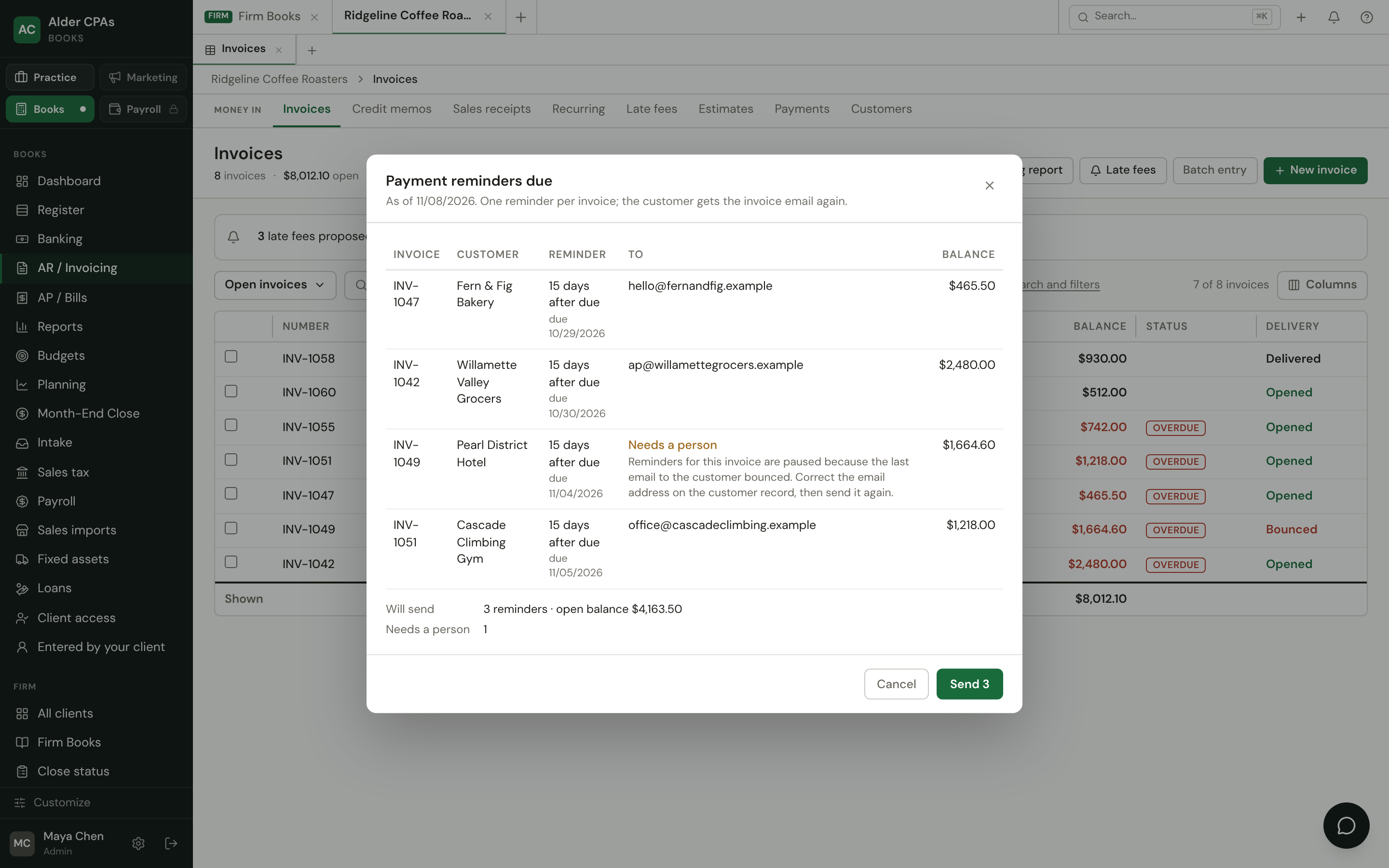 Payment reminders due: three reminders ready to send and one that needs a person because the last email bounced
Each row shows the invoice, the customer, which reminder it is and when it came due, who it goes To, and the Balance. Below the table, Will send counts the reminders and their open balance, and Needs a person counts the ones that won't go.
Things worth knowing:
- One reminder per invoice. If an invoice has missed more than one reminder, only the latest goes out, and the row says so: replaces 1 earlier reminder.
- Every reminder is the invoice email again, sent as a reminder.
- A row marked Needs a person is not sent. Its reason is under it. In the picture, Pearl District Hotel's last email bounced, so that reminder waits until the address is fixed.
- A reminder Books tried to send and couldn't says why. Under its due date, a line reads Last try did not go out: and the reason Books recorded, unless that same reason already shows under Needs a person. A reminder that was never tried, such as one paused after a bounce, gives its reason only once, under Needs a person.
- Clicking twice never sends twice. A repeat answers with the first result.
Sending takes the Send invoices and statements permission.
Send one reminder from the invoice
To remind one customer now, open the invoice and choose More → Reminder, which emails a reminder to the customer's address at once. Or use Send reminder on the invoice's Delivery card, which lets you add a note first. A reminder changes neither the invoice nor the ledger.
Review proposed late fees
- On the Invoices list, click Review beside the late fees proposed, or open the Late fees page and click Review proposed fees.
- Every proposed fee starts selected. Untick any you don't want to bill now.
- Click the button at the bottom. It names what it does and the total: Add 3 fees to their invoices · $65.47, or Save 2 fee invoices for a separate-invoice rule.
Or use Save or Dismiss on one row. Point to a row's Save to see what it will do: Add this fee to INV-1042 for a fee added to its invoice, or Save this fee as its own fee invoice for a separate-invoice rule.
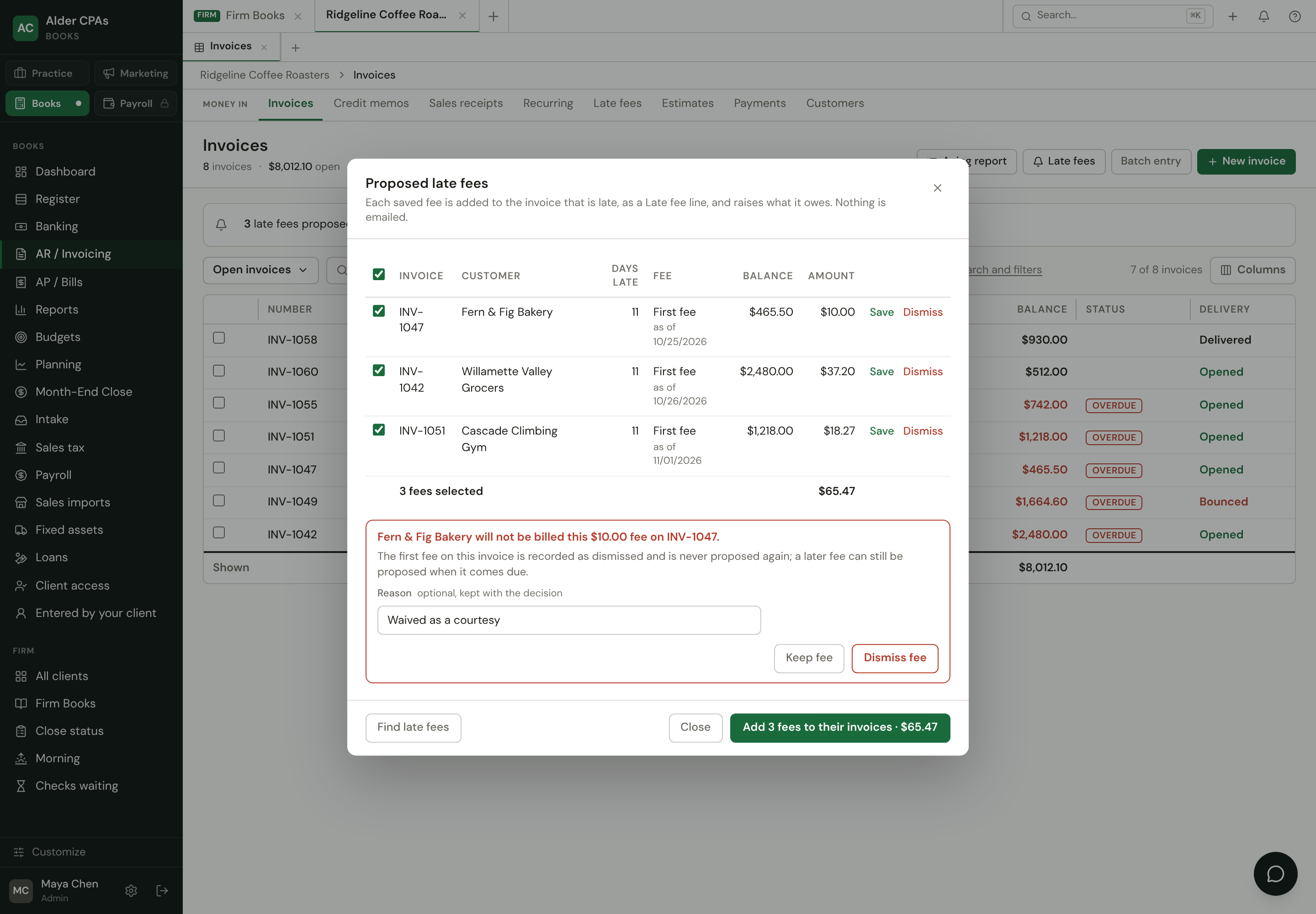 Proposed late fees, with the fee on INV-1047 being dismissed as a courtesy
The line under the title says how these fees will be billed. For example: Each saved fee is added to the invoice that is late, as a Late fee line, and raises what it owes. Nothing is emailed. Saving a fee never emails the customer.
Find late fees checks the open invoices for any newly due fee. If it finds some, click Add 3 to review (or whatever the number is) to list them; nothing is billed until someone saves them. If it finds none, it says what it looked at, for example: No invoice is due a new late fee as of 11/08/2026. Checked 7 open invoices; none is past its 10-day grace period and still due a fee.
Dismiss a fee
Click Dismiss on its row. Books names exactly what you are giving up: Fern & Fig Bakery will not be billed this $10.00 fee on INV-1047. A dismissed fee is never proposed again, but a later fee on the same invoice can still come due. Add a Reason if you like (it is kept with the decision), then click Dismiss fee, or Keep fee to back out.
What a saved fee does to the books
- Added to the overdue invoice: Books records the fee on its own date, the day it was proposed: the receivable goes up and the fee account is credited. The invoice's total stays what you billed, and its balance goes up by the fee.
- Separate fee invoice: Books creates an invoice for the fee, due on receipt, to the same customer, with one line to the fee account. It is saved as sent without an email.
Saving and dismissing fees take the Invoices, estimates and customers permission, and must be done by a person signed in to Books, not through an API key.
The Late fees page
Late fees in the Money In strip (or the Late fees button on the Invoices list) lists every fee, under three tabs: Proposed, Applied and Dismissed, each with its count. Beside the tabs, Rule sums up the client's late-fee rule, with a link to Settings.
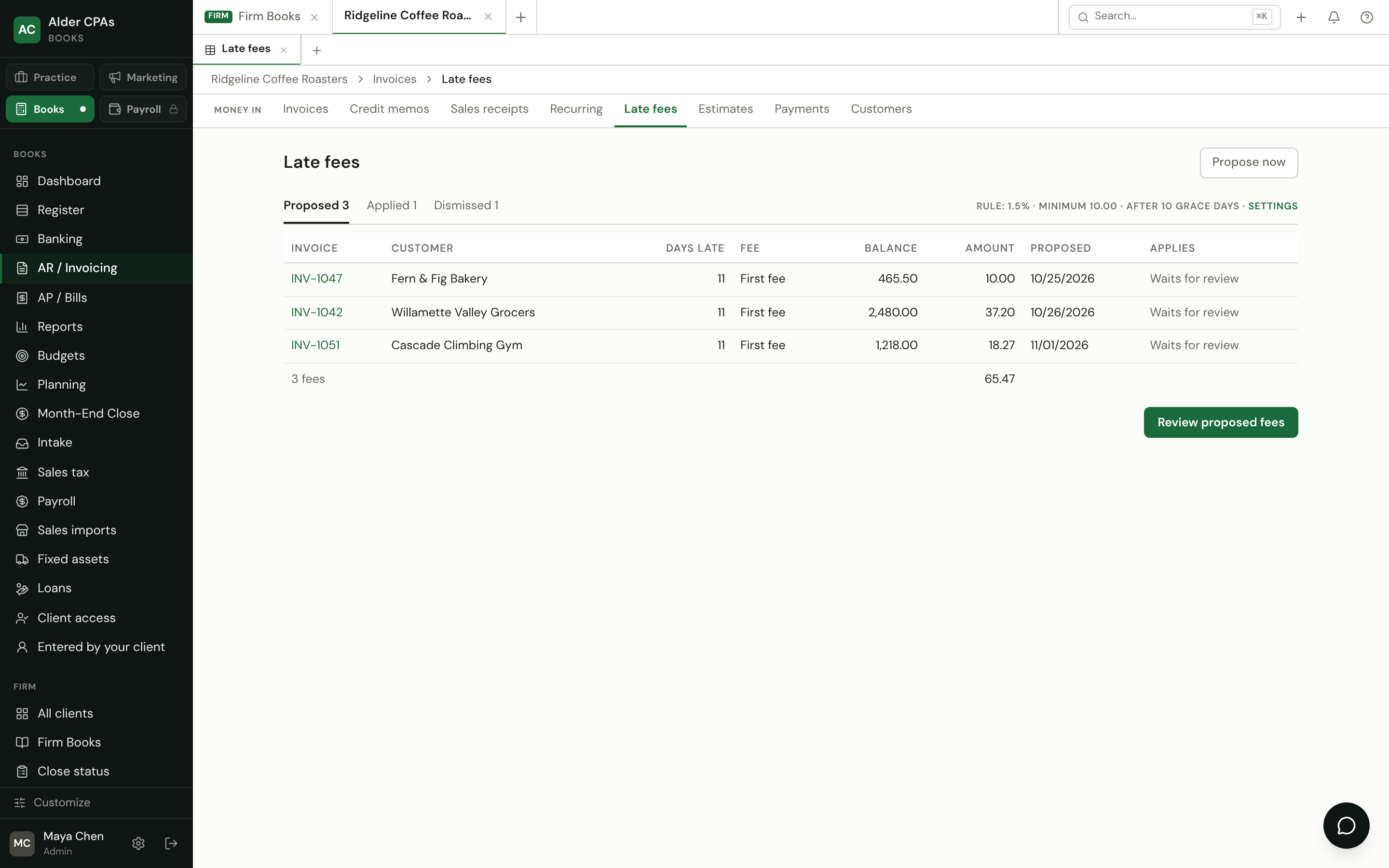 The Late fees page: three fees proposed on Oct 25, Oct 26 and Nov 1, each waiting for review
The columns are Invoice, Customer, Days late, Fee, Balance, Amount, Proposed, and a last column that depends on the tab. Days late is counted to the day the fee came due. A fee proposed after that day, as in a catch-up, shows due …, proposed … under Fee; see How a late fee is figured.
- On Proposed, Applies shows Waits for review, or the date the fee will be applied if the rule is Propose, then apply and automatic sending is on.
- On Applied, Fee invoice links to the separate fee invoice, or reads On INV-1049 for a fee added to the invoice. A fee the daily check applied says by the daily run. A fee someone removed shows Removed and the date.
Propose now opens Proposed late fees, where Find late fees checks for newly due fees. If late fees are off and none has ever been proposed, the page says Late fees are off for this client. with a Turn on late fees button.
Turn on automatic sending
From the next daily check, Books emails customers with no one clicking Send, starting with the invoices the dialog counts, including any whose reminder day has already passed.
Automatic sending lets Books send your Automatically reminders each day without anyone clicking Send. It is off until a person turns it on.
- In Settings → Reminders and late fees, click Turn on in the Automatic sending bar.
- Read the confirmation. It says, in plain words, what your customers will receive and what the first check would do, worked out from your saved settings.
- Click Turn on automatic sending, or Keep off.
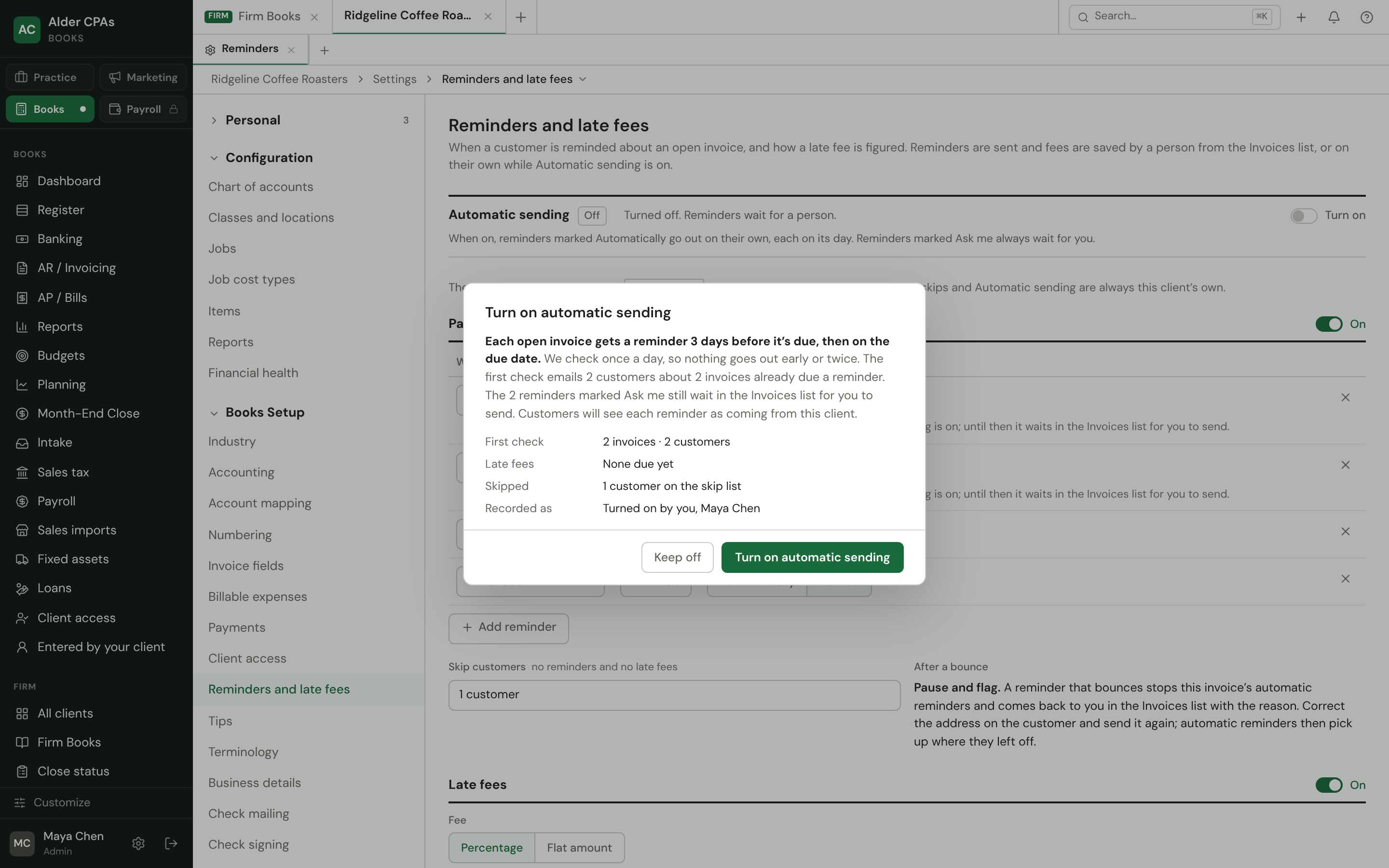 Turn on automatic sending: each open invoice gets a reminder 3 days before it's due, then on the due date; the first check emails 2 customers about 2 invoices
The confirmation tells you:
- What a customer receives, for example Each open invoice gets a reminder 3 days before it's due, then on the due date.
- We check once a day, so nothing goes out early or twice.
- The first check — how many customers and invoices are already due a reminder and would be emailed.
- Late fees — how many fees the first check would propose, and whether they are applied or wait for a person.
- Skipped — how many customers are on the skip list.
- Recorded as — it is recorded in your name.
The switch is off, with its reason, until it can work: Turn reminders on first., Mark at least one reminder Automatically first., or, while a change is still saving, Your last change is not saved yet: automatic sending acts on the saved settings.
Once it is on, the bar shows who turned it on and when, and the last daily run: for example Last run 11/08/2026 · 1 sent · 0 fees proposed.
Run history opens the last 30 days, one row per day: Reminders sent, Skipped (invoices of skipped customers), Fees proposed, Fees applied and the Result, such as a number of reminders that bounced or are still going out. If the check ran a second time on a day, it shows as Already ran today and sent nothing.
While automatic sending is on, the daily check also looks for newly due late fees and proposes them, and applies them only if the rule says Propose, then apply. A proposed fee whose invoice has since been paid or voided is dismissed by the check, with the reason, so it is never billed.
To stop, click Turn off. The confirmation says From now on no reminder or fee goes out on its own for this client., and how many fees waiting to apply stay proposed until someone saves or dismisses them. Reminders already sent are not affected.
Turning automatic sending on or off takes the Send invoices and statements permission and the Books settings and account mappings permission, and only a person signed in to Books can do it, never an API key.
Why can't I…
| What you see | Why, and what to do |
|---|---|
| A reminder row says Needs a person with Reminders for this invoice are paused because the last email to the customer bounced. Correct the email address on the customer record, then send it again. | The last email to that customer bounced, or was marked as spam, or went to a do-not-email address. Fix the address on the customer, then send from the invoice. |
| Send is off: No reminder is ready to send. | Every due reminder needs a person first. Read the reason on each row. |
| The automatic sending switch can't be clicked | Its reason is under it: turn reminders on, mark a reminder Automatically, or wait for your last change to save. |
| Propose now is off: Late fees are off for this client. Turn them on in Reminders and late fees. | Turn on Late fees in Settings. |
| Save on a proposed fee says the invoice is paid or void and the fee is no longer owed | The invoice was paid or voided after the fee was proposed. Dismiss the fee instead. |
| No fee was proposed for an invoice you expected | It may still be inside its grace days, the customer may be skipped, the invoice may already have its maximum number of fees, or it may itself be a fee invoice. |
| A fee can't be added to the invoice, and the reason asks you to map the receivables account | Set the receivables account in Settings → Account mapping, then save the fee again. |
| The fee account was archived | The page says The saved fee account is no longer an active income account. Choose another. |
Remove a late fee added to an invoice
A fee added to an invoice is listed under the invoice's totals, for example Late fee · 10/31/2026, 11 days past due, with Remove. A catch-up fee names the day it came due: Late fee (due Oct 11, 2026) · 11/08/2026, 41 days past due.
- Click Remove.
- The dialog says what comes off and what the invoice will then owe, and the date the fee's entry is reversed on: the fee's own date while that month is open, or today once it is closed.
- Type the reason, at least 10 characters.
- Click Remove $24.60 fee (with the fee's amount), or Keep the fee.
The fee's entry is reversed, never deleted, and stays in the history with your reason. Removing a fee takes the Void or reverse a posted entry permission; without it, Remove is off and says why. If more has been paid or written off against the invoice than it would owe without the fee, Books refuses and tells you to unapply the payment first.
A fee billed as a separate fee invoice is removed by voiding that invoice. A proposed fee is dismissed, not removed.
Shortcuts and tips
- What you see is what goes out. Payment reminders due opens on a check that runs every real rule and writes nothing, and Send sends what is due when you click it, which is normally exactly what it showed. In both review dialogs the button names the count it will act on.
- The latest reminder wins. If an invoice missed a reminder, Books sends the most recent one and marks the earlier ones as replaced, so a customer who fell behind gets one email, not several.
- Use Ask me for anything after the due date until you trust the schedule. You can switch a reminder to Automatically at any time.
- A minimum fee keeps small balances worth charging. At 1.5%, a $300.00 balance comes to $4.50; a $10.00 minimum charges $10.00.
- Dismissing is a decision Books remembers. A dismissed first fee is never proposed again, so waiving one fee for a good customer doesn't bring it back tomorrow.